ThemesGuide7 min read
How to Find Out What Theme a Shopify Store Uses
Every Shopify store names its theme in the page code. Here is where to look, how to read what you find, and what it means for your own theme choice.
Key takeaways
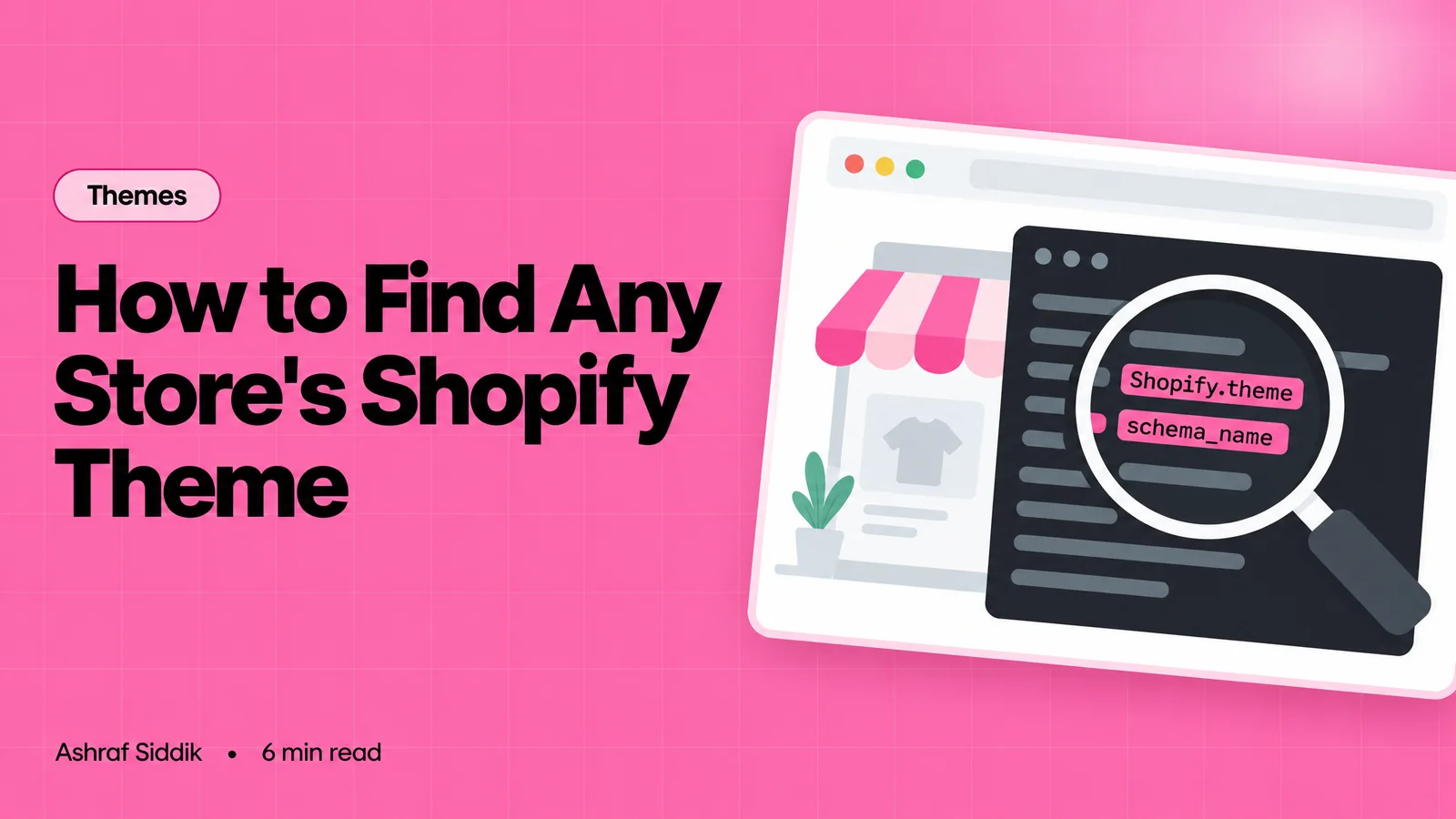
- Every Shopify storefront prints a short block of theme details into its page code. Search the page source for Shopify.theme.
- schema_name is the original theme. name is whatever the store called its copy, so don't rely on it.
- A theme_store_id means the theme was installed from the Shopify Theme Store. No ID means it was uploaded or built for that store.
- Two stores on the same theme can look nothing alike. Use the answer to build a shortlist, then test the theme with your own products.
- Who it is for
- Anyone choosing a theme, or briefing a developer
- Time needed
- About a minute for each store you check
- What you need
- A store address and a browser, or the free theme detector
You find a Shopify store you like and want to know what it's built on. Maybe you're choosing a theme for a new store, maybe you're about to hire a developer and want to know what you're asking for, or maybe a competitor just relaunched and you're curious.
The answer is in the page code of every Shopify store, and it takes less than a minute to find. The harder part is reading it correctly. The name a store gives its theme is often not the theme's real name, and an uploaded copy of a popular theme looks different in the code from the same theme installed from the Theme Store. This guide covers both.
Where Shopify stores reveal their theme
Shopify adds a small block of settings to the code of every storefront page. One part of it is an object called Shopify.theme. It looks like this:
Shopify.theme = {
  "name": "Copy of Warehouse",
  "schema_name": "Warehouse",
  "schema_version": "4.0.1",
  "theme_store_id": 871,
  "role": "main"
};
The values above are an example. Every store shows its own, but the keys are always the same, and each one answers a different question.
What each theme setting tells you
- schema_nameOriginal themeThe theme's own name, set by the theme developer in the theme's settings file. This is the name to search for.
- schema_versionVersionThe version the theme says it is. Compare it with the latest release to see how far behind the store is.
- theme_store_idTheme Store IDPresent when the theme was installed from the Shopify Theme Store. Empty (null) for uploaded and custom themes.
- nameStore's own labelWhatever the store called its copy, often with dates or notes. Useful context, but not the theme's name.
Three ways to check
1. Use a theme detector. The quickest route is the free Shopify theme detector. Enter the store's address and it reads these settings for you, checks whether the theme exists on the Shopify Theme Store, links to it when it does, and tells you how sure the answer is.
2. Read the page source. On a computer, open the store, press Ctrl+U (Windows) or Option+Command+U (Mac) to view the source, then search the page for Shopify.theme. On a phone, browsers hide the source, so use the source code viewer and its quick search for “Shopify theme”.
3. Ask the browser console. Open the developer tools (F12 on most browsers), go to the Console tab, type Shopify.theme and press Enter. The browser prints the same object, already formatted.
How to read what you find
The same theme can show up in three different ways, and each one means something different for you.
Reading the result
- 1
Is there a number in theme_store_id?
Yes: a Theme Store theme. Search the schema name on themes.shopify.comNo: next question
- 2
Does schema_name match a theme on the Theme Store?
Yes: a copy of that theme, uploaded as a fileNo: next question
- 3
Is there a schema_name at all?
Yes: a custom or third-party themeNo: the theme details aren't shared
Uploaded copies are common: a theme moved from another store, a developer's working copy, or a version bought outside the Theme Store.
A real example: Wood Tech, a client store of mine, shows a Theme Store ID and “Warehouse” as the original theme, while its own name for the theme is a long label with a version number and a date. That's normal. Teams rename copies to keep track of what changed and when.
A schema name that isn't on the Theme Store usually means one of two things: a theme built for that brand by an agency or developer, or a theme bought from a marketplace outside Shopify. Keep in mind that a developer can edit the schema name, so a custom theme can carry a familiar name.
Why the version number matters
Shopify only offers theme updates in the admin for themes installed from the Theme Store. Its help centre says updates aren't supported for uploaded themes or for themes bought outside the Theme Store. So an uploaded copy of a Theme Store theme stays on the version it was uploaded with until someone updates it by hand.
When an update is available, Shopify adds it as a separate draft named “Updated copy of …”, and the live theme stays the same until you publish the new copy. If your developer has edited the theme's code, ask them to check the updated copy before you publish it.
For your own store, this is the first thing to check before you hire anyone: an old version can mean missing fixes and features, and updating often comes before any new work. For someone else's store, a version far behind the latest release tells you their theme hasn't been touched in a while.
What to do with the answer
- Build a shortlist, not a copy. Check five stores in your niche. If two or three run the same Theme Store theme, try its demo with your own products and photos before you buy it.
- Look past the theme. Most of what makes a store look good is its photography, colors, type and the sections it chooses to show. The theme is the frame.
- Read the budget behind it. A custom theme usually means an agency build. A renamed Theme Store theme usually means a small team customising on top of a solid base, which is how most growing stores should start.
- Don't copy content. Buying the same Theme Store theme is fine. Copying another store's text, photos or brand is not.
If you want a theme set up properly, or adapted so it fits your products rather than the demo, that's the work I do in Shopify store design and development.
If you're choosing a theme for your own store
Knowing what other stores use is the start. Before you buy, check the theme against your own store:
- Start from your catalog. A store with three products needs a different layout from one with three thousand. Check how the theme handles your number of products, variants and collections.
- Test the demo on a phone. Open the theme's demo store on your phone and go from the home page to a product and the cart.
- Check the demo's speed. Run the demo through the Shopify speed checker. A theme that is slow before you add apps rarely gets faster.
- Look for the sections you need. Filters, size charts, comparison tables, a sticky add to cart. Every one the theme lacks means custom work or another app.
- Prefer the Theme Store. Themes installed from the Theme Store can be updated from the admin, as explained above. A theme bought elsewhere has to be updated by hand.
What the theme can't tell you
The theme is one layer of a store. It won't tell you which apps add the reviews, bundles or pop-ups you see, what the store changed in the code, or how well any of it converts. For the apps, see how to see what apps a Shopify store uses. For the whole picture, including catalog size, prices and markets, run the Shopify store analyzer.
Free tools
Check your own store
Free, no sign-up. Each one runs a part of this guide for you.
Frequently asked questions
Can a Shopify store hide its theme?
Mostly no. Shopify prints the theme settings on every standard storefront page. A developer can rename the theme's original name in its settings file, and stores with a custom front end (headless) don't print the settings at all, but on a normal Shopify store the details are there.
Is it okay to use the same theme as a competitor?
Yes. A Theme Store theme is sold to anyone who buys a license. What you can't do is copy the other store's content: its text, photos, logo and brand belong to them.
Why does the result say the theme is “based on” a Theme Store theme?
The original name matches a theme on the Theme Store, but Shopify reports no Theme Store ID. That happens when the theme was uploaded as a file, for example moved from another store or bought outside the Theme Store. It works the same, but it doesn't get updates through the admin.
Does the theme affect SEO?
Partly. The theme controls the page structure, headings, image handling and much of the page speed, and all of those matter for search. Content, collection structure and links matter more, so think of a good theme as a solid base rather than a ranking boost.
Can I switch themes without losing my products?
Yes. Products, collections, customers and orders belong to the store, not the theme. What you lose is the old theme's settings and any content stored in its sections, so set up the new theme as an unpublished draft and check every template before you publish it.
Sources
- settings_schema.json (theme_info), Shopify developer docs
- Theme architecture, Shopify developer docs
- Updating your theme, Shopify Help Center
- Duplicating themes, Shopify Help Center
- Shopify Theme Store, Shopify
Related services and work

I'm a Shopify developer and CRO specialist. I have built and improved Shopify stores since 2018, completed more than 1,000 projects, and hold a 4.96 average rating across 719 client reviews.
More guides
-
Why Shopify Stores Lose Sales on Mobile: A Practical CRO Checklist
Mobile visitors decide fast, with one thumb and plenty of distractions. Here is how to find the leaks on a Shopify store and fix them in the right order.
-
Shopify CRO Audit Checklist for DTC Brands
The checklist I use to audit DTC Shopify stores, from checking that the data can be trusted to deciding which fixes to ship first.
-
When to Build a Custom Shopify App Instead of Adding Another Subscription
Another subscription is the quickest fix, until you are paying for five apps that still don't match how your business works. Here is how to decide.
-
How to See What Apps a Shopify Store Uses
Apps leave traces in a store's page code: scripts from their own servers, app embed folders and pixel settings. Here is how to read them, and what to do with the list.
-
How to Name a Shopify Store (and Check the Name Is Free)
A store name has to be easy to say, free as a domain and a handle, and clear of other brands. Here is the process I use with clients, and what Shopify lets you change later.
-
Shopify Fees Explained: What You Actually Pay Each Month
The plan price is the smallest part of most Shopify bills. Here is every fee a store pays, which ones you can avoid, and the sales level at which a bigger plan becomes cheaper.