AppsGuide6 min read
How to See What Apps a Shopify Store Uses
Apps leave traces in a store's page code: scripts from their own servers, app embed folders and pixel settings. Here is how to read them, and what to do with the list.
Key takeaways
- Most storefront apps load code from their own servers. Those domains are the most reliable sign an app is installed.
- App embeds load from cdn.shopify.com/extensions/ folders named by the app developer, which often include the app's name.
- Tracking apps that use Shopify's customer events run in a sandbox, so they don't show up as scripts on the page.
- Back-office apps for inventory, accounting or shipping labels never touch the storefront, so nothing outside the store can see them.
- Who it is for
- Store owners researching competitors or auditing their own app stack
- Time needed
- 5 minutes with a tool, about 15 by hand
- What you need
- A store address and a browser, or the free app detector
Shopify stores run on apps: reviews, email pop-ups, upsells, subscriptions, tracking. When you look at a competitor, a store you're thinking of buying, or a client you're about to pitch, the app list tells you a lot about how the store sells.
You can't see a store's admin, but you can see what its pages load. This guide shows the three traces apps leave in the page code, how to check them by hand or with a tool, why some matches are only “probably”, and which apps stay invisible however hard you look.
The three traces apps leave
Apps reach a Shopify storefront in a few different ways, and each one leaves a different trace in the page code.
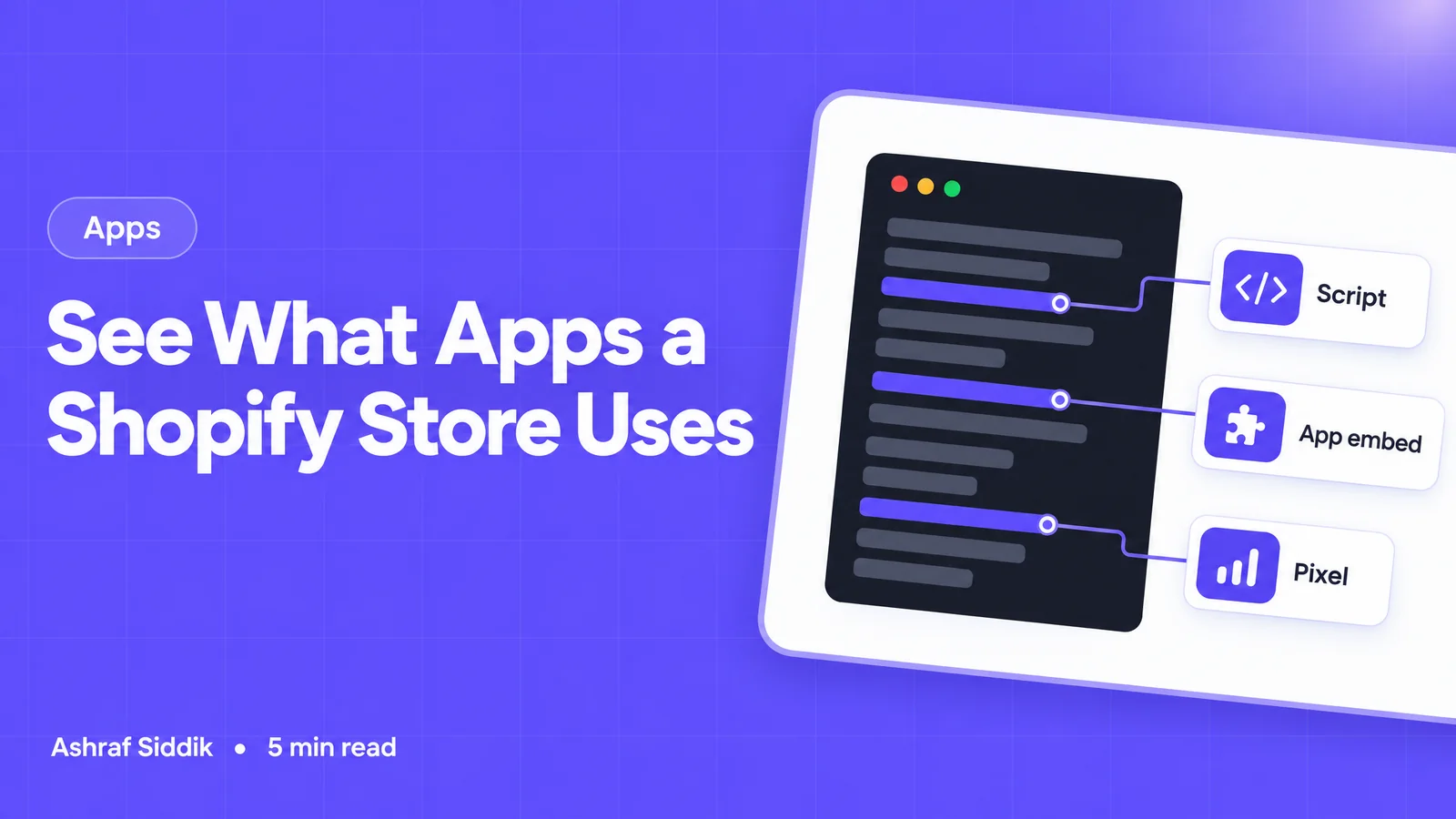
Where apps show up in a store's code
- ScriptsLoaded from the app's own servere.g. static.klaviyo.com for KlaviyoStrongest evidence
- App embedsTheme app extensionscdn.shopify.com/extensions/…Folder named by the developer
- PixelsCustomer eventsRun in a sandboxSometimes named in their settings
Scripts from the app's server. A reviews widget, a chat bubble or an email pop-up has to load its code from somewhere, and that's usually the app's own domain. If a page loads a file from loox.io, the Loox reviews app is running on it.
App embeds. Shopify's recommended way for apps to add features to a theme is the theme app extension. Their files are served from Shopify's CDN under /extensions/, in a folder named by the app developer, such as …/extensions/<id>/onetrust-consent-management-67/. The folder name often gives the app away.
Customer-event pixels. Tracking apps can run as pixels managed in the store's Customer events settings. Shopify's developer docs say app pixels run in a strict sandbox (a web worker) and custom pixels in a lax one (an iframe), without access to the page itself. So their code isn't on the page as a normal script. What the page does include is each pixel's settings, and those sometimes reveal the service, for example a Google tag ID or a TikTok pixel code.
How to check a store by hand
- Open the page source (Ctrl+U on Windows, Option+Command+U on Mac) and look at the
srcof each script. Note every domain that isn't the store's own or Shopify's. - Search for
extensions/to find app embeds, and read the folder names. - Search for
webPixelsConfigListto see the store's pixels and their settings. - Repeat on a product page. Reviews, upsells and buy-now-pay-later messages often load only there.
On a phone, use the source code viewer. Or skip the manual work: the free Shopify app detector reads the home page and a product page, matches every file against more than 100 app signatures, lists app embeds it can't name, counts the store's pixels and shows the evidence for each match.
Why some matches are only “probably”
An app's domain can appear in a page without the app doing anything. Two common reasons:
- Leftover code. Shopify's help centre notes that some apps add code to the theme that isn't removed automatically when the app is uninstalled. The store may have stopped using the app months ago.
- Theme support for apps. Many themes include settings or styles for popular apps whether the store uses them or not. A theme that mentions a reviews app by name doesn't mean the app is installed.
That's why the app detector matches on the domains apps load from, not on app names, and why it separates a file that actually loads (high confidence) from a domain that only appears in the code (medium confidence).
Apps you won't find from the outside
Plenty of apps never touch the storefront:
- Inventory, accounting, ERP and shipping-label apps that work only in the admin.
- Checkout and thank-you page extensions, which you'd only see by placing an order.
- Apps that only load on the cart, account or other pages you didn't check.
- Pixels whose settings don't name the service.
So treat any app list as “what this store shows customers”, not “everything the store pays for”.
What to do with an app list
- Compare categories, not just brands. If the stores you admire all run a reviews app and a post-purchase upsell, that tells you what works in your niche. Which brand they picked matters less.
- Audit your own store. Run it through the app detector and compare the result with Settings > Apps in your admin. Anything on the list that you've uninstalled is leftover code, and it may still slow your pages down.
- Weigh speed against features. Each storefront app adds scripts. The Shopify speed checker ranks third-party scripts by how long they block the page, which shows which apps cost the most.
- Spot consolidation. Five apps doing overlapping jobs can sometimes be replaced by one. When the logic is specific to your business, read when to build a custom app instead of adding another subscription.
If your app stack has grown faster than your store, I can help you trim it or replace it with something lighter through custom Shopify app development and speed optimization.
How to remove an app cleanly
Uninstalling an app doesn't always remove everything it added. When you drop an app from your own store, work through these steps:
- Turn off its app embed. In the theme editor, open App embeds and switch the app off.
- Remove its blocks. Delete any app blocks you placed on product, cart or other templates.
- Uninstall it. Remove it from Settings > Apps and sales channels, and check that the charge has gone from your next bill.
- Search the theme code. In Edit code, search for the app's name and domain. Older apps sometimes added snippets that stay behind. Work on a duplicate theme, or ask a developer if you're not comfortable editing code.
- Check customer events. Look in Settings > Customer events for any custom pixel you added for the app, and remove it.
- Test again. Run the app detector and the speed checker on your live store to confirm the app's files no longer load.
Free tools
Check your own store
Free, no sign-up. Each one runs a part of this guide for you.
Frequently asked questions
Can a store hide which apps it uses?
Partly. Apps that run in the admin, at checkout or as sandboxed pixels without identifying settings don't show on the storefront. But an app that adds anything to the store's pages has to load code there, and that code is visible.
Does an app in the list mean the store pays for it?
Not necessarily. The code may be left over from an uninstalled app, and many apps have free plans. Treat the list as what the store currently loads.
How many apps is too many?
There's no fixed number. What matters is how much each one costs in speed and whether it earns its place. Measure your key pages with the speed checker, remove what you don't use, and look at the heaviest scripts first.
Do apps slow down a Shopify store?
Storefront apps can. Each one that loads scripts, styles or fonts adds work for the browser, and some load on every page even where they do nothing. Back-office apps don't touch the storefront. The Shopify speed checker shows which third-party scripts block the page the longest.
Will a store know I checked its apps?
Viewing the page source or running a detector loads the page the same way a normal visit does, so the store sees at most an ordinary visit. Use what you find for research, not to copy another store's content or branding.
Sources
- Theme app extensions, Shopify developer docs
- Web pixels, Shopify developer docs
- Pixels, Shopify Help Center
- Uninstalling apps, Shopify Help Center
- ScriptTag, Shopify developer docs
Related services and work

I'm a Shopify developer and CRO specialist. I have built and improved Shopify stores since 2018, completed more than 1,000 projects, and hold a 4.96 average rating across 719 client reviews.
More guides
-
Why Shopify Stores Lose Sales on Mobile: A Practical CRO Checklist
Mobile visitors decide fast, with one thumb and plenty of distractions. Here is how to find the leaks on a Shopify store and fix them in the right order.
-
Shopify CRO Audit Checklist for DTC Brands
The checklist I use to audit DTC Shopify stores, from checking that the data can be trusted to deciding which fixes to ship first.
-
When to Build a Custom Shopify App Instead of Adding Another Subscription
Another subscription is the quickest fix, until you are paying for five apps that still don't match how your business works. Here is how to decide.
-
How to Find Out What Theme a Shopify Store Uses
Every Shopify store names its theme in the page code. Here is where to look, how to read what you find, and what it means for your own theme choice.
-
How to Name a Shopify Store (and Check the Name Is Free)
A store name has to be easy to say, free as a domain and a handle, and clear of other brands. Here is the process I use with clients, and what Shopify lets you change later.
-
Shopify Fees Explained: What You Actually Pay Each Month
The plan price is the smallest part of most Shopify bills. Here is every fee a store pays, which ones you can avoid, and the sales level at which a bigger plan becomes cheaper.