Shopify guideGuide7 min read
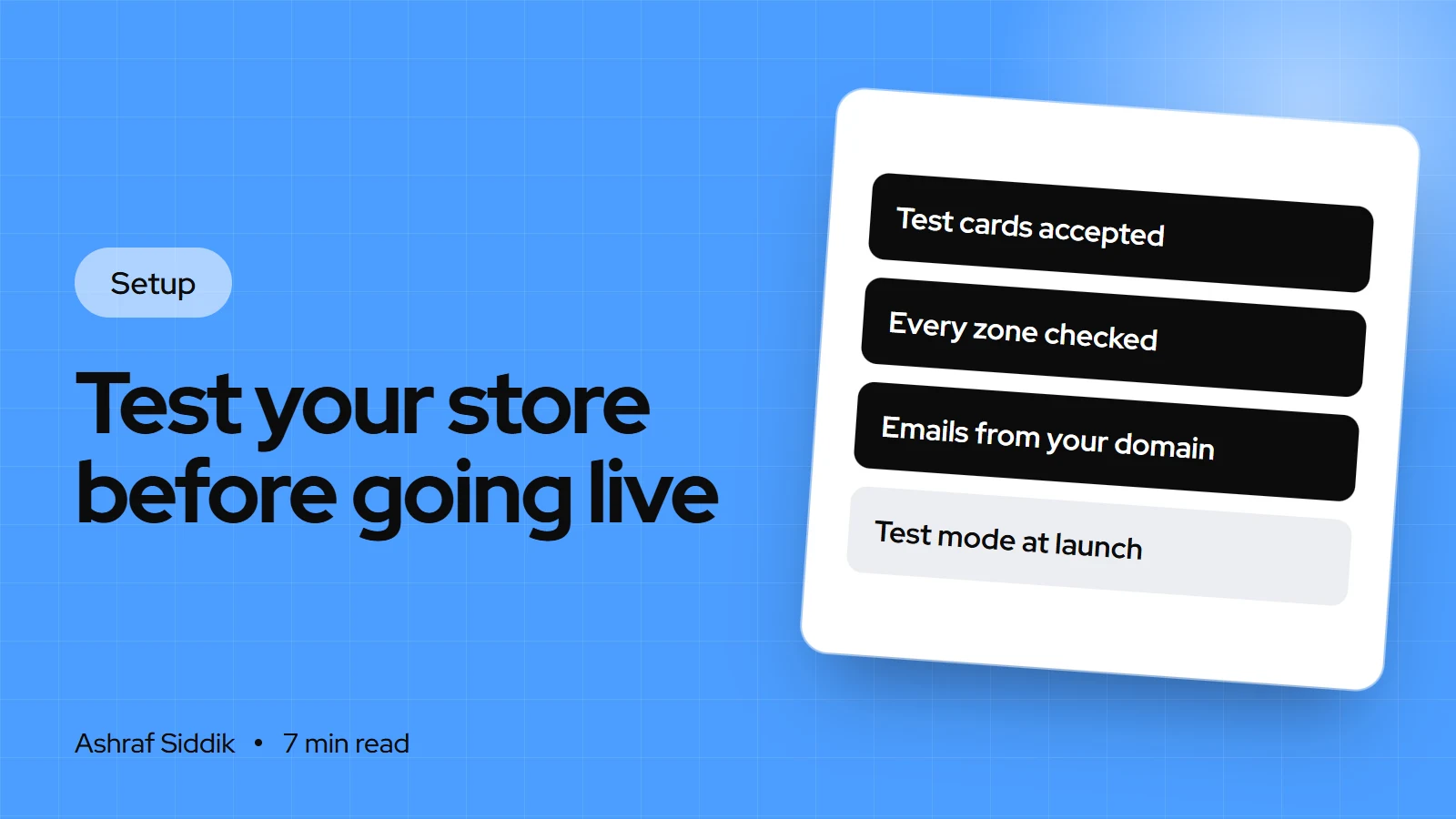
How to Test Your Shopify Store Before Going Live
A store that has never processed an order isn't ready for its first customer. Here is the test routine I run before every launch, with the exact settings and test cards.
Key takeaways
- Test with Shopify Payments in test mode:
Settings > Payments, click Manage, then Enable test mode. Use card 4242 4242 4242 4242 with any future expiry date. - Customers can't place live orders while test mode is on, so switching it off is the first step of your launch, not an afterthought.
- Test the whole order life cycle, not just checkout: a declined card, a discount code, every shipping zone, fulfillment emails, a refund and a cancellation.
- Keep the store in private mode until testing is done. Search engines can't see it while it's private, so submit your sitemap only after you go live.
- Who it is for
- Store owners about to launch
- Time needed
- 2 to 4 hours of testing
- What you need
- A paid plan and Shopify Payments set up
The first real order should not be the first order your store has ever processed. Yet on launch day I regularly see stores where nobody has tried a declined card, opened a shipping email or issued a refund. The checkout works, so everyone assumes the rest does too.
This is the test routine I run before every store I build goes live. It takes two to four hours for a typical store, and it catches the problems that are expensive to find with real customers: wrong shipping rates, missing tax, broken emails and pages that fall apart on a phone. Every setting and test card below was checked against Shopify's Help Center on 7 November 2026.
When to test, and what you need
Start testing about a week before launch, once products, payments, shipping and policies are set up. That leaves time to fix what you find without moving the launch date. You need:
- A paid plan. Shopify only lets you test a payment gateway once you've chosen a plan.
- Shopify Payments set up, since test mode only works once setup is finished.
- The store in private mode, set in
Online Store > Preferencesunder Store access. New stores start this way. - An email address you can check that isn't the store's own, so you see exactly what customers see.
- A phone as well as a computer.
Step 1: Turn on test mode
- Open payments. In your Shopify admin, go to
Settings > Payments. - Manage Shopify Payments. In the Shopify Payments section, click Manage.
- Enable test mode. In the Test mode section, select Enable test mode and click Save.
While test mode is on, real cards are declined and test orders don't appear in your payouts or reports. A few methods don't show at checkout in test mode, including some local payment methods, Shop Pay Installments and PayPal Wallet. To test Shop Pay with a card, add a test card to Shop Pay and start its nickname with test_card.
If you don't use Shopify Payments, Shopify offers a test payment gateway instead. The third option is a real order on a real card, canceled and refunded afterward. Your payment provider may keep its processing fee on that one.
Step 2: Place the test orders that matter
For test cards, the name on the card needs at least two words, the expiry date can be any future date, and the security code can be any 3 digits (4 for American Express). These are the cards I use most:
| Test | Card number | Expected result |
|---|---|---|
| Successful Visa | 4242424242424242 | Order placed |
| Successful Mastercard | 5555555555554444 | Order placed |
| Generic decline | 4000000000000002 | Clear error, cart kept |
| Insufficient funds | 4000000000009995 | Clear error, cart kept |
| Incorrect CVC | 4000000000000127 | Clear error |
| Chargeback | 4000000000000259 | Simulates a dispute |
Then place one order for each situation your store handles. My usual set is:
- A single product, standard shipping, no discount.
- Several products with variants, to check the right size and color arrive on the order.
- A discount code, plus an expired or invalid code to see the error.
- An order just under and just over your free shipping threshold.
- One order per shipping zone, such as a nearby state, a far state and each country you sell to.
- A declined card, to check the error makes sense and the cart survives.
Step 3: Test what happens after the order
Checkout is only half the job. For your test orders, work through the admin side:
- Order confirmation email. It should arrive from your own domain, not a shopifyemail.com address, with your logo and correct details. If it doesn't, see my guide on connecting your domain and business email.
- Fulfillment. Fulfill an order with a tracking number and check the shipping confirmation email and the tracking link.
- Refund. Refund one order in full and another in part, and read the refund emails.
- Cancellation. Cancel an order with restocking selected and check the stock goes back.
- Inventory. Confirm stock counts dropped after each order.
- Order details. Check the address, phone and notes fields show what your packing process needs.
Check how payment is captured too. In Settings > Payments, Payment capture method should match how you work. If you capture on fulfillment or manually, Shopify Payments gives you 7 days before the authorization expires.
Step 4: Check prices, shipping and tax
Most launch-day complaints are about money: a shipping rate that's wrong for one region, or tax that's missing. Check each with a test order:
- Shipping rates. Each zone in
Settings > Shipping and deliveryshould show the options and prices you expect. If a heavy order shows no shipping option, the top weight or price tier probably has a maximum set. - Product weights. Without weights, Shopify can't calculate weight-based or carrier rates correctly. Spot-check a few products.
- Sales tax. In
Settings > Taxes and duties, open United States and check you're collecting in the states where you're registered. Shopify Tax is free each calendar year until a store passes $100,000 in global sales. - Discounts. Check automatic discounts don't stack with codes in ways you didn't intend.
- Checkout fields. In
Settings > Checkout, only require the fields you need. Every required field slows a phone buyer down.
Step 5: Test the storefront on a phone
Most shoppers will see your store on a phone first, so test there before the desktop. Go through it as a customer would:
- Home page, a collection, a product, the cart and checkout, all on a phone.
- Menus, search and filters work, and every menu link goes somewhere.
- Product images load, variant pickers change the image and price, and sold-out variants are clear.
- The contact form sends a message that reaches you.
- Policies are linked in the footer and the checkout.
- Pages work in at least two browsers, such as Safari on iPhone and Chrome on Android.
My mobile CRO checklist goes deeper on what makes a phone visitor buy. For a quick technical scan, run the store through my Shopify store checker.
Step 6: Speed, SEO and redirects
- Speed. Run the home page and a product page through the Shopify speed checker. Large images and apps you no longer use are the usual causes of a slow store.
- Titles and descriptions. Set the home page title (up to 70 characters) in
Online Store > Preferences, and check your main products and collections have their own. - Redirects, if you're replacing an old site. Go to
Content > Menus, click View URL redirects and add each old URL, or import them all from a CSV. Shopify allows up to 100,000 redirects on standard plans. Test a handful of old links by hand. - Tracking. If you use analytics or ad pixels, place a test order and confirm the purchase shows up in each tool.
Step 7: Go live in the right order
The order matters here. Do it in this sequence, ideally early on a weekday so you can watch the first orders:
Launch sequence
- 1
Is test mode switched off in Settings > Payments?
Yes: next stepNo: switch it off, or no one can pay
- 2
Have you archived your test orders?
Yes: next stepNo: tidy them so they don't confuse fulfillment
- 3
Is Private mode off in Online Store > Preferences?
Yes: place one real orderNo: turn it off in Store access
Then place one small real order on your own card, refund it, and submit sitemap.xml in Google Search Console.
Your sitemap is generated automatically at yourdomain.com/sitemap.xml, but Google can't read it while the store is private. Once you're live, verify your domain in Search Console and submit sitemap.xml under Sitemaps.
Common mistakes
- Leaving test mode on after launch. Every customer's card is declined until someone notices.
- Testing only one shipping zone. The far-away region is the one with the wrong rate.
- Skipping the declined-card test. A confusing error message loses the sale.
- Never opening the customer emails. Default templates often show placeholder text or the wrong logo.
- Testing only on a laptop. Problems on a phone are the ones that cost the most.
- Launching on a Friday night. If something breaks, you want to be at your desk.
Shopify launch checklist
| Area | Check | Done when |
|---|---|---|
| Payments | Success and decline tests | Both behave as expected |
| Shipping | One order per zone | Rates match your table |
| Tax | US states or VAT set up | Tax shows on test orders |
| Emails | Confirmation, shipping, refund | From your domain, branded |
| Admin | Fulfill, refund, cancel | Stock and emails correct |
| Storefront | Full path on a phone | No broken links or layouts |
| SEO | Titles, redirects, sitemap | Old URLs land on new pages |
| Launch | Test mode and Private mode off | A real order goes through |
Next steps
Watch the first week closely: read every order, check a few deliveries, and look at your checkout analytics. Then go back over the store's settings once with fresh eyes, using my guide to the Shopify settings every store owner should check.
If you'd like an expert to run this test for you before launch, send me the store while it's still private. I'll review it for free and send you a list of anything that needs fixing, in order of what will cost you the most.
Free tools
Check your own store
Free, no sign-up. Each one runs a part of this guide for you.
Frequently asked questions
How do I place a test order on Shopify?
Go to Settings > Payments, click Manage in the Shopify Payments section, select Enable test mode and save. Then check out with test card 4242 4242 4242 4242, any future expiry date, any 3-digit security code and a name of at least two words.
Can customers buy while Shopify Payments is in test mode?
No. Shopify says customers can't place live orders while your payment providers are in test mode, and real cards are declined. Switch test mode off before you remove private mode.
Do Shopify test orders cost anything?
No. Orders placed in test mode or through Shopify's test gateway aren't charged, and they don't appear in payouts or reports. If you test with a real card and refund it, your payment provider may keep its processing fee.
Do I need a paid plan to test checkout on Shopify?
Yes. Shopify only lets you test a payment gateway after you've chosen a paid plan, and Shopify Payments test mode needs Shopify Payments setup to be finished first.
What should a Shopify launch checklist include?
Successful and declined test payments, one order per shipping zone, tax on test orders, every customer email, fulfillment, refunds and cancellations, a full phone test, titles and redirects, then test mode off, private mode off and a real order.
When should I submit my Shopify sitemap to Google?
After you go live. Google can't read the sitemap while the store is in private mode. Once it's public, verify your domain in Google Search Console and submit sitemap.xml in the Sitemaps section.
Sources
- Test orders, Shopify Help Center
- Placing a test order with Shopify Payments in test mode, Shopify Help Center
- Password protecting your online store, Shopify Help Center
- URL redirects, Shopify Help Center
- Finding and submitting your sitemap, Shopify Help Center
- Choosing a tax service, Shopify Help Center
Related services and work

I'm a Shopify developer and CRO specialist. I have built and improved Shopify stores since 2018, completed more than 1,000 projects, and hold a 4.96 average rating across 719 client reviews.
More guides
-
Why Shopify Stores Lose Sales on Mobile: A Practical CRO Checklist
Mobile visitors decide fast, with one thumb and plenty of distractions. Here is how to find the leaks on a Shopify store and fix them in the right order.
-
Shopify CRO Audit Checklist for DTC Brands
The checklist I use to audit DTC Shopify stores, from checking that the data can be trusted to deciding which fixes to ship first.
-
When to Build a Custom Shopify App Instead of Adding Another Subscription
Another subscription is the quickest fix, until you are paying for five apps that still don't match how your business works. Here is how to decide.
-
How to Find Out What Theme a Shopify Store Uses
Every Shopify store names its theme in the page code. Here is where to look, how to read what you find, and what it means for your own theme choice.
-
How to See What Apps a Shopify Store Uses
Apps leave traces in a store's page code: scripts from their own servers, app embed folders and pixel settings. Here is how to read them, and what to do with the list.
-
How to Name a Shopify Store (and Check the Name Is Free)
A store name has to be easy to say, free as a domain and a handle, and clear of other brands. Here is the process I use with clients, and what Shopify lets you change later.