Shopify glossaryGlossary4 min read
What Are Shopify App Blocks?
App blocks are how Shopify apps put their features inside your theme's sections. Here is how they work, how to add one, and why an app sometimes doesn't show up.
Key takeaways
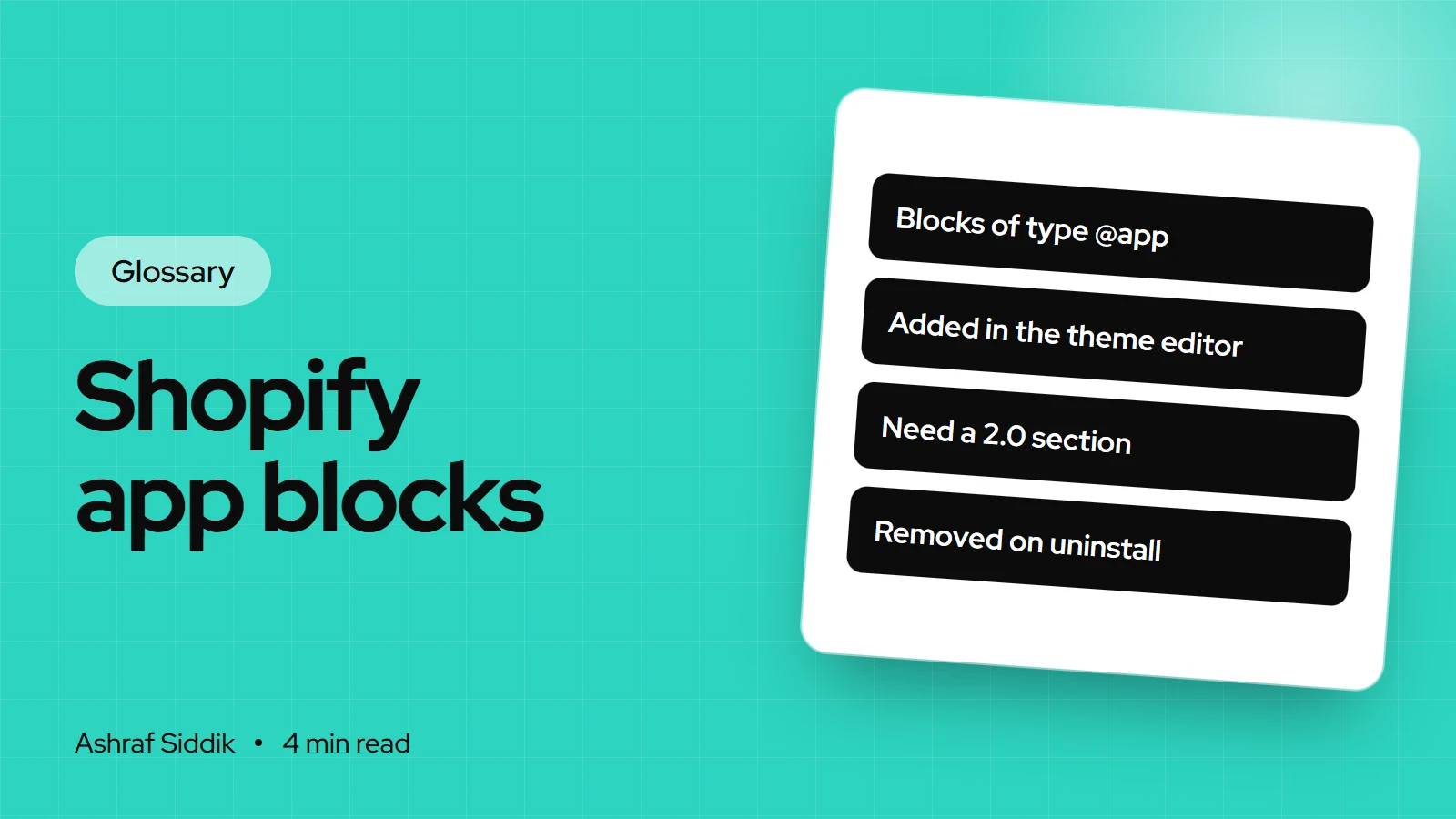
- App blocks are blocks of type
@appthat an app supplies through its theme app extension, so merchants can add the app's content inside a theme section. - They are added, moved, configured and removed in the theme editor, with no theme code edited.
- A section only accepts app blocks if its schema includes the
@appblock type, which Online Store 2.0 themes provide. - App block code is removed when the app is uninstalled, unlike apps that once pasted code into theme files.
- Who it is for
- Store owners adding apps
- Time needed
- 4 minutes to read
- What you need
- An Online Store 2.0 theme
Shopify app blocks are blocks of type @app that an app provides through its theme app extension, so merchants can add the app's content, such as star ratings, a size chart button or a delivery estimate, inside a theme section from the theme editor. No theme code is edited, and the block can be moved or removed like any other block.
When a client says "the app installed but nothing shows", a missing app block is the usual reason. The details below were checked on shopify.dev on 7 November 2026.
How app blocks work
Two pieces have to meet. The app ships a block file in its theme app extension. The theme's section has to say it accepts app blocks, by listing the generic @app type in its schema:
"blocks": [
  { "type": "@app" }
]
The section then renders whatever blocks the merchant has added. In current themes that is one tag, and older section code checks each block's type and renders app blocks with {% render block %}:
{% content_for 'blocks' %}Once both sides are in place, the app's blocks appear in the theme editor's block list for that section. Merchants can also add an app block straight to a template, outside any section. Shopify then wraps it in an apps.liquid section if the theme has one, or a section Shopify generates.
Where app blocks show up in Shopify
- Open the editor. Go to
Online Store > Themesand clickCustomize. - Pick the page, such as a product template, from the selector at the top.
- Add the block. In the section where it should appear, add a block and choose the app's block from the list.
- Drag and configure. Move it into position, set any options the app offers, and save.
Many apps include a button that deep links into the editor with their block ready to add. Each link adds one block.
App blocks vs app embeds
| Aspect | App block | App embed |
|---|---|---|
| Placement | Inside a section you choose | Page head or end of body |
| Visible position | Where you drag it | Floating or invisible |
| Typical use | Reviews, badges, upsells | Chat, tracking, cookie banner |
| Needs an @app section | Yes | No |
Rules and limits
- JSON templates only. Sections that support app blocks belong in JSON templates. Statically rendered sections don't support
@appblocks. - Block limits still apply. A section can hold up to 50 blocks. If it is full, a block has to go before another can be added.
- One resource setting per type. A section that supports app blocks can have only one product setting, one collection setting and so on.
- No limit parameter. Theme developers can't cap the number of
@appblocks withlimit; adding it causes an error. - 30 blocks per app. One theme app extension can contain up to 30 blocks.
Common misconceptions
- "The app is broken because I can't see it." Usually the block was never added, or the section doesn't accept app blocks.
- "App blocks work in every theme." They need sections with
@appsupport. Vintage themes generally don't have them. - "Uninstalled apps always leave code." App block code is removed when the app is uninstalled. Leftover code comes from older apps that edited theme files.
Related terms
- Theme app extension: the part of an app that provides app blocks and embeds.
- App embed block: an app block that renders in the head or body rather than a section.
- Online Store 2.0: the theme architecture that introduced app blocks.
- Section: the theme building block that holds app blocks and theme blocks.
What to do next
- Check your theme is Online Store 2.0, or app blocks won't have anywhere to go.
- See which apps your store runs with the free Shopify app detector.
- Clear out what you don't use. My guide to auditing and removing unused apps covers blocks, embeds and leftover code.
- Developers: my guide to theme app extensions shows how to build blocks of your own.
Free tools
Check your own store
Free, no sign-up. Each one runs a part of this guide for you.
Frequently asked questions
What are Shopify app blocks?
Blocks of type @app that an app supplies through its theme app extension. Merchants add them inside theme sections in the theme editor, then move, configure or remove them without editing code.
Why can't I see an app's block in my theme editor?
Either the section you picked doesn't accept app blocks, the theme is a vintage theme without @app support, or the app hasn't been set up yet. Try another section, or follow the app's deep link.
What is the difference between app blocks and app embeds?
An app block sits inside a section where you place it, like reviews under a product title. An app embed loads in the page head or at the end of the body, for chat widgets, tracking or cookie banners.
Does removing an app block uninstall the app?
No. Removing the block only hides it on that page. The app stays installed and keeps billing until you uninstall it.
Is app block code removed when I uninstall an app?
Yes. Shopify removes app block code when the app is uninstalled. Leftover code usually comes from older apps that edited theme files directly.
Sources
- App blocks for themes, Shopify.dev
- Theme app extension configuration, Shopify.dev
- Online Store 2.0, Shopify.dev
- JSON templates, Shopify.dev
Related services and work

I'm a Shopify developer and CRO specialist. I have built and improved Shopify stores since 2018, completed more than 1,000 projects, and hold a 4.96 average rating across 719 client reviews.
More guides
-
Why Shopify Stores Lose Sales on Mobile: A Practical CRO Checklist
Mobile visitors decide fast, with one thumb and plenty of distractions. Here is how to find the leaks on a Shopify store and fix them in the right order.
-
Shopify CRO Audit Checklist for DTC Brands
The checklist I use to audit DTC Shopify stores, from checking that the data can be trusted to deciding which fixes to ship first.
-
When to Build a Custom Shopify App Instead of Adding Another Subscription
Another subscription is the quickest fix, until you are paying for five apps that still don't match how your business works. Here is how to decide.
-
How to Find Out What Theme a Shopify Store Uses
Every Shopify store names its theme in the page code. Here is where to look, how to read what you find, and what it means for your own theme choice.
-
How to See What Apps a Shopify Store Uses
Apps leave traces in a store's page code: scripts from their own servers, app embed folders and pixel settings. Here is how to read them, and what to do with the list.
-
How to Name a Shopify Store (and Check the Name Is Free)
A store name has to be easy to say, free as a domain and a handle, and clear of other brands. Here is the process I use with clients, and what Shopify lets you change later.