Shopify guideGuide8 min read
Image SEO for Shopify Stores: Alt Text, Files and Theme Code
Shopify resizes and converts your images automatically, so image SEO comes down to what you upload and what your theme outputs. Here is where to add alt text for every image, and what to check in the code.
Key takeaways
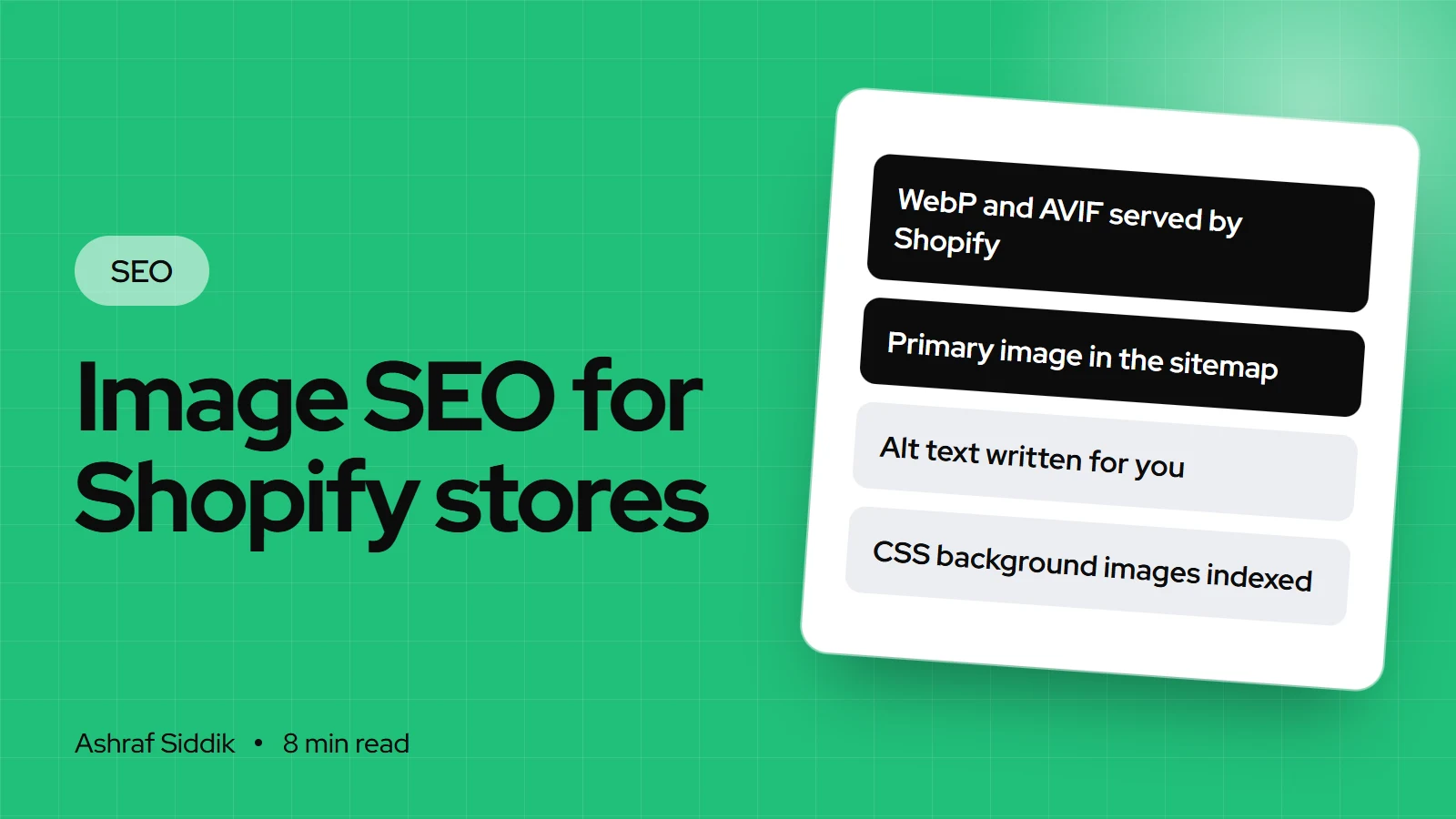
- Shopify already handles the technical half of image SEO: it creates several sizes of every upload, serves modern formats such as WebP and AVIF to browsers that support them, and lists each product's primary image in
sitemap.xml. - The half Shopify can't do for you is the description. Alt text, file names and the text around an image are what Google uses to understand it, and Google calls alt text the most important attribute.
- If an image has no alt text, Shopify's
image_tagfalls back to the product or collection title, so every photo of a product ends up with the same alt text. - Images in CSS backgrounds aren't indexed by Google. Product and hero images should be real
<img>elements built withimage_urlandimage_tag.
- Who it is for
- Any Shopify store with product photos
- Time needed
- An afternoon for your top products
- What you need
- Admin access, and theme code access for the checks
Every image on a Shopify store passes through three hands before a shopper sees it: yours when you upload it, Shopify's CDN when it resizes and converts it, and your theme's Liquid code when it writes the HTML. Image SEO is getting all three right. Shopify does most of the CDN work well by default, so the gains are almost always in what you upload and how the theme outputs it.
This guide covers what Shopify does with images out of the box, how to prepare files, where to add alt text for every kind of image in the admin, what to check in theme code, and the mistakes I see most. Shopify limits and Google guidance are as I checked them on 7 November 2026.
What Shopify does with your images by default
It helps to know what's already handled, so you don't pay for an app to do it twice.
| Task | Shopify default | Your job |
|---|---|---|
| Resizing | Creates several sizes of each upload | Upload one large, sharp original |
| Format | Serves WebP or AVIF where supported | Nothing |
| Responsive markup | image_tag builds a srcset | Check the theme uses it, with sizes |
| Lazy loading | Lazy loads images further down the page | Keep the first image eager |
| Sitemap | Lists each product's primary image | Nothing |
| Alt text | Falls back to the product or collection title | Write it for every image |
Image compression apps were essential years ago. Today the CDN already serves a modern format at the size the browser asks for, so the original file's weight matters far less than it used to. What still matters is starting with a sharp image at a sensible size, and a theme that requests the right width.
Step 1: Prepare files before you upload
- Pick the format. Shopify recommends PNG for most product images, followed by JPEG. It also accepts WebP, GIF, HEIC, TIFF, BMP and SVG. The CDN converts for the shopper's browser either way.
- Size it. Shopify accepts images up to 5000 x 5000 px or 25 megapixels, under 20 MB. For square product images, 2048 x 2048 px usually displays best and leaves room for zoom.
- Keep one aspect ratio per catalog. Mixed ratios make collection grids uneven and can cause layout jumps. Choose square or portrait and stick to it.
- Name the file. Google advises short, descriptive file names.
navy-merino-crew-sweater-front.jpgtells Google something.IMG_4031.jpgtells it nothing. Use hyphens, lower case and no stuffing. - Shoot more than one angle. For product rich results, Google recommends several high-resolution images, ideally in 16x9, 4x3 and 1x1 ratios. Front, back, detail and in-use shots also answer shoppers' questions before they ask.
Content > Files by changing its URL handle, but Shopify's help notes that the old URL then stops working. Any page, email or other site linking to the old image URL will break. Getting the name right before upload avoids that.Step 2: Add alt text everywhere
Alt text describes an image for screen readers and for search engines, and Google calls it the most important attribute for image metadata. Shopify keeps alt text in different places depending on where the image lives.
Product images
- Open the product. In your admin, go to
Productsand click the product. - Click the image in the Media section, then click Edit alt text.
- Write the description and click Save alt text. Repeat for every image, including variant images.
Collection and blog post images
- Open the collection or blog post and find its featured image.
- Click Update, then Edit image, enter the alt text and click Save.
Theme images, such as banners, image-with-text sections and logos, are stored in Content > Files. Open the file there and add alt text. Themes that output the file's alt text will pick it up wherever the image is used.
How to write alt text that works
Describe what the image shows, in plain words, using the language a shopper would search with. Each image of a product should say what's different about it.
| Image | Weak alt text | Better alt text |
|---|---|---|
| Main product photo | Sweater | Navy merino crew neck sweater, front view |
| Detail shot | Sweater sweater wool sweater | Close-up of ribbed cuff on navy merino sweater |
| Lifestyle shot | Image 3 | Man wearing navy merino sweater with chinos |
| Decorative divider | Navy sweater best price | Leave empty |
Keep it to a short sentence. Google warns against stuffing keywords into alt text, and repeating the product name five times helps nobody. Purely decorative images, such as dividers or background textures, should have empty alt text so screen readers skip them.
The alt text fallback trap
Here is a Shopify detail most owners don't know. When an image has no alt text, the image_tag filter uses the resource title instead, for product, variant, collection, article and line item images. So a product with eight photos and no alt text outputs the product title eight times.
That looks fine in a quick audit, because no image is "missing" alt text. It's still eight identical descriptions of eight different photos, which tells Google and screen reader users nothing about the difference between the front, the back and the detail shot. When I audit image SEO, I check for repeated alt text, not just empty alt text.
Step 3: Check how your theme outputs images
A current Shopify theme handles most of this, but custom sections, page builders and older themes often don't. Open a product page, view the source, and check the main product image against this list.
- It's an
<img>element. Google finds images in thesrcattribute of<img>and doesn't index CSS background images. A product photo or hero set as a background won't appear in Google Images. - It has a
srcas well as asrcset. Google recommends always keeping a fallbacksrc, because some crawlers don't readsrcset.image_tagoutputs both. - It's built with
image_urlandimage_tag. For example{{ product.featured_image | image_url: width: 1200 | image_tag: sizes: '(min-width: 990px) 50vw, 100vw' }}.image_urlaccepts widths up to 5760 px but never upscales beyond the original. - It has
widthandheight.image_tagadds them, which prevents layout shift as the image loads. - The first image isn't lazy loaded.
image_taglazy loads sections further down the page automatically. The main product image and the hero should load eagerly, because they're usually the Largest Contentful Paint element. My guide to Core Web Vitals on Shopify covers that fix in detail.
How Google finds your images
Shopify's sitemap.xml includes each product's primary image alongside the product URL. Additional product photos, collection images and blog images are found the normal way, by Google crawling the page and reading the <img> elements. That's enough for most stores, so I rarely recommend a separate image sitemap app.
Context matters as much as discovery. Google uses the text around an image to understand it, so a product image next to a real product description, a clear title and helpful headings is understood far better than one floating on a thin page. Google also recommends using the same image URL across pages, so it can cache it. Shopify does this naturally when you reuse an image from Files rather than uploading copies.
Shopify themes also include product schema markup, and Google recommends several high-resolution images for product results. Check what your theme outputs by running a product URL through Google's Rich Results Test and looking at the image property.
Images on a multilingual store
If you sell in more than one language, translate alt text along with the rest of the product content wherever your translation tool supports it. Google also suggests translating file names when you localize images. On Shopify, an image file is shared across languages, so a neutral, descriptive file name in your main language is the practical choice, with translated alt text doing the local work.
Common mistakes
- Relying on the title fallback, so every product photo has the same alt text.
- Keyword lists in alt text. Google treats keyword stuffing as spam, and it reads badly to screen reader users.
- Text baked into images. Sale messages and size charts as images can't be read by Google or translated. Put the words in HTML.
- Hero and product images as CSS backgrounds, which Google doesn't index and which load late.
- Lazy loading the first product image, which slows LCP.
- Renaming files that are already linked, which breaks the old image URLs.
- Paying for a compression app without checking what the CDN already serves.
Image SEO checklist
- Originals are sharp, one aspect ratio, around 2048 px on the long side, under 20 MB.
- File names are short, descriptive and hyphenated before upload.
- Every product image, including variant images, has its own alt text.
- Collection, blog and theme images have alt text, set in the product, collection, post or
Content > Files. - Decorative images have empty alt text.
- No repeated alt text across a product's photos.
- Product and hero images are
<img>elements built withimage_urlandimage_tag. - Main product image and hero load eagerly. Images below them lazy load.
- Product pages have real descriptive text near the images.
- Alt text translated for every published language.
What to do next
Start with your ten best-selling products. Write proper alt text for every photo, check the theme outputs it, and fix the first-image loading. Then work through collections and theme images. You can run any page through the free Shopify store analyzer to spot images and pages that need work.
If you'd like it done across the whole catalog, my Shopify SEO work starts from $200 and covers alt text, theme image output and structured data together. Or send me your store for a free review first.
Free tools
Check your own store
Free, no sign-up. Each one runs a part of this guide for you.
Frequently asked questions
How do I add alt text to images in Shopify?
For product images, go to Products, open the product, click the image and choose Edit alt text. For collection and blog post images, click Update, then Edit image, under the featured image. For theme images such as banners, open the image in Content, then Files, and add the alt text there.
Does Shopify compress images automatically?
Shopify creates several sizes of each image and its CDN serves a modern format such as WebP or AVIF to browsers that support it, at the width the theme requests. That covers most of what compression apps used to do, so start with a sharp original and check your theme requests sensible widths.
What size should Shopify product images be?
Shopify accepts images up to 5000 x 5000 px or 25 megapixels, under 20 MB, and says 2048 x 2048 px usually displays best for square images. Keep one aspect ratio across your catalog so collection grids stay even.
Are Shopify product images in the sitemap?
Yes. Shopify's sitemap includes each product's primary image. Other product photos, collection images and blog images are found when Google crawls the page and reads the image elements, so they need to be real img tags rather than CSS backgrounds.
What happens if I leave alt text empty on Shopify?
Shopify's image_tag filter falls back to the product, variant, collection or article title. That means every photo of a product can end up with the same alt text, which tells Google nothing about the difference between them. Write alt text for each image.
Do image file names matter for Shopify SEO?
Google recommends short, descriptive file names, so name files before you upload them. You can rename a file later in Content, then Files, by changing its URL handle, but the old image URL then stops working.
Sources
- Google image SEO best practices, Google Search Central
- Product media types, Shopify Help Center
- Adding keywords to your store (alt text), Shopify Help Center
- Uploading files, Shopify Help Center
- image_tag filter, Shopify.dev
- image_url filter, Shopify.dev
Related services and work

I'm a Shopify developer and CRO specialist. I have built and improved Shopify stores since 2018, completed more than 1,000 projects, and hold a 4.96 average rating across 719 client reviews.
More guides
-
Why Shopify Stores Lose Sales on Mobile: A Practical CRO Checklist
Mobile visitors decide fast, with one thumb and plenty of distractions. Here is how to find the leaks on a Shopify store and fix them in the right order.
-
Shopify CRO Audit Checklist for DTC Brands
The checklist I use to audit DTC Shopify stores, from checking that the data can be trusted to deciding which fixes to ship first.
-
When to Build a Custom Shopify App Instead of Adding Another Subscription
Another subscription is the quickest fix, until you are paying for five apps that still don't match how your business works. Here is how to decide.
-
How to Find Out What Theme a Shopify Store Uses
Every Shopify store names its theme in the page code. Here is where to look, how to read what you find, and what it means for your own theme choice.
-
How to See What Apps a Shopify Store Uses
Apps leave traces in a store's page code: scripts from their own servers, app embed folders and pixel settings. Here is how to read them, and what to do with the list.
-
How to Name a Shopify Store (and Check the Name Is Free)
A store name has to be easy to say, free as a domain and a handle, and clear of other brands. Here is the process I use with clients, and what Shopify lets you change later.