Shopify guideGuide8 min read
How to Optimize Shopify Collection Pages for SEO
Collections usually target a Shopify store's most valuable searches. Here is how Shopify handles their URLs by default, and the steps I take to make them rank.
Key takeaways
- Collection pages usually target a store's most valuable searches, the broad category terms people use when they're ready to browse and buy.
- Shopify's default robots.txt blocks sorted collection URLs and URLs that combine two or more filters. On a standard theme, sorted and filtered views also declare the plain collection URL as their canonical.
- Paginated pages such as
?page=2keep their own canonical on Shopify, which matches Google's advice not to point every page in a series at page one. - Hiding a collection makes its URL return a 404. A URL redirect only takes effect once that happens, and Shopify deletes it automatically if you make the collection visible again.
- Who it is for
- Stores whose category pages don't rank
- Time needed
- 30 to 60 minutes per collection
- What you need
- Admin access and a keyword list
If I could only work on one type of page in a Shopify store, I'd pick collections. A product page can rank for its own name and a few long-tail variations. A collection called "Linen Shirts" can rank for "linen shirts", "men's linen shirts", "linen shirts for summer" and dozens more, and every one of those searchers is ready to look at products. Yet on most stores I audit, collections are a title, an empty description and a grid.
This guide covers how Shopify handles collection URLs by default, then the steps I take to make a collection rank: planning, the search listing, content, filters, pagination, links, and what to do with seasonal and retired collections. Behavior was checked on Shopify's documentation and a live Dawn store on 7 November 2026.
How Shopify handles collection URLs
A single collection can be reached through many URLs. Knowing which ones Google should see is the foundation of everything else.
| URL | Canonical points to | Default robots.txt |
|---|---|---|
/collections/shirts | Itself | Crawlable |
?page=2 | Itself, with the page number | Crawlable |
?sort_by=price-ascending | The plain collection | Blocked |
One filter, such as ?filter.v.availability=1 | The plain collection | Crawlable |
| Two or more filters | The plain collection | Blocked |
/collections/shirts/products/x | /products/x | Crawlable |
The canonical column is what a Dawn theme output when I tested it. Other themes and apps can change it, so check a sorted and a filtered URL on your own store with URL Inspection in Search Console. Tag URLs that combine tags with a + are blocked by the default robots.txt too.
Step 1: Plan collections around real searches
Start from keywords, not from how your warehouse is organized. A collection is worth creating when a search exists for it and you have enough products to fill it. My Shopify keyword research guide covers how to find those searches.
- One primary keyword per collection. "Linen shirts" and "linen shirts for men" can share one collection if the products are the same. Split them only when the products differ.
- Use automated collections for scale. In
Products > Collections, create a collection and add products automatically with conditions, such as product type, tag, price or a metafield. New products then join the right collections without manual work. - Avoid near-empty collections. A collection with two products gives searchers little reason to stay. Wait until you have a real range.
- Avoid near-duplicates. Ten collections that each show roughly the same 40 products compete with each other.
Step 2: Set the title, description and search listing
- Title. In
Products > Collections, open the collection and edit the title. Shopify uses it as the H1, so name the category the way people search it: "Linen Shirts", not "Summer Vibes". - Description. Write the description in the same screen. Most themes show it on the collection page, often above the product grid.
- Search engine listing. Edit the
Page titleandMeta description. Shopify warns that titles over 70 characters may be cut off, and I aim for 60 or fewer. Include the keyword and a reason to click, such as range, price point or delivery. - URL handle. Shopify creates it automatically from the title. Make it short and descriptive, then leave it alone. If you must change it, keep the redirect option ticked. Shopify warns that changing the handle too often can stop a collection appearing in search results.
- Featured image and alt text. Add an image and describe it in the alt text. Alt text is how search engines and screen readers know what the image shows.
Step 3: Add content without pushing products down
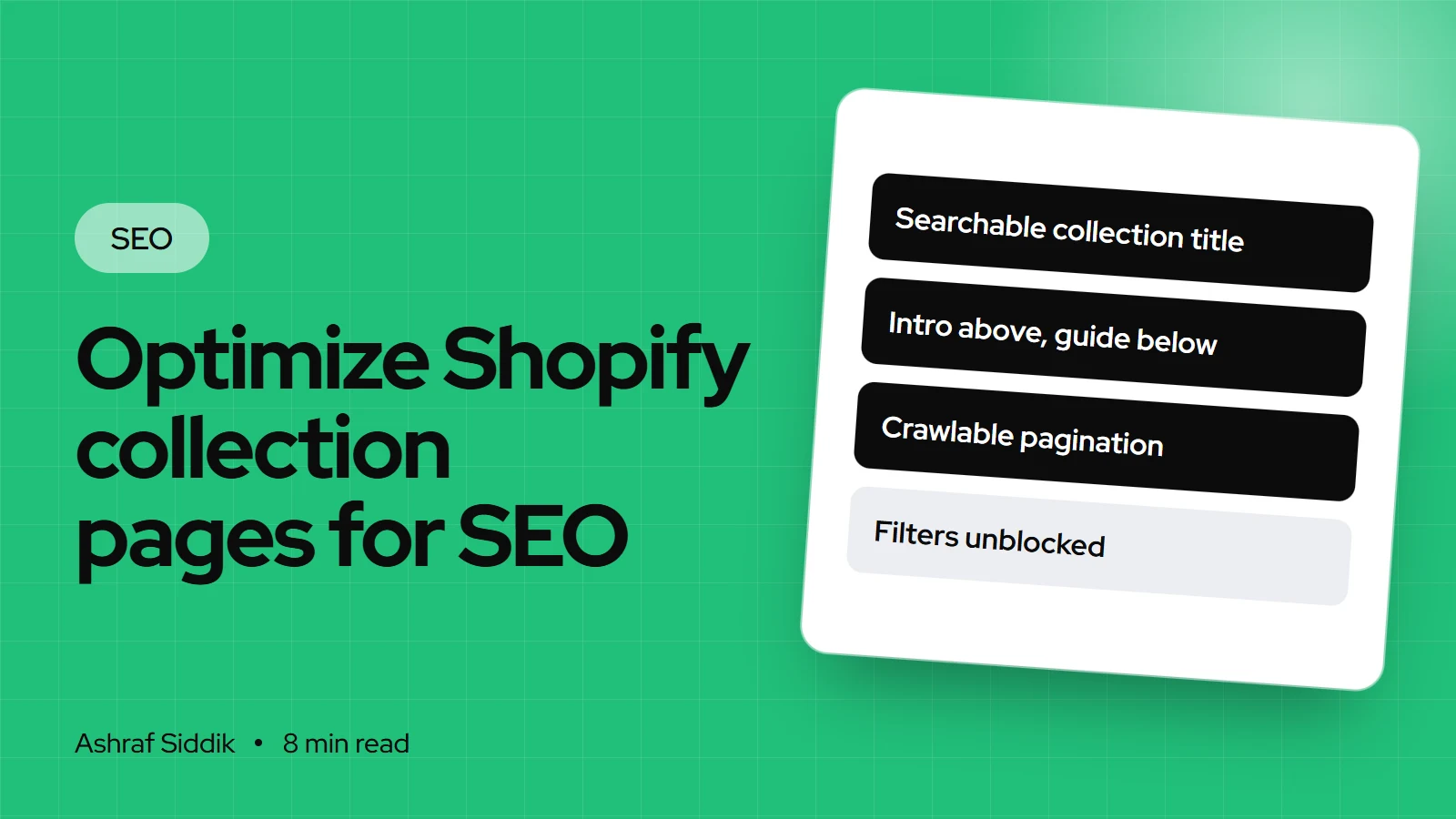
The tension on every collection page is the same: Google wants text that explains the page, and shoppers want to see products straight away. My usual layout:
- Above the grid: one or two sentences, 30 to 50 words, that say what's in the collection and who it suits. Include the main keyword once, naturally.
- Below the grid: a longer section of 200 to 400 words. How to choose, what the materials mean, sizing tips, care, and links to related collections and buying guides.
- A short FAQ at the bottom, built from the questions customers ask about the category.
The lower section usually needs a small theme change: a collection metafield for the extra text and a section that displays it under the grid. On Online Store 2.0 themes this is a quick job, and it keeps the content editable from the admin.
Step 4: Handle filters and sorting
Shopify's storefront filtering lets shoppers narrow a collection by availability, price, variant options and metafields. You create up to 25 filters in the Search & Discovery app, and each choice adds a parameter such as filter.v.option.color=black to the URL.
Shopify's defaults already handle most of the risk. Sorted URLs and combined filters are blocked from crawling, and standard themes point filtered views back to the plain collection with the canonical tag. Google's own guidance on faceted navigation says blocking filter URLs you don't need indexed is generally more effective than relying on canonicals alone. So in most cases, leave the defaults alone.
The real decision is when a filtered view deserves its own page. Use this test:
Filter, or a collection of its own?
- 1
Do people search for this combination by name, such as "black linen shirts"?
Yes: next questionNo: keep it as a filter
- 2
Do you have enough products for a full page, around eight or more?
Yes: create an automated collection with those conditionsNo: keep it as a filter for now
A real collection gets its own URL, title, description and canonical, which a filter URL never will.
Don't try to make filter URLs indexable by editing robots.txt.liquid. Shopify treats that as an unsupported customization, and unblocking filters creates thousands of thin, near-identical pages.
Step 5: Get pagination right
Google's guidance for paginated lists is to link each page to the next with normal <a href> links, give each page its own canonical rather than pointing them all at page one, and not use URL fragments such as #page2 for page numbers. Google no longer uses rel="next" and rel="prev".
Shopify's standard pagination does this: ?page=2 declares itself as the canonical, and Dawn adds "Page 2" to the title tag. Problems start with infinite scroll or "load more" apps that only load products with JavaScript. If you use one, check that real paginated links still exist in the page source, or products deep in the collection may never be crawled.
A sensible products-per-page setting helps too. If a collection has 300 products at 12 a page, the last ones sit 25 pages deep. Raise it in the theme editor if your theme allows, and use sub-collections to break large ranges up.
Step 6: Link collections properly
- Put key collections in the main menu. Edit menus in
Content > Menus. Shopify advises that pages shouldn't be more than three clicks from the homepage where possible. - Use descriptive menu labels that match the collection title, such as "Linen Shirts", not "Shop Now".
- Link between related collections from the lower content block: men's to women's, shirts to trousers in the same fabric.
- Link from blog posts to the collection that answers the post's buying question.
- Show breadcrumbs on product pages, so each product links back to its collection.
Seasonal, empty and retired collections
- Seasonal collections: keep one evergreen URL, such as
/collections/gifts-for-him, and refresh its products each year. A new URL every season starts from zero. - Temporarily empty: leave it live with a short message and links to similar collections, rather than hiding it.
- Retired for good: hide it from the Online Store, which makes the URL return a 404, then add a redirect in
Content > Menus > View URL redirectsto the closest collection. Redirects only work when the old URL no longer loads a page.
Shopify deletes a redirect automatically if you make the collection visible again, so recreate it if you hide the collection a second time.
Common mistakes
- Empty descriptions on every collection.
- Clever names instead of searchable ones, such as "The Edit" for a category people call "linen dresses".
- Long descriptions above the grid that push products off the first screen on a phone.
- Unblocking filters in robots.txt to "get more pages indexed".
- JavaScript-only infinite scroll with no crawlable pagination links.
- Dozens of overlapping collections created by apps or old tag pages.
- Deleting seasonal collections and starting again each year.
Collection page SEO checklist
- One primary keyword per collection, with no near-duplicates.
- Searchable title used as the H1.
- Page title of 60 characters or fewer and a meta description.
- Short, stable URL handle.
- Short intro above the grid, longer guide below.
- Filters left blocked, with high-demand combinations built as real collections.
- Crawlable pagination links in the page source.
- In the main menu, within three clicks of the homepage.
- Related collections and guides linked.
- Retired collections redirected.
Next steps
Pick your five most important collections and work through Steps 2 and 3 on them this week. Then check a sorted and a filtered URL with URL Inspection to confirm your theme behaves like the table above. If it doesn't, the technical SEO checklist explains what to look for in the theme. Once collections are in shape, move down to your product pages.
Not sure which theme you're running or how it handles collections? The Shopify theme detector tells you. If you want the collection content and theme changes done for you, my Shopify SEO service starts from $200, with a fixed quote after a free review.
Free tools
Check your own store
Free, no sign-up. Each one runs a part of this guide for you.
Frequently asked questions
Are Shopify collection pages good for SEO?
Yes. Collections usually match broad category searches from people ready to browse, so they're often a store's most valuable pages. They need a searchable title, a page title, a meta description and useful content to rank.
Do Shopify filters create duplicate content?
Shopify's default robots.txt blocks URLs that combine two or more filters, and standard themes point filtered views to the plain collection with the canonical tag. Leave those defaults in place.
Where should I put the description on a Shopify collection page?
Keep a short intro of one or two sentences above the product grid and put the longer content below it. Most themes need a small change, usually a collection metafield, to show text under the grid.
How do I change a collection's SEO title in Shopify?
Go to Products > Collections, open the collection and edit the search engine listing. Enter the Page title and Meta description and save. Shopify warns that titles over 70 characters may be cut off.
Should paginated collection pages be noindexed?
No. Google advises giving each page in a series its own canonical and linking pages with normal links. Shopify's standard pagination already does this with ?page= URLs.
What should I do with an old Shopify collection?
If it's seasonal, keep the URL and refresh the products each year. If it's retired, hide it so the URL returns a 404, then redirect it to the closest collection in Content > Menus > View URL redirects.
Sources
- Managing collection settings, Shopify Help Center
- Storefront filtering, Shopify Developer Docs
- Editing robots.txt.liquid, Shopify Help Center
- URL redirects, Shopify Help Center
- Pagination and incremental page loading, Google Search Central
- Managing crawling of faceted navigation URLs, Google Search Central
Related services and work

I'm a Shopify developer and CRO specialist. I have built and improved Shopify stores since 2018, completed more than 1,000 projects, and hold a 4.96 average rating across 719 client reviews.
More guides
-
Why Shopify Stores Lose Sales on Mobile: A Practical CRO Checklist
Mobile visitors decide fast, with one thumb and plenty of distractions. Here is how to find the leaks on a Shopify store and fix them in the right order.
-
Shopify CRO Audit Checklist for DTC Brands
The checklist I use to audit DTC Shopify stores, from checking that the data can be trusted to deciding which fixes to ship first.
-
When to Build a Custom Shopify App Instead of Adding Another Subscription
Another subscription is the quickest fix, until you are paying for five apps that still don't match how your business works. Here is how to decide.
-
How to Find Out What Theme a Shopify Store Uses
Every Shopify store names its theme in the page code. Here is where to look, how to read what you find, and what it means for your own theme choice.
-
How to See What Apps a Shopify Store Uses
Apps leave traces in a store's page code: scripts from their own servers, app embed folders and pixel settings. Here is how to read them, and what to do with the list.
-
How to Name a Shopify Store (and Check the Name Is Free)
A store name has to be easy to say, free as a domain and a handle, and clear of other brands. Here is the process I use with clients, and what Shopify lets you change later.