Shopify guideGuide8 min read
How to Set Up Google Merchant Center on Shopify
Google Merchant Center feeds your products to free listings, Shopping ads and Performance Max. Here is how to connect it to Shopify, which product fields matter, and how to avoid the disapprovals that stop products showing.
Key takeaways
- The free Google & YouTube app is the standard way to connect Google Merchant Center to Shopify. It syncs your products, verifies and claims your domain, and can link Google Ads and Google Analytics.
- Before you connect, the store must be out of password mode, have a payment provider, a refund policy and terms of service in the footer, and visible contact details.
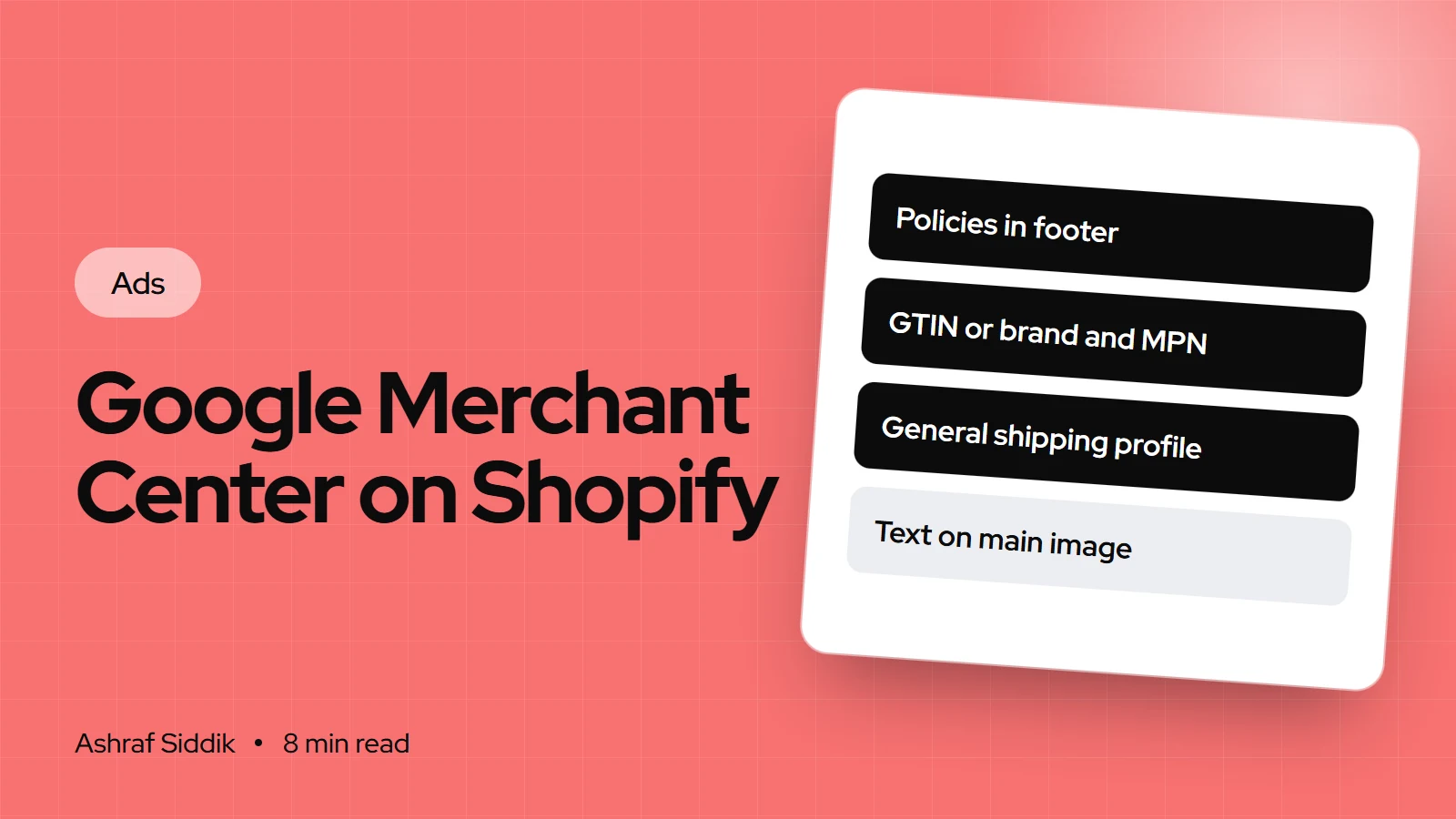
- Every product needs a unique identifier: a GTIN in the variant's barcode field, or a brand and MPN if it has none. Missing identifiers are one of the most common reasons products are held back.
- The first sync can take up to 24 hours, and Google reviews new products within 3 to 5 business days. Eligible US stores can then show products in free listings on the Shopping tab.
- Who it is for
- Shopify stores selling on Google
- Time needed
- An hour, then 3 to 5 days of review
- What you need
- A Google account and admin access
Google Merchant Center is where Google gets the facts about your products: title, price, stock, images, shipping cost and the page to send shoppers to. Free listings, Shopping ads and Performance Max all read from it. If the data is wrong, or doesn't match your product pages, products get disapproved and no ad budget can fix it.
The good news for Shopify stores is that most of the work is done by the Google & YouTube app, which Google manages. This guide covers the setup step by step, the product fields that cause most problems, and the store details Google checks before it trusts you. Steps and requirements come from Shopify's Help Center and Google's Merchant Center Help, checked on 7 November 2026.
What your store needs first
Google checks your store before it approves the account. Sort these out before you start and setup takes minutes rather than days.
| Requirement | Where in Shopify | Why Google asks |
|---|---|---|
| No password page | Online Store preferences | Google must crawl your product pages |
| Payment provider | Settings > Payments | Shoppers must be able to buy |
| Refund policy and terms | Settings > Policies, linked in footer | Required by the channel |
| Contact details | Contact page or About page | At least one way to reach you |
| Shipping zone | Settings > Shipping and delivery | Rates sync from the General profile |
| Matching currency | Markets | Selling currency must match the country |
Two details trip people up. First, only rates in your General shipping profile sync to Google, and Shopify says custom shipping profiles cause sync errors. Second, carrier-calculated rates only sync for certain carriers in Australia, Germany and the US. Everywhere else, set flat rates for Google. My guide to shipping rates and zones covers the setup, and my returns policy guide helps if you don't have one yet.
How to set up Google Merchant Center on Shopify
- Install the app. Find Google & YouTube in the Shopify App Store and install it. It appears under
Sales channels > Google & YouTube. - Connect your Google account. Click Connect Google Account and choose the Google account you want to own the setup. Allow Shopify access.
- Review the store checks. The app lists any requirement your store doesn't meet yet. Fix them before moving on.
- Choose or create Merchant Center. In the Merchant Center section, pick an account from the drop-down. Only accounts where your Google account is an administrator appear. If you have none, click Create new.
- Verify it's you. Enter your phone number, click Get code, then enter the 6-digit code and click Verify.
- Choose countries and languages. By default the app syncs automatically. To pick markets yourself, click Manage, turn off automatic sync and select them.
- Set shipping. Click Manage beside Shipping settings and choose to import rates from Shopify or set them up in Merchant Center. Some countries require shipping costs on listings, and offers without them are disapproved.
- Set title and description preferences. Decide whether Google uses your Shopify titles as they are or the optimized versions you write in the channel.
- Finish. Accept the terms and complete setup. Products available to your online store start syncing.
The first sync can take up to 24 hours. Google then reviews new products within 3 to 5 business days. You can see each product's status in the Google & YouTube app.
Product data Google needs
Google's product data specification lists the required fields. Shopify fills most of them from your products. The ones that need attention are below.
| Field | Where to set it | Rule |
|---|---|---|
| GTIN | Variant Barcode in the Inventory section | Strongly recommended where one exists |
| Brand and MPN | Google fields in the channel | Needed when a product has no GTIN |
| Product category | Product category in Shopify | Every product needs one |
| Title | Product title or channel title | Up to 150 characters |
| Description | Product description | Up to 5,000 characters |
| Images | Product media | No promo text, watermarks or borders |
A few category rules matter. Apparel sold in the US and several other countries needs age group, gender, color and size. Books need an ISBN. Shopify also says product options and variants must be in English to sync, and some countries require unit pricing. From 31 January 2027, Google will enforce a minimum image size of 500 x 500 pixels, so replace small images now.
If you store a better Google title in a metafield, the channel's mapping lets you point the Google title at that metafield instead of the product title. That keeps your storefront titles short while Google gets the descriptive version.
Connect Google Ads, Analytics and conversion tracking
The same app links the rest of your Google setup. You need an existing Google Ads account where your Google account is an administrator.
- Google Ads. With Merchant Center connected, click Get started in the "Advertise your products with Google Ads" banner, select your account and click Connect.
- Conversion tracking. Google says the app maps Shopify events such as purchase, add to cart and begin checkout to Google Ads conversion actions. You can also turn on enhanced conversions.
- Google Analytics 4. In the "Looking only to set up Google Analytics 4?" banner, click Get started, choose a property or create one, and click Connect.
- Billing. Add valid billing details in Google Ads before you create campaigns.
From here you can create a Performance Max campaign from the app's Overview page or directly in Google Ads. My guides to Performance Max and Google Shopping strategy pick up from this point.
Website verification and domain mismatches
The app verifies and claims your website during setup. Problems start when your product links use a different domain from the one claimed, for example after you connect a new custom domain. Google's fix: in Merchant Center, open Business info, select Edit online store, enter the correct domain and save. The domain must be one listed in your Shopify domain settings.
Why products and accounts get disapproved
Product disapprovals usually come down to data: a missing identifier, a missing category, a price or stock mismatch, or an image with text on it. Fix the field in Shopify and the next sync updates Google.
Account-level problems are more serious. Google's Merchant Center guidelines expect a store to:
- Show contact information clearly, such as a contact form, email address or phone number.
- State a return and refund policy, even if the answer is that you don't accept returns.
- Offer at least one conventional payment method, such as a credit or debit card.
- Disclose the full cost and conditions before purchase, and let shoppers complete checkout.
- Keep the site language and product data in the same language.
Google also asks you to sign in to Merchant Center at least once every 14 months to keep the account active. If an account is flagged, fix every point on the store first, then request a review. A store that looks thin or anonymous struggles here, which is also why it struggles to convert. My guide to building trust in a new store covers the same ground from the shopper's side.
Make the product page match the listing
Merchant Center is a promise about your product pages. When a shopper clicks a listing showing $49 and in stock, the page has to show $49 and in stock, for the same variant. Mismatches cause disapprovals, and they lose sales even when Google misses them.
- Link variants properly, so a click on the blue size M lands with blue size M selected.
- Show the shipping cost or free-shipping threshold on the product page, matching what Google shows.
- Keep sale prices consistent: if a compare-at price shows a discount on Google, the page should show it too.
- Put reviews and returns terms near the buy button, because Google shoppers are often comparing several stores side by side.
Common mistakes
- Connecting while the password page is on. Google can't crawl the store, so setup stalls.
- Custom shipping profiles only. Rates don't sync and listings without shipping get disapproved.
- Made-up GTINs. Use the real barcode or none. Without one, add brand and MPN.
- Old Merchant Center accounts claiming the domain. Remove the claim before connecting.
- Promotional text on the main image. Google doesn't allow it.
- Ignoring warnings. Warnings today often become disapprovals later.
Merchant Center checklist for Shopify
- Password page off, payment provider active.
- Refund policy and terms of service linked in the footer.
- Contact details visible on the store.
- Shipping zone for each target country in the General profile.
- Google & YouTube app installed and Merchant Center connected.
- Phone verification done, countries and shipping set.
- GTINs in barcodes, or brand and MPN in the channel.
- Product category set on every product.
- Images at least 500 x 500 pixels with no text overlays.
- Google Ads and GA4 connected, conversion tracking on.
Next steps
Connect the app, clear any store checks, then work through product warnings until most of the catalog shows as approved. Free listings start once products are approved, so you get value before spending anything on ads.
When the listings are live, the next question is whether the clicks turn into orders. Send me your store and I'll review your product pages and checkout for free. If there is work worth doing, CRO starts from $500.
Free tools
Check your own store
Free, no sign-up. Each one runs a part of this guide for you.
Frequently asked questions
How do I connect Google Merchant Center to Shopify?
Install the Google & YouTube app, click Connect Google Account, then select an existing Merchant Center account or click Create new. Verify your phone number, choose countries and shipping settings, and complete setup. Products then sync automatically.
Is there a Google Merchant Center Shopify app?
Yes. The Google & YouTube app is the official one, and Google manages it. It is free to install and handles product sync, website verification, Google Ads linking and conversion tracking.
How long does it take for products to appear on Google?
The first sync can take up to 24 hours. Google then reviews new products within 3 to 5 business days, according to Shopify. Products with errors stay disapproved until you fix the data.
Do I need GTINs for Google Shopping?
Google strongly recommends a GTIN where the product has one, and you add it in the variant barcode field in Shopify. If a product has no GTIN, such as a handmade item, add the brand and MPN in the channel instead.
Why is my Merchant Center account suspended for misrepresentation?
Google checks that a store is transparent: visible contact details, a stated return policy, a normal payment method and full costs before purchase. Fix every gap on the store, then request a review in Merchant Center.
Are free listings available for Shopify stores?
Yes. Shopify says eligible stores selling in the United States can show synced products in Shopping tab listings for free. Free listings need the same approved product data as ads.
Sources
- Google & YouTube channel requirements, Shopify Help Center
- Set up the Google & YouTube channel, Shopify Help Center
- Syncing your products, Shopify Help Center
- Onboarding to the Google & YouTube app on Shopify, Google Merchant Center Help
- Product data specification, Google Merchant Center Help
- Merchant Center guidelines, Google Merchant Center Help
Related services and work

I'm a Shopify developer and CRO specialist. I have built and improved Shopify stores since 2018, completed more than 1,000 projects, and hold a 4.96 average rating across 719 client reviews.
More guides
-
Why Shopify Stores Lose Sales on Mobile: A Practical CRO Checklist
Mobile visitors decide fast, with one thumb and plenty of distractions. Here is how to find the leaks on a Shopify store and fix them in the right order.
-
Shopify CRO Audit Checklist for DTC Brands
The checklist I use to audit DTC Shopify stores, from checking that the data can be trusted to deciding which fixes to ship first.
-
When to Build a Custom Shopify App Instead of Adding Another Subscription
Another subscription is the quickest fix, until you are paying for five apps that still don't match how your business works. Here is how to decide.
-
How to Find Out What Theme a Shopify Store Uses
Every Shopify store names its theme in the page code. Here is where to look, how to read what you find, and what it means for your own theme choice.
-
How to See What Apps a Shopify Store Uses
Apps leave traces in a store's page code: scripts from their own servers, app embed folders and pixel settings. Here is how to read them, and what to do with the list.
-
How to Name a Shopify Store (and Check the Name Is Free)
A store name has to be easy to say, free as a domain and a handle, and clear of other brands. Here is the process I use with clients, and what Shopify lets you change later.