Shopify guideGuide8 min read
Shopify Metafields Explained, with Examples
Metafields let you add your own fields, such as care guides, dimensions or burn time, to products and other parts of Shopify. This guide shows how to set them up and show them in your theme, with examples.
Key takeaways
- Metafields are custom fields you add to products, variants, collections, customers, orders and other parts of Shopify, for data the standard fields don't cover, such as care instructions, dimensions or burn time.
- Create a definition first under
Settings > Metafields and metaobjects, or from the Metafields section of a product. Each definition has a type and a namespace and key, such ascustom.care_guide. - In Online Store 2.0 themes you can show most metafields without code, by connecting them to a section or block setting with the dynamic source icon.
- In Liquid, a metafield is
product.metafields.custom.key, and.valuegives you the data, including the actual product or file for reference types.
- Who it is for
- Stores with product details beyond the basics
- Time needed
- An hour to set up the first field
- What you need
- Admin access and a 2.0 theme
A candle brand wants burn time on every product page. A clothing store wants fabric and care details under the price. A parts supplier wants voltage and dimensions in a spec table and as filters. Shopify's product form has a title, a description, price and variants, and nowhere sensible for any of this.
That's what metafields are for. Stuffing the details into the description works until you want to style them, filter by them or change them on 300 products. This guide explains Shopify metafields with real examples, from creating the definition to showing it in your theme, with and without code. Steps and limits come from Shopify's help center and shopify.dev as I checked them on 7 November 2026.
Shopify metafields explained
A metafield is an extra field attached to something in your store. Shopify supports them on products, variants, collections, customers and orders, among others. Each one has two parts:
- A definition, created once: the name, the type of data (text, number, file, product and so on), any validation rules, and a namespace and key. For a field called "Care guide", Shopify generates
custom.care_guide, wherecustomis the namespace andcare_guidethe key. Each namespace and key pair must be unique. - Values, entered per product, variant or customer, in the Metafields section of that item's page in the admin.
Shopify also provides standard definitions for common fields, and category metafields linked to a product's category, which come with default entries.
Metafields vs metaobjects
A metafield holds one piece of data on one item. A metaobject is a reusable object with several fields of its own, such as a designer with a name, photo and bio, or an ingredient with an icon, title and description. You define metaobjects under Settings (labeled Custom data or Metafields and metaobjects, depending on your admin) and add entries under Content > Metaobjects.
The two work together. A product metafield of type metaobject reference can point to a designer entry, so you write the designer's bio once and link it from 40 products. If the same block of information repeats across many products, it should be a metaobject. If it's unique to each product, a plain metafield is enough.
Choose the right metafield type
The type decides what can be entered and how the theme can use it. Choose carefully, because the type controls validation, filtering and how the theme can display the value. These are the types I use most:
| Type in admin | Type name | Good for |
|---|---|---|
| Single line text | single_line_text_field | Material, origin, short subtitle |
| Rich text | rich_text_field | Care guides with headings and lists |
| Integer or decimal | number_integer | Burn time, pack size |
| True or false | boolean | Vegan, gift-wrappable |
| File | file_reference | Size chart image, PDF manual |
| Product | product_reference | "Pairs with" products |
| Dimension, weight, volume | dimension | Spec tables with units |
| Metaobject | metaobject_reference | Designers, ingredients, FAQs |
Most types also come as a list, such as list.single_line_text_field or list.product_reference, by choosing List of values when you create the definition. Rich text, multi-line text, true or false, money and JSON have no list version.
Step 1: Create a metafield definition
- Open the definitions. Go to
Settings > Metafields and metaobjectsand pick the resource, such asProducts. You can also start from any product page: scroll to the Metafields section and clickAdd definition. - Name it. Enter a clear name, such as "Care guide". If Shopify suggests a standard definition that matches, click it instead.
- Check the namespace and key. Shopify generates them from the name. Edit them now if needed. Your theme code will refer to them, so keep them short and stable.
- Select a type. Click
Select typeand choose, for example,Rich textorFile > Image. SwitchOne valuetoList of valuesif you need several. - Add validation. If a
Validationsection appears, set rules such as minimum and maximum values or character limits. - Set access. Tick
Storefrontsif a headless or custom storefront needs the data. For product and variant metafields, tickSmart collectionsif you want to use the field in automated collection conditions. - Save. The definition is pinned by default, so it shows on every product page in the admin.
Step 2: Add values to your products
Open a product and fill in the new field in its Metafields section, then save. For many products at once, use the bulk editor:
- Select products. On the Products page, tick the products to edit.
- Open the editor. Click
Edit products, thenColumns. - Add the metafield columns. In the
Metafieldssection, choose the fields to edit. - Fill in and save. Enter values in the table and click
Save. Fix any validation errors and save again.
Shopify notes that bulk editing product metafields in Microsoft Edge can cause errors because of URL length limits, so use Chrome, Firefox or Safari for this job.
Step 3: Show metafields in your theme without code
Online Store 2.0 themes, including Dawn and the other free Shopify themes, support dynamic sources: a section or block setting can take its value from a metafield instead of fixed text.
- Open your product template. In the theme editor, switch the template menu to
Products > Default product. - Add a block. In the Product information section, add a Text block or a Collapsible row, for example.
- Connect the source. Click the dynamic source icon next to the setting, search for your metafield and select it.
- Save and check. Open a product with a value and one without, and check that the block looks right on both.
You can connect up to 20 metafields to a single template this way. Product reference lists are the main exception: they need a theme or custom section with a product list setting.
custom.care_guide metafield, and every product shows its own care guide in the same styled row. The setup for this theme is in my Dawn customization guide.Step 4: Use metafields in Liquid
For layouts the editor can't produce, a developer reads metafields in Liquid. The pattern is resource.metafields.namespace.key, and .value returns the data. If you're new to Liquid, my Liquid basics guide covers the syntax.
A number with a unit:
{%- assign burn = product.metafields.custom.burn_time.value -%}
{%- if burn -%}
  <p>Burn time: {{ burn }} hours</p>
{%- endif -%}
A true or false badge:
{%- if product.metafields.custom.vegan.value -%}
  <span class="badge">Vegan</span>
{%- endif -%}
A list of "pairs with" products. For reference types, .value returns the real product objects, so you can use their titles, URLs and images:
{%- assign pairs = product.metafields.custom.pairs_with.value -%}
{%- if pairs.count > 0 -%}
  <ul>
  {%- for item in pairs -%}
    <li><a href="{{ item.url }}">{{ item.title }}</a></li>
  {%- endfor -%}
  </ul>
{%- endif -%}
Rich text and other types render well with the metafield_tag filter, which outputs HTML suited to the type: {{ product.metafields.custom.care_guide | metafield_tag }}. It supports most single-value types, but among lists only list.single_line_text_field and list.metaobject_reference.
One gotcha: if your key is size, first or last, use square brackets, as in product.metafields.custom["size"], because dot notation can return a built-in property instead.
Use metafields as collection filters
Metafields can also power filters on collection and search pages through the free Shopify Search & Discovery app. Filtering supports single line text, lists of single line text, metaobject references, integers, decimals and true or false metafields. Text fields work best when values are consistent: "Cotton" and "cotton " become two separate filter values. The setup is in my guide to setting up product filters in Shopify.
Do you need a Shopify metafields app?
For most stores, no. Creating definitions, entering values, bulk editing, connecting them to the theme and filtering are all built into Shopify now. Apps still help with large imports and exports, copying values between stores, or editing types the bulk editor handles awkwardly. Before you install one, check whether the native bulk editor already does the job.
Common metafield mistakes
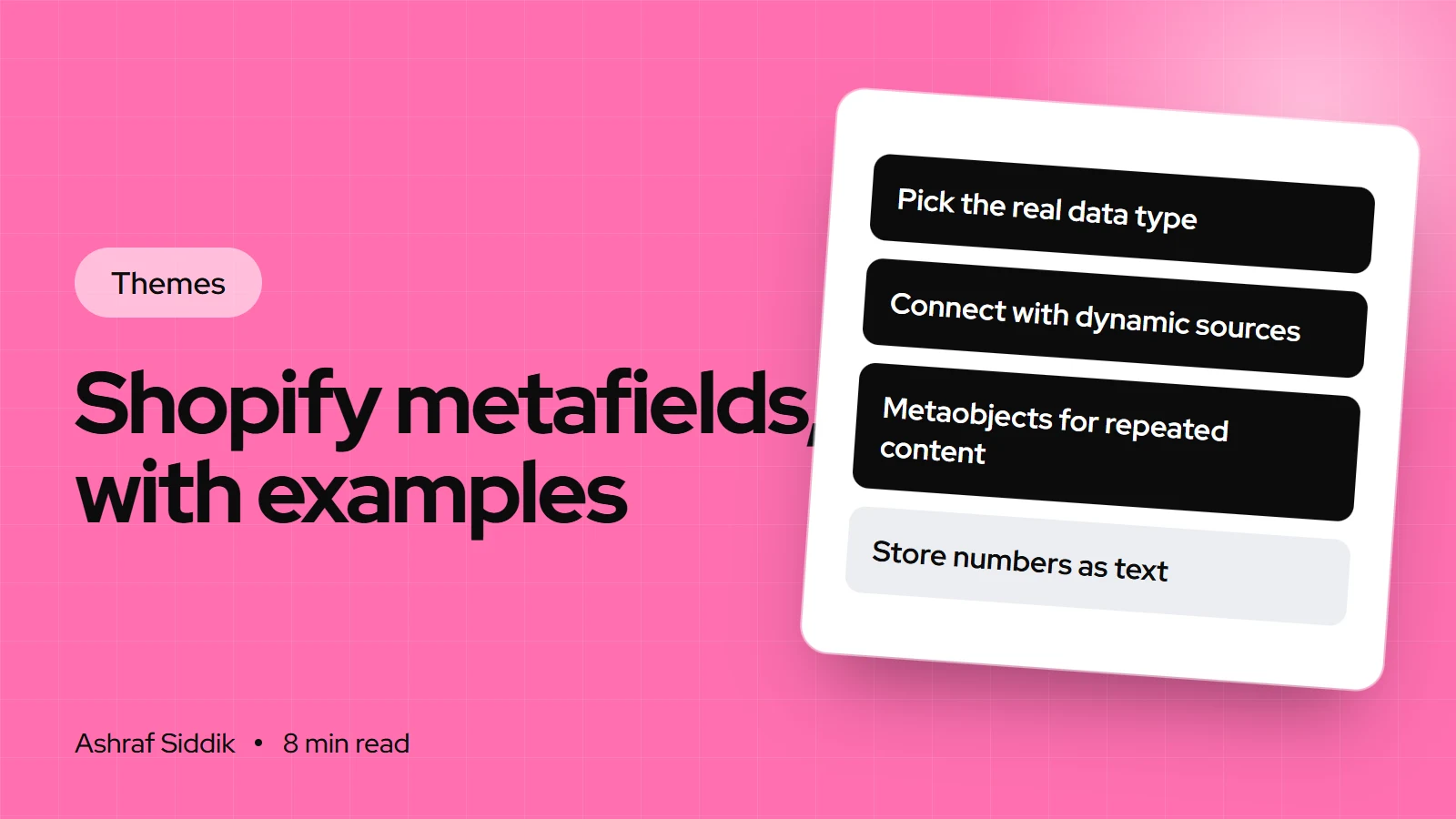
- Using text for everything. A number stored as text can't be validated or filtered as a range. Pick the real type.
- Renaming keys later. Theme code and connected sources refer to the namespace and key. Changing them breaks the link.
- Duplicating repeated content. If 50 products share one block of text, use a metaobject or a page instead.
- Printing empty wrappers. Check for a value before outputting HTML around it.
- Forgetting Storefronts access on a headless store, which hides the data from the custom storefront.
- Inconsistent values in fields you plan to filter on.
Metafields checklist
- List the product details that don't fit standard fields.
- Decide for each: plain metafield, list, or metaobject.
- Create definitions with the right type, short keys and validation.
- Fill values with the bulk editor, using consistent wording.
- Connect fields to theme blocks with dynamic sources, and check products with and without values.
- Set up filters for the fields shoppers choose by.
- Document your namespaces and keys for whoever edits the theme next.
Next steps
Start with one field that would help shoppers decide, such as dimensions or materials, and set it up end to end before adding more. If you're also tidying your catalog, my guide to adding products the right way pairs well with this one. If you need a custom section or spec table built around your metafields, that's part of my Shopify development service, which starts from $300 with a fixed quote.
Free tools
Check your own store
Free, no sign-up. Each one runs a part of this guide for you.
Frequently asked questions
What are metafields in Shopify?
Metafields are custom fields you add to products, variants, collections, customers, orders and other resources, for information the standard fields don't cover. You create a definition once, with a type and a namespace and key, then fill in values for each item.
Where do I find metafields in Shopify?
Definitions are under Settings, in Metafields and metaobjects, where you pick the resource such as Products. Values appear in the Metafields section at the bottom of each product, collection or customer page in your admin.
How do I show a metafield on my product page?
In an Online Store 2.0 theme, open the product template in the theme editor, add a block such as Text or Collapsible row, click the dynamic source icon next to its setting and choose your metafield. In older themes, or for custom layouts, a developer adds it in Liquid.
How do I access a metafield in Liquid?
Use resource.metafields.namespace.key, for example product.metafields.custom.care_guide, and add .value to get the data. For reference types such as product_reference, .value returns the actual product object. The metafield_tag filter outputs suitable HTML for most types.
What is the difference between metafields and metaobjects?
A metafield holds one piece of data on one item, such as a product's burn time. A metaobject is a reusable entry with several fields, such as a designer with a name, photo and bio, which many products can reference through a metafield.
Do I need an app for Shopify metafields?
Usually not. Creating definitions, editing values in bulk, connecting them to your theme and filtering are built into Shopify. Apps can help with very large imports or exports and copying data between stores.
Sources
- Metafields, Shopify Help Center
- Creating custom metafield definitions, Shopify Help Center
- Displaying metafields on your online store, Shopify Help Center
- List of metafield data types, Shopify.dev
- metafield object, Shopify.dev
- metafield_tag filter, Shopify.dev
Related services and work

I'm a Shopify developer and CRO specialist. I have built and improved Shopify stores since 2018, completed more than 1,000 projects, and hold a 4.96 average rating across 719 client reviews.
More guides
-
Why Shopify Stores Lose Sales on Mobile: A Practical CRO Checklist
Mobile visitors decide fast, with one thumb and plenty of distractions. Here is how to find the leaks on a Shopify store and fix them in the right order.
-
Shopify CRO Audit Checklist for DTC Brands
The checklist I use to audit DTC Shopify stores, from checking that the data can be trusted to deciding which fixes to ship first.
-
When to Build a Custom Shopify App Instead of Adding Another Subscription
Another subscription is the quickest fix, until you are paying for five apps that still don't match how your business works. Here is how to decide.
-
How to Find Out What Theme a Shopify Store Uses
Every Shopify store names its theme in the page code. Here is where to look, how to read what you find, and what it means for your own theme choice.
-
How to See What Apps a Shopify Store Uses
Apps leave traces in a store's page code: scripts from their own servers, app embed folders and pixel settings. Here is how to read them, and what to do with the list.
-
How to Name a Shopify Store (and Check the Name Is Free)
A store name has to be easy to say, free as a domain and a handle, and clear of other brands. Here is the process I use with clients, and what Shopify lets you change later.