Shopify questionAnswer4 min read
How Do I Add a Countdown Timer to Shopify?
Shopify has no built-in countdown timer, so you add one through your theme, an app or a small custom section. Here is how each route works and how to keep the timer honest.

Key takeaways
- Shopify has no native countdown timer. Dawn's feature list doesn't include one, so most stores use an app or a custom section.
- Free app plans exist. Essential Countdown Timer Bar, for example, includes unlimited product page timers on its free plan, up to 1,000 monthly views.
- Set the timer to the same end date and time as the discount in
Discounts, so the offer really ends when the clock hits zero. - Fake timers that reset are a banned practice under EU consumer law, and the FTC lists fake countdown clocks as a dark pattern.
- Who it is for
- Stores running timed offers
- Time needed
- 4 minutes to read
- What you need
- A discount with an end date
To add a countdown timer to Shopify, install a countdown timer app from the Shopify App Store, or use a countdown block if your theme has one, then place it on your product pages or as a top bar in the theme editor. Shopify itself doesn't include a timer, so the choice is between a free or cheap app and a small custom section. Whichever you use, tie the timer to a real discount with a real end date.
I add timers for launches, Black Friday and limited drops, and I remove plenty of fake ones during CRO audits. The app details and rules below were checked on 7 November 2026.
Three ways to add a countdown timer
| Method | Cost | Best for |
|---|---|---|
| Theme countdown block | Included | Themes that have one |
| Countdown app | Free plans exist | Most stores |
| Custom Liquid section | Developer time | Speed and full control |
Option 1: check your theme first
Open Online Store > Themes > Customize, go to a template and click Add section or Add block. If your theme has a countdown or timer block, it will be listed there, and you only need to set the end date. Dawn's official feature list doesn't include a countdown timer, so Dawn users usually go to option 2 or 3.
Option 2: install a countdown app
- Pick an app. Search the Shopify App Store for "countdown timer". Essential Countdown Timer Bar, for example, rates 5.0 from 1,740 reviews, with a free plan and paid plans from $6.99 a month.
- Create the timer. Choose a product page timer or a top bar, set the end date and time, and write the message, such as "Spring sale ends in".
- Add it to your theme. Most apps work as an app block or app embed. In the theme editor, open
App embedsor add the app block to your product template, then save. - Test on mobile. Check that the timer doesn't push the price or the Add to cart button below the fold on a phone.
When you compare apps, check how many views the free plan includes, whether cart timers cost extra (on Essential Countdown Timer Bar they're on the $9.99 plan), and whether the app loads through an app embed, which is easier to remove cleanly later.
Option 3: a custom section
A developer can build a small countdown section with a date setting and a few lines of JavaScript. It adds nothing to your app bill, loads only where you place it, and matches your theme's fonts exactly. It suits stores that run timed offers often, or that are already watching page speed. My guide on building custom sections for Shopify shows how sections and settings work.
Match the timer to a real discount
A timer only makes sense if something ends. In Discounts, open your discount and use Active dates: set the start date, click Set end date and choose the end date and time. Shopify uses the time zone set in your admin, so set the timer to the same zone. When the clock hits zero, the discount stops working at the same moment.
By country
- EU and the Netherlands: the directive's banned list applies in every member state, so a fake urgency claim is unfair in all circumstances.
- UK: treat the EU rule as your minimum standard and only time offers that really end. Check current CMA guidance if you run frequent flash sales.
- US: the FTC treats fake scarcity and urgency as deceptive design.
- Australia: the ACCC acts against misleading claims made to shoppers, so the same honest-timer rule is the safe one.
What to do next
- Plan the offer first, then the timer. My guide to discount codes and automatic discounts covers dates, limits and stacking.
- Use urgency carefully. Using urgency without being pushy explains which tactics build trust and which cost it.
- Get your sale week ready. The Black Friday preparation checklist covers timers, stock and speed. If you want a second opinion on your product pages, my CRO service starts from $500.
Free tools
Check your own store
Free, no sign-up. Each one runs a part of this guide for you.
Frequently asked questions
Does Shopify have a built-in countdown timer?
No. Shopify doesn't include a countdown timer, and Dawn's feature list doesn't include one. Some themes have a countdown block, and otherwise you use an app from the Shopify App Store or a custom section.
Is there a free Shopify countdown timer app?
Yes. Several apps have free plans. Essential Countdown Timer Bar, for example, offers unlimited product page timers on its free plan, up to 1,000 monthly views, as listed on 7 November 2026.
How do I make a countdown timer end when my sale ends?
Set the discount's end date under Active dates in Discounts, then give the timer the same end date and time. Shopify uses your admin's time zone, so use the same zone in the app.
Are fake countdown timers legal?
In the EU, falsely stating that an offer is only available for a very limited time is on the list of practices banned in all circumstances. The FTC also lists fake countdown clocks as a dark pattern. Use timers only for offers that really end.
Do countdown timers slow down Shopify?
Any app adds some code. Choose an app that loads through an app embed or block, remove it when the sale ends, and check your speed afterward. A small custom section adds the least.
Where should a countdown timer go on a product page?
Near the price or above the Add to cart button, where it explains the offer without pushing the button down on mobile. A slim top bar works for store-wide sales.
Sources
- Essential Countdown Timer Bar, Shopify App Store
- Dawn theme features, Shopify Theme Store
- Discount codes, Shopify Help Center
- Unfair Commercial Practices Directive 2005/29/EC, EUR-Lex
- Bringing Dark Patterns to Light, Federal Trade Commission
Related services and work

I'm a Shopify developer and CRO specialist. I have built and improved Shopify stores since 2018, completed more than 1,000 projects, and hold a 4.96 average rating across 719 client reviews.
More guides
-
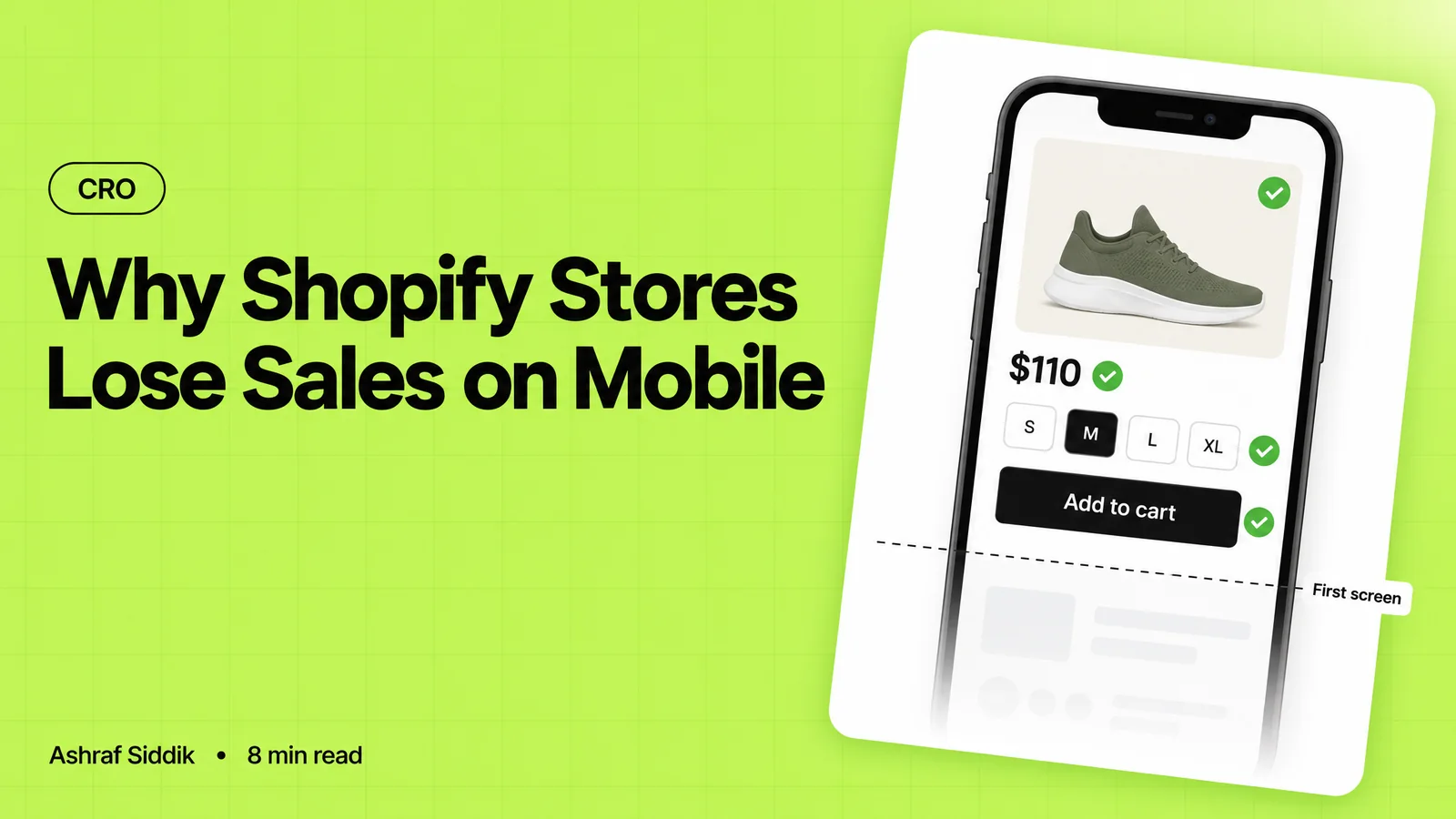
Why Shopify Stores Lose Sales on Mobile: A Practical CRO Checklist
Mobile visitors decide fast, with one thumb and plenty of distractions. Here is how to find the leaks on a Shopify store and fix them in the right order.
-
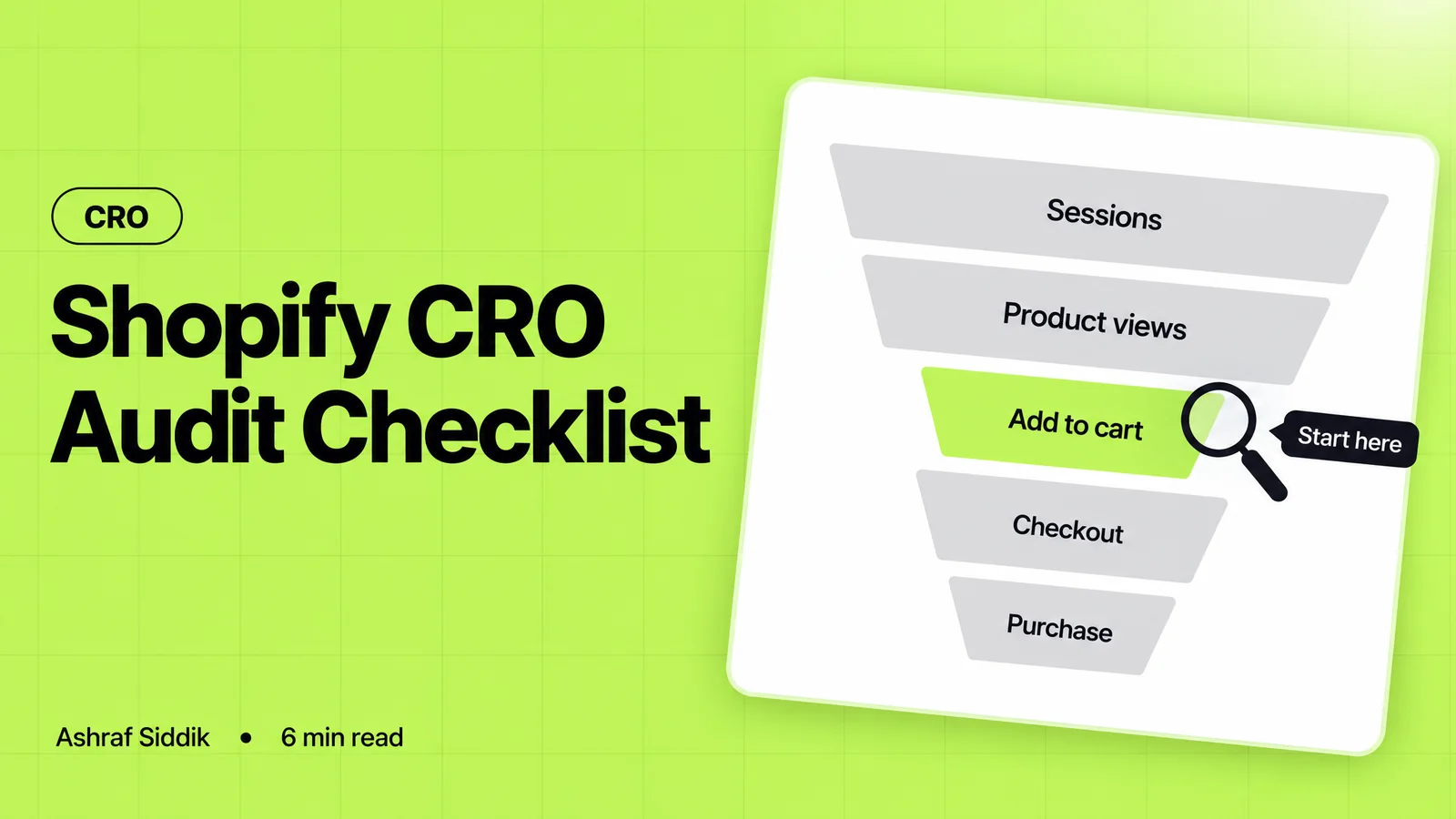
Shopify CRO Audit Checklist for DTC Brands
The checklist I use to audit DTC Shopify stores, from checking that the data can be trusted to deciding which fixes to ship first.
-
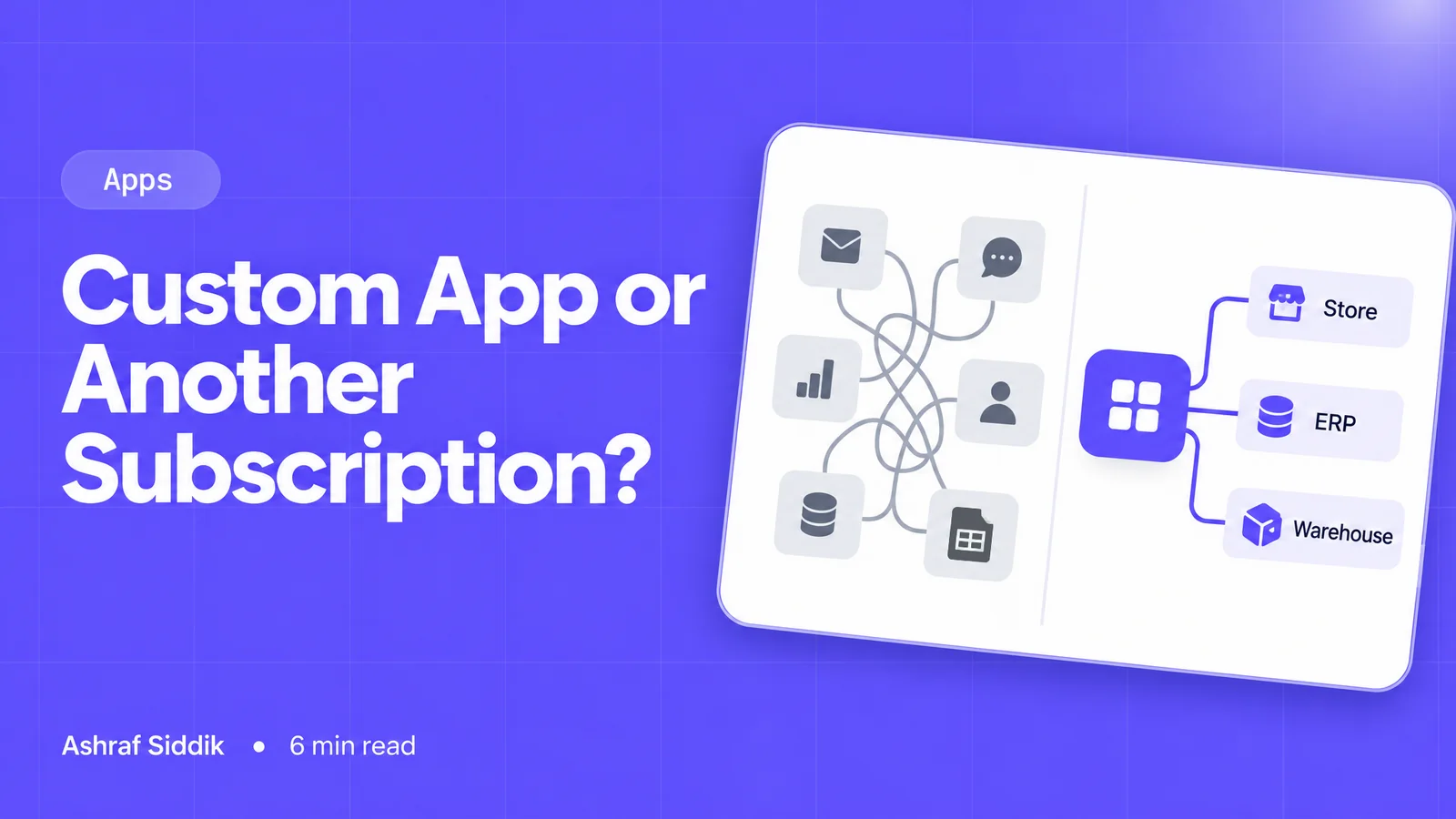
When to Build a Custom Shopify App Instead of Adding Another Subscription
Another subscription is the quickest fix, until you are paying for five apps that still don't match how your business works. Here is how to decide.
-
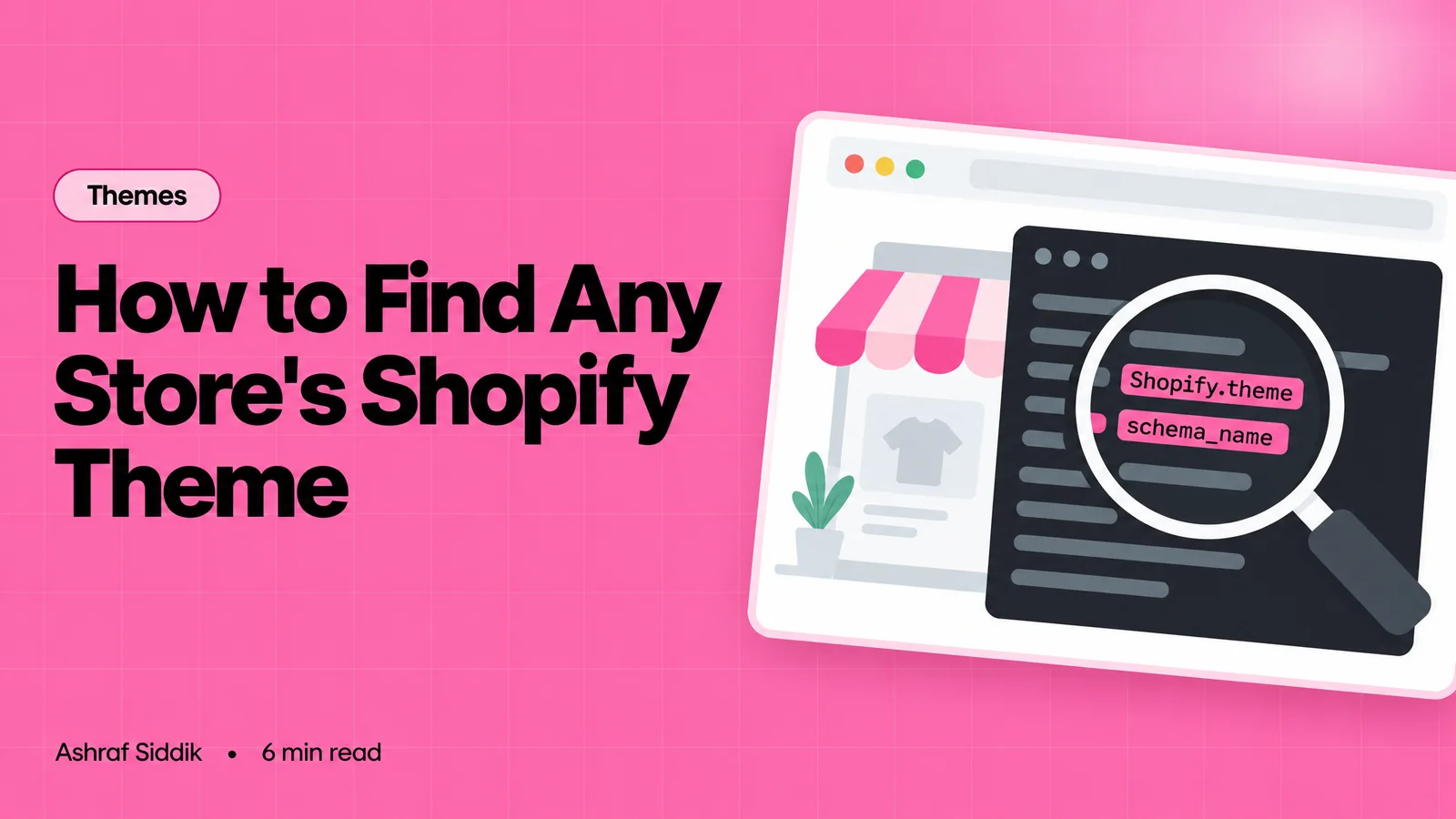
How to Find Out What Theme a Shopify Store Uses
Every Shopify store names its theme in the page code. Here is where to look, how to read what you find, and what it means for your own theme choice.
-
How to See What Apps a Shopify Store Uses
Apps leave traces in a store's page code: scripts from their own servers, app embed folders and pixel settings. Here is how to read them, and what to do with the list.
-
How to Name a Shopify Store (and Check the Name Is Free)
A store name has to be easy to say, free as a domain and a handle, and clear of other brands. Here is the process I use with clients, and what Shopify lets you change later.