Shopify guideGuide8 min read
How to Optimize Shopify Product Pages for SEO
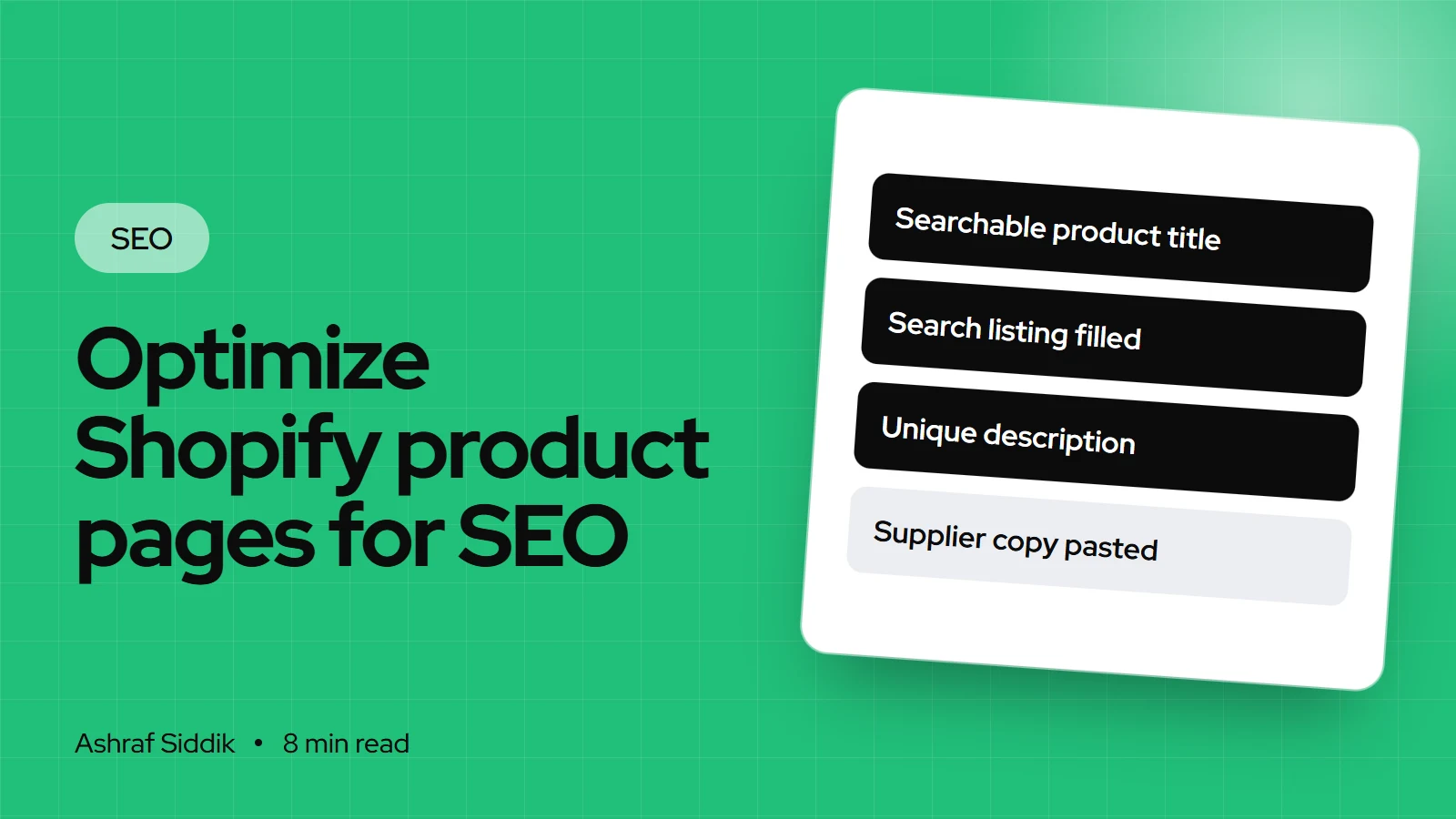
Shopify takes care of canonicals and sitemaps on product pages. The content is up to you, and here is how I work through it, field by field.
Key takeaways
- Shopify handles the plumbing on product pages: the H1 comes from the product title, canonical tags point every variant and collection path back to
/products/handle, and the main image goes into the sitemap. - Your job is the content: a title people search for, a page title and meta description under
Search engine listing, a unique description with real specs, and descriptive alt text. - Shopify recommends at least 250 words of descriptive text per page and warns that editing a URL handle too often can stop a product appearing in search results.
- Draft and deleted products return a 404. Redirect them under
Content > Menus > View URL redirectswhen there's a close replacement.
- Who it is for
- Stores with products that don't rank
- Time needed
- 20 to 40 minutes per product
- What you need
- Product admin access and keyword list
Product pages are where search traffic turns into orders, and they're also where most Shopify stores take the most shortcuts. I regularly audit stores with hundreds of products that share the supplier's description word for word, have no alt text, and use the default page title the theme builds from the product name and shop name. None of that breaks the store. It just leaves every product competing with every other store selling the same thing, with nothing to set it apart.
Below is the order I work through a product page, with the exact Shopify fields. Shopify's guidance was checked on its Help Center on 7 November 2026.
What Shopify already does on every product page
| Element | Shopify default | Your job |
|---|---|---|
| H1 heading | Built from the product title | Write a searchable title |
| Canonical tag | Points to /products/handle | Don't override it |
| Title tag | Page title, or product name plus shop name | Write your own |
| Meta description | Your text, or a theme fallback | Write one per product |
| Structured data | Product markup from most themes | Fill vendor, barcode, reviews |
| Sitemap | Product and main image added | Keep products Active |
The canonical behavior matters more than it looks. When I tested a Dawn store on 7 November 2026, a product opened as /collections/all/products/handle and with a ?variant= parameter both declared /products/handle as the canonical. Google gets one clear URL per product, however shoppers reach it. Some themes and apps change this, so check one of your own products with URL Inspection in Search Console.
Step 1: Write a title people search for
Shopify generates the H1 from the product title, so that one field is the most important on the page. A good product title names what the thing is, then what makes this one different:
- Weak: "The Harbor"
- Better: "Harbor Waxed Canvas Tote Bag"
- Best for a crowded category: "Harbor Waxed Canvas Tote Bag with Leather Handles"
Keep model names and brand names. Just add the product type and the one or two attributes people actually type. Leave color and size out of the title if they're variant options, because the title covers every variant.
Step 2: Fill in the search engine listing
- Open the product. Go to
Productsand click the product. - Edit the listing. Scroll to
Search engine listingand click the edit icon. - Page title. This is the link text in Google. Put the main keyword first and keep it to 60 characters or fewer, as Shopify suggests. Shopify warns titles over 70 characters may be cut off.
- Meta description. One or two sentences that sell the click: the key benefit, a proof point, and a reason to buy from you, such as free returns. Shopify recommends about 160 characters.
- URL handle. Short, lowercase words separated by hyphens, such as
waxed-canvas-tote-bag. Set it once at launch. - Save, then check the live page source for the
<title>and<meta name="description">tags.
Field lengths I work to
- Page title60Characters or fewer, keyword first.
- Meta description155Characters, inside Shopify's guide of about 160.
- Description250+Words of unique, useful text.
If a product's handle must change, keep the redirect option ticked when you save, so the old URL forwards to the new one. Shopify notes that editing handles too often can stop a product appearing in search results, so do it rarely.
Step 3: Write a description that answers buying questions
Shopify's own advice is to write unique descriptions rather than copying the manufacturer's text, and to aim for at least 250 words. I don't count words for the sake of it. I make sure the description answers every question a shopper would ask a sales assistant:
- What it is and who it's for, in the first two sentences.
- Specs in text: materials, dimensions, weight, capacity, compatibility. Not only in an image.
- Fit and sizing, with a link to the size guide.
- Care and use, such as washing instructions or what not to do.
- How it differs from your other models, so shoppers and search engines can tell them apart.
- Delivery and returns in one line, with a link to the full policy.
Use subheadings and short lists so the page reads well on a phone. Mobile shoppers scan. If you want this to convert as well as rank, my CRO audit checklist covers the layout side.
Step 4: Optimize images and alt text
- Rename files before upload. Shopify can't rename files after upload.
waxed-canvas-tote-olive.jpgtells search engines more thanIMG_4482.jpg. - Add alt text. In
Products, open the product, click the image, clickEdit alt text, thenSave alt text. Describe what's shown: "Olive waxed canvas tote bag with brown leather handles, front view". - Size images sensibly. Upload large enough for zoom, but compress them first. Modern Shopify themes serve resized versions automatically.
- Make the first image the clearest product shot. It's the image Shopify lists in your sitemap.
Heavy images and too many apps are the usual reasons a product page loads slowly. Run one through the Shopify speed checker to see where it stands.
Step 5: Choose variants or separate products
Shopify gives each product one URL, and variant URLs canonicalize to it. That's right for most stores: one strong page for a T-shirt in eight colors beats eight weak ones.
Separate products make sense when each version has its own search demand and its own content, for example different scents of a candle, or different models that people search by name. In that case, give each its own description and images, and link between them with a color or model swatch so they don't compete with each other.
Never create duplicate products just to list them in several collections. One product can sit in as many collections as you like.
Step 6: Fill the fields your structured data reads
Most themes build product markup from your product data, so filling these fields improves it without touching code:
- Vendor: the real brand name.
- Barcode: the GTIN or UPC for each variant, if the product has one.
- Product category: from Shopify's Standard Product Taxonomy. It also feeds sales channels.
- Reviews: from a review app that shows ratings on the page.
Google's merchant listings need a name, image, and an offer with a price and currency. Shipping and return details are recommended. My guide to schema markup on Shopify covers how to check and complete it.
Step 7: Link to your products from the right places
- Collections first. Every product should be in at least one collection that's linked from your menu. Shopify advises keeping pages within three clicks of the homepage.
- Related products. Shopify's free Search & Discovery app lets you add related and complementary products to the automatic recommendations.
- Blog posts and guides that link to the product with descriptive text, such as "our waxed canvas tote", not "click here".
Out of stock, draft and discontinued products
- Temporarily out of stock: keep the page live and Active. Show a back-in-stock option. The page keeps its rankings.
- Discontinued with a replacement: set it to Draft or delete it, then add a URL redirect to the replacement in
Content > Menus > View URL redirects. A redirect only works once the old URL returns a 404. - Discontinued, no replacement: redirect to the closest collection.
- Hidden but reachable: the
Unlistedstatus hides a product from search engines, your sitemap, collections and store search, while the direct link still works.
If you make a drafted product visible again, Shopify deletes the redirect automatically, so recreate it if you hide the product later.
Common mistakes
- Supplier descriptions copied as they are. Google sees the same text on many sites.
- Titles stuffed with every keyword or every variant option.
- Changing handles to "refresh" SEO. It resets signals and risks broken links.
- Linking to products with the
withinfilter in custom theme code. It creates collection-path URLs. Shopify's docs warn about the SEO side of this. - Specs and size charts only as images. Put the key facts in text.
- Deleting sold-out products that will come back, losing their rankings.
Product page SEO checklist
- Title names the product type and key attribute.
- Page title of 60 characters or fewer, keyword first.
- Meta description written, about 155 characters.
- Handle short and descriptive, set once.
- Description unique, 250 words or more, with specs in text.
- Images renamed, compressed, with alt text.
- Vendor, barcode and category filled.
- Reviews visible on the page.
- In a linked collection and within three clicks of the homepage.
- Canonical checked in Search Console.
- Retired products redirected.
Next steps
Start with your twenty best sellers. They already earn impressions, so better titles and descriptions there pay back first. Use keyword research for Shopify to pick each one's primary term, then work through the checklist. Once products are done, move up a level to your collection pages.
If you'd like help, my Shopify SEO service starts from $200. Every project gets a fixed quote after a free review.
Free tools
Check your own store
Free, no sign-up. Each one runs a part of this guide for you.
Frequently asked questions
How do I edit the SEO title of a Shopify product?
Go to Products, open the product and scroll to Search engine listing. Click edit and enter the Page title, Meta description and URL handle, then save. Shopify suggests 60 characters or fewer for the title.
How long should a Shopify product description be?
Shopify recommends at least 250 words of descriptive text per page. More important than length is that it's unique and answers buying questions: what it is, specs, sizing, care and how it differs.
Do Shopify product variants create duplicate content?
Not usually. Variant URLs with ?variant= and product URLs inside collections declare /products/handle as the canonical on standard themes, so Google sees one page. Check yours with URL Inspection.
Should I change my product URL handles for SEO?
Only if the current handle is clearly wrong. Keep the redirect option ticked when you change it. Shopify warns that editing handles too often can stop a product appearing in search results.
What should I do with discontinued products on Shopify?
If there's a close replacement, set the old product to Draft or delete it and add a URL redirect to the replacement. Otherwise redirect it to the closest collection. Keep temporarily out-of-stock products live.
How do I add alt text to product images in Shopify?
In Products, open the product, click the image, click Edit alt text, type a short description of what the image shows, and click Save alt text.
Sources
- Adding keywords for SEO to your Shopify store, Shopify Help Center
- Adding and updating products, Shopify Help Center
- Optimizing your site structure for search engines, Shopify Help Center
- URL redirects, Shopify Help Center
- Hiding a page from search engines, Shopify Help Center
- within filter, Shopify Developer Docs
Related services and work

I'm a Shopify developer and CRO specialist. I have built and improved Shopify stores since 2018, completed more than 1,000 projects, and hold a 4.96 average rating across 719 client reviews.
More guides
-
Why Shopify Stores Lose Sales on Mobile: A Practical CRO Checklist
Mobile visitors decide fast, with one thumb and plenty of distractions. Here is how to find the leaks on a Shopify store and fix them in the right order.
-
Shopify CRO Audit Checklist for DTC Brands
The checklist I use to audit DTC Shopify stores, from checking that the data can be trusted to deciding which fixes to ship first.
-
When to Build a Custom Shopify App Instead of Adding Another Subscription
Another subscription is the quickest fix, until you are paying for five apps that still don't match how your business works. Here is how to decide.
-
How to Find Out What Theme a Shopify Store Uses
Every Shopify store names its theme in the page code. Here is where to look, how to read what you find, and what it means for your own theme choice.
-
How to See What Apps a Shopify Store Uses
Apps leave traces in a store's page code: scripts from their own servers, app embed folders and pixel settings. Here is how to read them, and what to do with the list.
-
How to Name a Shopify Store (and Check the Name Is Free)
A store name has to be easy to say, free as a domain and a handle, and clear of other brands. Here is the process I use with clients, and what Shopify lets you change later.