Shopify guideGuide9 min read
How to Set Up Shopify Markets to Sell Across Europe
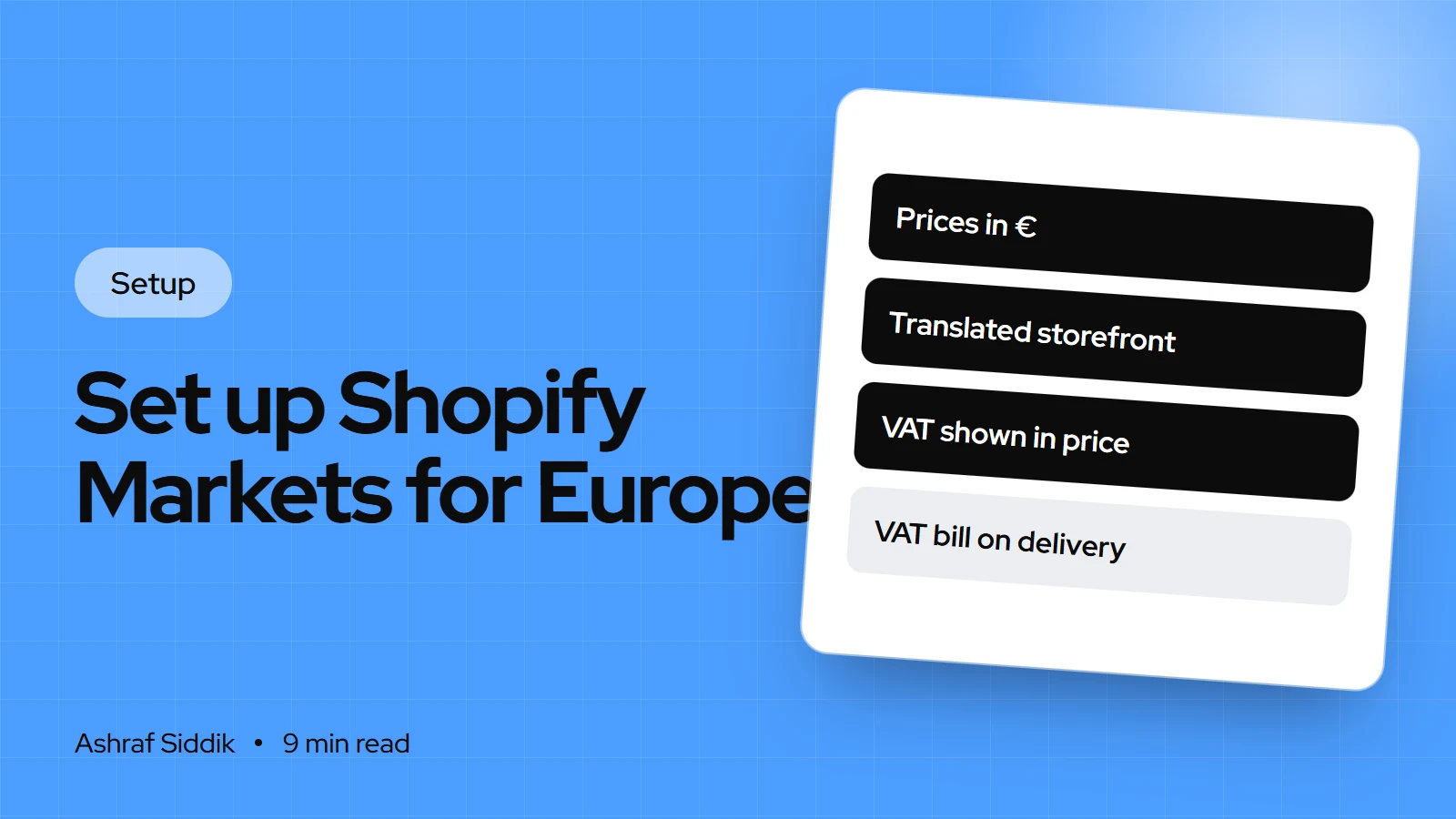
Shopify Markets lets one store sell in €, in local languages and with the right tax display across Europe. Here is the setup step by step for UK stores, including VAT, IOSS and duties.
Key takeaways
- Shopify Markets now has its own page in the admin, under
Markets. You create a market, choose its countries, then customize currency, prices, products, domain, language and taxes. - Local currencies only work with Shopify Payments or Adyen. With any other provider, every customer pays in your store currency.
- Shopify charges UK stores a 2% currency conversion fee when a customer pays in a currency other than your payout currency, so build it into your € prices.
- For UK sellers, VAT is the part that takes longest. IOSS lets you collect VAT at checkout on orders of €150 or less, and since 1 July 2026 those parcels also carry a temporary €3 customs duty per declaration line.
- Who it is for
- UK stores selling to EU customers
- Time needed
- A day to set up one market well
- What you need
- Shopify Payments and EU shipping rates
Since the UK left the EU, every parcel from a UK store to a customer in Germany or the Netherlands is an export. The customer sees a foreign price, a foreign checkout and, if you get it wrong, a VAT bill from the courier on their doorstep. Shopify Markets solves most of the storefront side of that in one store. The tax side needs decisions only you, and your accountant, can make.
This guide shows how I set up Shopify Markets for UK stores selling into Europe, in the order I do it on real builds. Menu names, fees and rules come from Shopify's help center and the European Commission's VAT pages, as checked on 7 November 2026. It is setup guidance, not tax advice.
Step 1: Decide how to group your markets
A market is a group of customers who get the same store experience. For Europe, there are three sensible structures:
| Approach | Best for | Trade-off |
|---|---|---|
| One Europe market | Testing demand across the EU | One language and one price list for all |
| Key countries as their own markets | Stores with a few big EU countries | More prices and translations to manage |
| Separate store per region | Separate teams, stock or legal entities | Double the apps, themes and admin |
My usual setup for a UK store is a hybrid: single-country markets for the two or three countries that already send orders, often Ireland, Germany and the Netherlands, and one multi-country Europe market for the rest. Shopify allows as many country markets as you like on every plan. If you're weighing separate stores, I compare the options in Shopify Markets vs multiple stores.
Step 2: Check the requirements first
- Payments. Multi-currency needs Shopify Payments or Adyen. Check
Settings > Payments. - Shipping rates. A market can only go live for countries you have shipping rates for. Add EU rates in
Settings > Shipping and deliverybefore you start. - Product customs data. Each product needs an HS code and a country of origin for duties to be estimated properly. Set a default country of origin under
Settings > Taxes and duties, in Customs information. - Plan. Markets, currencies, catalogs, domains and languages work on every plan. Different theme content per market, and market-specific checkout and account pages, need Advanced or higher.
Step 3: Create the market
- Open Markets. In the admin, go to
Marketsand clickCreate market. - Name it clearly, such as "Germany" or "Europe", and set the status to
Draftso you can preview before customers see it. - Add the countries. In the Includes section, click
Add condition, choose Regions and select the countries. - Review inherited settings. Everything starts with your store defaults. Click the plus icon next to a setting to customize it for this market.
- Save, then customize currency, catalog, domain and taxes as below.
- Activate. When it's ready, open the market, change Draft to Active and save.
Your UK market already exists: Shopify creates a domestic market from your store address and currency. Its country is also your backup region, the experience shown to anyone who doesn't match an active market. Customers in a country outside any active market can't check out at all, so check the list before you launch.
Step 4: Set currency and rounding
- Add the currency. Open the market and click the plus icon next to Currency. A single-country market defaults to that country's currency. A multi-country market turns on local currencies by default.
- Choose the exchange rate. Dynamic follows the market rate and adds Shopify's conversion fee to the customer's price. Manual uses a fixed rate you set, and the fee comes out of your payout instead.
- Turn on rounding so prices land on clean numbers. Shopify's own example turns €9.73 into €10.00.
The conversion fee for UK stores is 2%, charged when the customer pays in a currency other than your Shopify Payments payout currency. With manual rates, take it into account when you set the rate, or a sale in € quietly earns 2% less than the same sale in £.
Step 5: Set prices and products with catalogs
Catalogs decide which products a market sees and at what price. Create one under Markets > Catalogs with Create catalog, or add one from inside the market.
- Percentage adjustment. In the catalog's Pricing section, enter a price adjustment, such as 10%, to cover shipping, duties or the conversion fee across every product at once.
- Fixed prices. Set an exact € price on key products, such as €29 instead of a converted €28.73. Fixed prices override the percentage adjustment. You can also import them by CSV with Catalog Title, Handle or SKU, Fixed Price and Compare At columns.
- Product availability. Exclude products you can't ship into the EU, such as items with restricted ingredients or batteries your carrier won't take.
Step 6: Add languages and domains
I usually translate for Germany, France, Spain and Italy, and often leave Dutch and Scandinavian markets in English at first, then translate once orders justify it.
- Add the language. Go to
Settings > Languages, clickAdd languageand save. - Translate. Shopify's free Translate & Adapt app translates store content automatically into up to 2 languages, or 8 in select countries, and lets you edit translations by hand or import them by CSV. Have a native speaker check product pages and checkout wording.
- Assign a domain and language to the market. In the market, click the plus icon next to Domain / language and choose a subfolder (
yourstore.com/de/), a subdomain (de.yourstore.com) or a separate domain (yourstore.de), which you first connect inSettings > Domains. - Decide on redirection. In
Online Store > Preferences, automatic redirection can send visitors to their market. Shopify doesn't auto-redirect EU visitors on EU country domains such as.de, so stores using those add a country selector or a geolocation prompt instead.
For most stores I use subfolders. Shopify recommends them too: they share your main domain's authority and need no extra DNS work. Shopify adds hreflang tags, canonical URLs and market sitemaps automatically, and lets search engine crawlers through without redirecting them. If organic search in Europe matters to you, my Shopify SEO work covers international setups.
Step 7: Set up VAT, duties and tax display
This is where UK stores most often get it wrong, because the rules depend on how the order is shipped and what it's worth.
- Orders of €150 or less. Registering for the EU's Import One-Stop Shop (IOSS) lets you charge the destination country's VAT at checkout and file one monthly return. A business outside the EU must appoint an intermediary in the EU to use it. Without IOSS, the customer usually pays import VAT to the carrier on delivery.
- Orders over €150. IOSS doesn't apply. Import VAT and duties are due at the border.
- Customs duties. Since 1 July 2026 the EU charges a temporary €3 customs duty per declaration line on parcels worth €150 or less, so low-value parcels are no longer duty-free. Check the current position with your adviser.
- OSS is for EU-based sellers. The Union OSS scheme and the €10,000 threshold cover sales between EU countries. They don't help a UK store shipping from the UK.
In Shopify, EU tax settings live under Settings > Taxes and duties > Regional settings > European Union. To collect duties at checkout, go to Settings > Taxes and duties, click Set up in Duties and import taxes, confirm your carriers support delivered duty paid (DDP), pick countries and fix products missing HS codes. Shopify charges a fee on orders where duties are calculated: a temporary 0.5% since February 2025, normally 0.85% with Shopify Payments or 1.5% with other providers.
Finally, set how prices show. In each market, under Duties and taxes, choose dynamic tax display, which shows VAT-inclusive prices to EU customers as they expect, or set it to included. A UK store showing ex-VAT prices to German shoppers, then adding VAT at checkout, loses buyers at the last step.
EU numbers to know
- IOSS consignment limit€150VAT collected at checkout up to this value.
- Currency conversion fee2%For UK stores on Shopify Payments.
- Duties fee, temporary rate0.5%On orders with duties calculated.
- Auto-translated languages2With Translate & Adapt, 8 in select countries.
Step 8: Offer the payment methods Europeans use
Cards aren't the default everywhere. Dutch shoppers expect iDEAL and Belgian shoppers expect Bancontact, and Shopify Payments offers both. On Shopify's UK pricing page, they cost 2.2% + 20p on Basic, 1.9% + 20p on Grow and 1.6% + 20p on Advanced. Turn them on in Settings > Payments and check they show at checkout when you preview the market. Klarna is also available through Shopify Payments for UK stores, at 4.99% + 30p on Basic to Advanced.
Common mistakes
- Using a non-Shopify Payments gateway and wondering why prices stay in £.
- Activating a market without shipping rates for every country in it.
- Ex-VAT prices for EU customers, with VAT appearing only at checkout.
- Machine translation left unchecked on product pages and policies.
- No HS codes, so duty estimates fall back to guesses.
- Adding your own hreflang tags on top of Shopify's automatic ones.
- Forgetting returns. Your returns address, costs and policy need to work for customers in Europe, not just the UK.
Shopify Markets checklist for Europe
- Market structure chosen: single countries, one Europe market, or both.
- Shopify Payments active, with iDEAL and Bancontact on.
- EU shipping rates added for every country.
- HS codes and country of origin on every product.
- Currency, rounding and catalog prices set, with the conversion fee covered.
- Languages translated and checked, with a domain or subfolder per market.
- IOSS and duties decided with your accountant, and set up in Shopify.
- Market previewed in Draft, then activated and tested with a real order.
Next steps
Start with one market for the EU country that already sends you orders, get it right end to end, then copy the pattern. Before you launch, make sure your plan fits: themes per market need Advanced, which I cover in which Shopify plan is right for you.
If you'd rather have it set up for you, I build international Shopify stores for UK brands as a Shopify developer in the UK, and the international store cost guide shows what affects the price. Store development starts from $300, and every project gets a fixed quote after a free review.
Free tools
Check your own store
Free, no sign-up. Each one runs a part of this guide for you.
Frequently asked questions
Is Shopify Markets free?
Yes. Markets, local currencies, catalogs, domains and languages are included on every Shopify plan. Costs come from the currency conversion fee, which is 2% for UK stores, the duties fee if you collect duties at checkout, and translation work.
Where is Shopify Markets in the admin?
It has its own page, called Markets, in the Shopify admin. Click Create market to start a new one, and use Markets > Catalogs to manage prices and products per market.
Why are my prices not showing in €?
Local currencies only work with Shopify Payments or Adyen. With another payment provider, customers in every market pay in your store currency. Also check the market is active and has a currency set.
Do UK sellers need IOSS to sell to the EU on Shopify?
It isn't required, but it lets you charge VAT at checkout on orders of €150 or less, so customers don't pay import VAT on delivery. A UK business needs an EU intermediary to register. Ask your accountant whether it suits your order values.
Should I use subfolders or separate domains for Shopify Markets?
Subfolders, such as yourstore.com/de/, suit most stores. Shopify recommends them because they share your main domain's authority and need no extra DNS setup. Separate country domains give a stronger local signal but take more work.
Can I show different theme content to each market?
Only on Advanced or Shopify Plus. On Basic and Grow, every market uses the same published theme content, although translations, prices and products can still differ.
Sources
- Requirements and considerations for using markets, Shopify Help Center
- Creating and activating markets, Shopify Help Center
- Setting up currencies for markets, Shopify Help Center
- International SEO for markets, Shopify Help Center
- EU tax reference, Shopify Help Center
- The One Stop Shop, European Commission
Related services and work

I'm a Shopify developer and CRO specialist. I have built and improved Shopify stores since 2018, completed more than 1,000 projects, and hold a 4.96 average rating across 719 client reviews.
More guides
-
Why Shopify Stores Lose Sales on Mobile: A Practical CRO Checklist
Mobile visitors decide fast, with one thumb and plenty of distractions. Here is how to find the leaks on a Shopify store and fix them in the right order.
-
Shopify CRO Audit Checklist for DTC Brands
The checklist I use to audit DTC Shopify stores, from checking that the data can be trusted to deciding which fixes to ship first.
-
When to Build a Custom Shopify App Instead of Adding Another Subscription
Another subscription is the quickest fix, until you are paying for five apps that still don't match how your business works. Here is how to decide.
-
How to Find Out What Theme a Shopify Store Uses
Every Shopify store names its theme in the page code. Here is where to look, how to read what you find, and what it means for your own theme choice.
-
How to See What Apps a Shopify Store Uses
Apps leave traces in a store's page code: scripts from their own servers, app embed folders and pixel settings. Here is how to read them, and what to do with the list.
-
How to Name a Shopify Store (and Check the Name Is Free)
A store name has to be easy to say, free as a domain and a handle, and clear of other brands. Here is the process I use with clients, and what Shopify lets you change later.