Shopify guideGuide8 min read
How to Accept Multiple Currencies on Shopify
Shopify can show prices and take payment in each shopper's currency. Here is how to set it up, how the conversion fee works, and what happens to your payouts and refunds.
Key takeaways
- Shopify can show prices and take payment in each shopper's local currency, but only if you use Shopify Payments or Adyen. With any other processor, every market pays in your store currency.
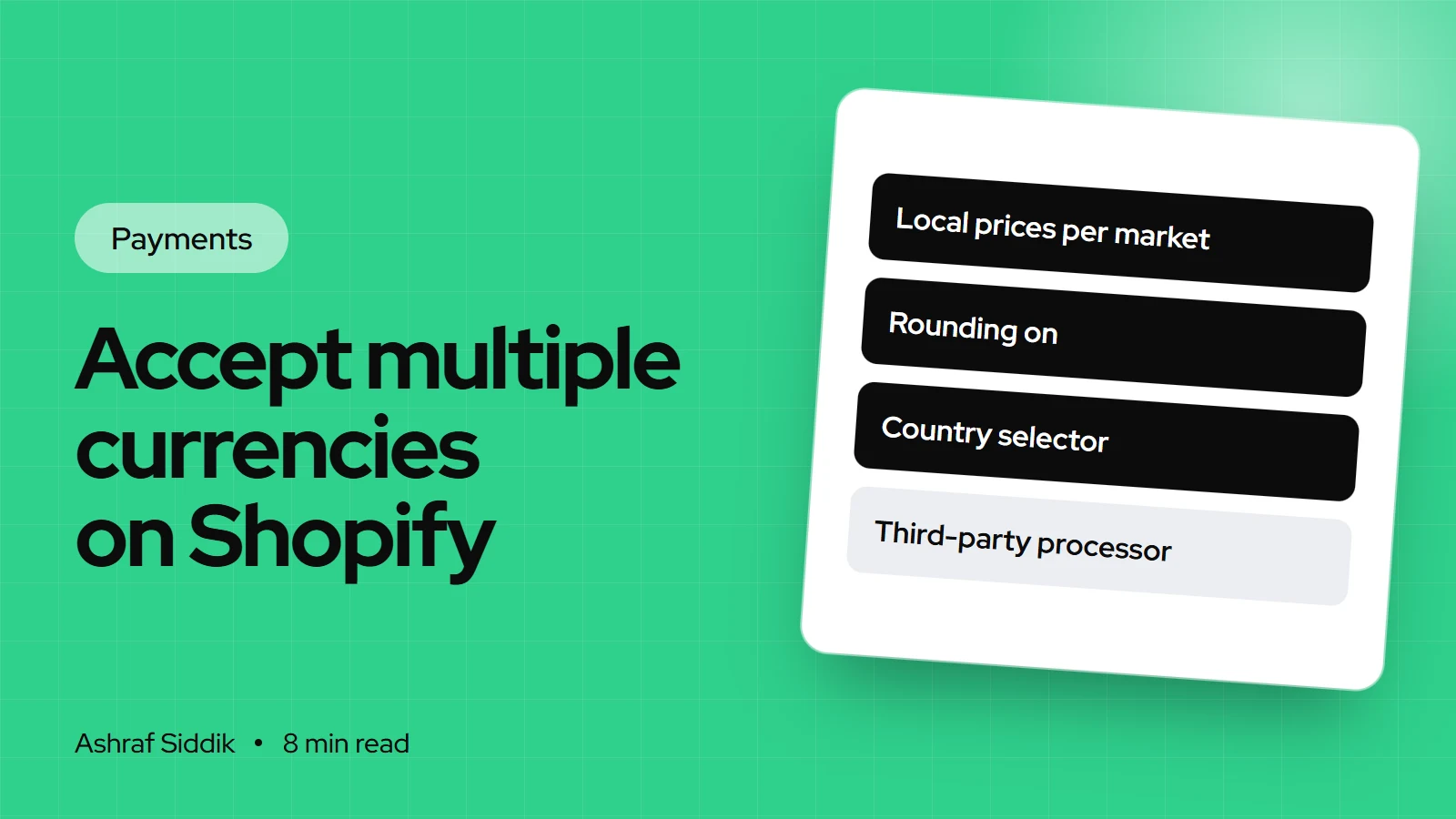
- Currencies are set per market under
Markets, with dynamic or manual exchange rates, optional rounding and, if you want them, fixed prices through catalogs. - Shopify charges a currency conversion fee when a payment's currency differs from your payout currency: 1.5% for US-based stores and 2% in most other countries, as checked on 7 November 2026.
- Only Advanced and Plus stores can receive payouts in more than one currency. On Basic and Grow, everything is converted to your home currency.
- Who it is for
- Stores selling to shoppers in other countries
- Time needed
- An hour for the first market
- What you need
- Shopify Payments or Adyen as your processor
A shopper in Manchester who sees $49.00 on your product page has to do sums before buying, and then wonders what their bank will add. Show £39 instead and that friction disappears. Selling in local currencies is one of the simplest changes a store with international traffic can make, and Shopify builds it in. What isn't obvious is how the money moves once you switch it on: who pays the conversion, what your payout looks like, and what happens on refunds.
This guide covers the full setup, step by step, and the decisions behind each setting. Rules and fees come from Shopify's Help Center as checked on 7 November 2026. I'll use a US store selling to the UK and EU as the running example, but the steps are the same from any country.
How multi-currency works on Shopify
Three currencies are involved, and keeping them apart makes everything else easier:
- Store currency. The currency your product prices are entered in, set when the store was created.
- Customer currency. What the shopper sees and pays in. It's set per market.
- Payout currency. What lands in your bank. For most stores this is your home currency.
When a shopper pays in a currency that isn't your payout currency, Shopify converts it at a mid-market rate and charges a conversion fee. The requirement for all of this is Shopify Payments or Adyen as your card processor. Shopify's pricing page lists showing prices in local currencies as a Shopify Payments feature.
What it costs
| Store based in | Conversion fee | PayPal Wallet via Shopify Payments |
|---|---|---|
| United States | 1.5% | 3% |
| France | 2% | 3% |
| Other Shopify Payments countries | 2% | – |
The fee only applies when the payment currency differs from your payout currency. A UK store selling to UK shoppers at £ prices pays nothing extra. The exchange rate itself is a mid-market rate with no markup, so the fee is the whole conversion cost.
Keep a second, separate charge in mind: cards issued outside your country carry a higher processing rate whatever currency the shopper pays in. On UK pricing, for example, an international card costs 3.1% + 25p on Basic, against 2% + 25p for a UK card. My Shopify fees explained guide covers that rate in detail.
How to turn on local currencies, step by step
- Confirm your processor. Go to
Settings > Paymentsand check Shopify Payments (or Adyen) is your card processor. - Create your markets. Go to
Marketsand add the countries you sell to, either as single-country markets or grouped, such as a Europe market. - Open a market. Click the market you want to set up.
- Add the currency. Click the plus icon next to
Currencyand choose the currency. Single-country markets default to that country's currency. Multi-country markets use local currencies by default. - Choose the exchange rate. Select
Dynamicto convert prices automatically, orManualto set a fixed rate. The next section explains the difference. - Turn on rounding. Activate
Roundingso converted prices land on normal price points. - Save. Click
Done, thenSave. - Preview it. From
Markets, view your online store as that market and check product, cart and checkout prices.
Repeat for each market. If you'd rather a multi-country market used one currency, open its currency settings, turn off Local currencies and save.
Dynamic or manual exchange rates
This is the decision that matters most, because it decides who absorbs the conversion fee.
A $100 product sold in € by a US store
- Dynamic rate€93.38Shopper pays the 1.5% fee inside the price. You receive about $100.
- Manual rate€92.00Price fixed by you. The 1.5% fee comes off your payout, about $98.50.
| Factor | Dynamic | Manual |
|---|---|---|
| Prices move | Yes, with the market rate | No, until you change the rate |
| Conversion fee | Built into the price | Taken from your payout |
| Refunds | Market rate | Market rate, not your rate |
| Best for | Most stores | Stable price points, campaigns |
I set dynamic rates with rounding for most clients. Manual rates suit stores that print prices in catalogs or run ads with a fixed price in the creative, but they need watching: if the currency moves against you, every sale earns less until you update the rate.
Set fixed prices for a market
If you want £39 exactly, rather than whatever the conversion gives, use a catalog:
- Create the catalog. Go to
Markets > Catalogsand clickCreate catalog. - Pick the currency. In the
Pricingsection, choose the currency inSet prices in. - Enter prices. In the
Productssection, clickPricefor each product and enter the fixed price, plus aCompare-at priceif you use one. Save. - Assign it. Go to
Markets, open the market, click the plus icon next toCatalogs, select your catalog, clickDoneand save. - Check it. Go to
Products, clickView asand choose the market.
A fixed price overrides any percentage adjustment on the catalog. You can also use a percentage adjustment instead of fixed prices, for example to cover higher shipping costs to one market. Fixed prices take more upkeep, so I use them only for best-sellers and products advertised abroad.
Add a country selector to your theme
Shopify redirects shoppers to their market automatically using their IP address, but IP location isn't always right, and the redirect only applies to the first page they visit. A selector lets shoppers fix it themselves.
- Open the theme editor. Go to
Online Store > Themesand customize your published theme. - Choose the location. Open the header or footer section.
- Turn on the selector. Switch on
Country/region selector, andLanguage selectorif you've added languages. - Save.
Shoppers choose a country, and the currency follows from that country's market. On mobile, check the selector is easy to find in the menu, not buried at the bottom of a long footer.
Checkout, refunds and chargebacks
Shoppers pay in their market's currency at checkout, including manual methods such as bank transfer, which display in each market's currency. Local payment methods such as iDEAL | Wero only appear when the shopper's country and currency match, which is one more reason to set markets up properly. My guide to accepting iDEAL on Shopify shows how that works for the Netherlands.
Refunds and chargebacks go back in the shopper's original currency, converted at the current rate. Shopify doesn't charge a second conversion fee on refunds, but the conversion fee and card fee from the original sale aren't returned. If the rate has moved, the amount taken from your balance can differ slightly from what you received.
Getting paid in more than one currency
By default, every sale is converted to your payout currency. Advanced and Plus stores can add bank accounts in other currencies and be paid in them, which avoids converting money you'll spend in that currency anyway, such as € for an EU supplier.
- Open the settings. Go to
Settings > Paymentsand clickManagein the Shopify Payments section. - Add an account. In
Payout accounts, clickAdd bank account. - Enter the details. Choose the payout currency and the bank's country, add the account owner and bank details, and click
Next.
Payouts to a non-domestic currency account carry a Multi-Currency Payout fee, which Shopify lists at 0.75% to 1.5% depending on your plan and region. Sales in a currency without a matching account are converted to your default account with the normal conversion fee. Adding or replacing a payout account more than 24 hours after setup can pause payouts for 3 to 5 business days. My guide to Shopify payouts and reconciliation covers how to reconcile each currency, and the Grow vs Advanced comparison helps if multi-currency payouts are your reason to upgrade.
Common mistakes
- Using a third-party card processor. Local currencies won't work at all, and shoppers abroad see your store currency.
- Manual rates set and forgotten. A rate set a year ago can be costing you on every order.
- No rounding. Prices like €93.38 look like a currency converter, not a local store.
- Hard-coded prices in the theme. Prices typed into banners or images don't convert. Use text that Shopify formats, or create market-specific content.
- Apps that ignore currency. Some bundle, upsell and free-shipping bar apps show store-currency amounts. Check each one in every market.
- Free shipping thresholds in one currency. A "$75 for free shipping" message makes no sense to a UK shopper paying in £.
Multi-currency checklist
- Shopify Payments or Adyen active as your card processor.
- Markets created for each country or region you sell to.
- Currency added to each market, with dynamic or manual rates chosen deliberately.
- Rounding switched on.
- Fixed prices set through a catalog for key products, if needed.
- Country selector visible in the header or footer, and in the mobile menu.
- Product, cart and checkout previewed as each market.
- Apps, banners and shipping thresholds checked in each currency.
- Multi-currency payout accounts added, if you're on Advanced or Plus and it saves you conversions.
Next steps
Start with one market that already sends you traffic, set it up with dynamic rates and rounding, and preview every page as that market before you add the next. If you're weighing one store with Markets against separate stores per country, the Markets vs multiple stores comparison covers it. If you'd like help setting up international selling properly, send me your store for a free review. Store development starts from $300, with a fixed quote for every project.
Free tools
Check your own store
Free, no sign-up. Each one runs a part of this guide for you.
Frequently asked questions
Does Shopify support multiple currencies?
Yes. With Shopify Payments or Adyen as your processor, you can show prices and take payment in local currencies for each market. With any other card processor, shoppers in every market pay in your store currency.
How much does Shopify charge for currency conversion?
As checked on 7 November 2026, Shopify Payments charges 1.5% for US-based stores and 2% in most other countries when a payment's currency differs from your payout currency. The exchange rate itself is a mid-market rate with no markup.
Should I use dynamic or manual exchange rates on Shopify?
Dynamic rates suit most stores: prices follow the market and the conversion fee is built into the price. Manual rates keep prices stable, but the fee comes out of your payout and the rate needs updating when currencies move.
Can I set fixed prices per country on Shopify?
Yes. Create a catalog under Markets > Catalogs, choose the currency, enter a fixed price for each product and assign the catalog to the market. A fixed price overrides any percentage adjustment on that catalog.
Can I get Shopify payouts in multiple currencies?
Only on the Advanced and Plus plans, using Multi-Currency Payouts with a bank account in each currency. A Multi-Currency Payout fee applies to non-domestic currency accounts. Basic and Grow stores are paid in their domestic currency only.
How do refunds work for orders paid in another currency?
Refunds go back in the shopper's original currency at the current exchange rate. Shopify doesn't charge another conversion fee on the refund, but the original conversion and card fees aren't returned.
Sources
- Local currencies in Markets, Shopify Help Center
- Currency conversion fees, Shopify Help Center
- Product prices by country, Shopify Help Center
- Payouts in multiple currencies, Shopify Help Center
- Localization and selectors, Shopify Help Center
- Shopify pricing (UK), Shopify
Related services and work

I'm a Shopify developer and CRO specialist. I have built and improved Shopify stores since 2018, completed more than 1,000 projects, and hold a 4.96 average rating across 719 client reviews.
More guides
-
Why Shopify Stores Lose Sales on Mobile: A Practical CRO Checklist
Mobile visitors decide fast, with one thumb and plenty of distractions. Here is how to find the leaks on a Shopify store and fix them in the right order.
-
Shopify CRO Audit Checklist for DTC Brands
The checklist I use to audit DTC Shopify stores, from checking that the data can be trusted to deciding which fixes to ship first.
-
When to Build a Custom Shopify App Instead of Adding Another Subscription
Another subscription is the quickest fix, until you are paying for five apps that still don't match how your business works. Here is how to decide.
-
How to Find Out What Theme a Shopify Store Uses
Every Shopify store names its theme in the page code. Here is where to look, how to read what you find, and what it means for your own theme choice.
-
How to See What Apps a Shopify Store Uses
Apps leave traces in a store's page code: scripts from their own servers, app embed folders and pixel settings. Here is how to read them, and what to do with the list.
-
How to Name a Shopify Store (and Check the Name Is Free)
A store name has to be easy to say, free as a domain and a handle, and clear of other brands. Here is the process I use with clients, and what Shopify lets you change later.