Shopify guideGuide7 min read
Klaviyo for Shopify: The Complete Setup Guide
Klaviyo is the email and SMS tool most growing Shopify stores use, and most of its problems come from setup. Here is how to connect it properly, what it costs and which flows to build first.
Key takeaways
- Klaviyo's free plan covers up to 250 active profiles and 500 emails a month. The Email plan starts at $20 a month for 500 profiles and 5,000 emails, as checked on 7 November 2026, and the price rises with your list.
- You connect Klaviyo from its
Integrationstab, then choose what syncs each way. Syncing "All profiles" to Shopify creates a Shopify customer for every Klaviyo profile, so choose that option on purpose. - Browse and cart flows only work once
Track behavioral eventsis ticked and the Klaviyo app embed is switched on in your theme. - Build the welcome series and abandoned checkout flow first. Klaviyo's own guidance is three welcome emails over a week, and a first cart email 2 to 4 hours after checkout starts.
- Who it is for
- Stores moving to Klaviyo
- Time needed
- 2 to 4 hours plus flow building
- What you need
- Shopify admin and DNS access
Klaviyo is the email and SMS tool I see most often on growing Shopify stores, and the one I'm most often asked to fix. The problems are rarely in the emails. They are in the setup: subscribers not syncing, flows with no events to trigger them, two tools sending the same reminder, or a list that grew without consent records.
This guide covers the Klaviyo Shopify app from the start: when it is worth paying for, what it costs, how to connect it, which sync and tracking settings matter, the first flows to build and the sender rules that keep you out of spam. Steps and prices come from Klaviyo's help center, pricing page and App Store listing, plus Shopify and Google, as checked on 7 November 2026.
What Klaviyo does on Shopify, and when you need it
Klaviyo pulls your Shopify customers, orders, products and onsite behavior into one place, then uses them to trigger and personalize email and SMS. The App Store listing describes it as connecting data from Shopify and more than 350 other apps. Shopify's own Shopify Messaging app covers the basics for free, so the question is whether you need more.
| Need | Shopify Messaging | Klaviyo |
|---|---|---|
| Basic campaigns and templates | Yes | Yes |
| Abandoned checkout, cart, browse | Yes, template-based | Yes, fully editable |
| Branching, splits, flow filters | Limited, via Shopify Flow | Built into the flow builder |
| Data from other apps | Through Shopify Flow | Direct integrations |
| Cost for a small list | 10,000 emails a month free | Free up to 250 profiles |
My rule: start on Shopify Messaging if your list is small and you need the standard flows. Move to Klaviyo when you need branching, data from your reviews, loyalty or subscription apps, or deeper reporting. My Klaviyo vs Mailchimp comparison covers the other common choice.
What Klaviyo costs
Klaviyo charges by active profiles, meaning the contacts you can email, plus send volume. The plans listed on its pricing page when I checked:
| Plan | Price | Profiles | Emails a month |
|---|---|---|---|
| Free | $0 | Up to 250 | 500 |
| From $20 a month | 500 | 5,000 | |
| Marketing | From $25 a month | 500 | 5,000 |
All three include $5 of mobile messages a month. The Shopify App Store listing shows an SMS plan at $15 a month with up to 1,250 SMS or MMS credits, including carrier fees. Prices go up as active profiles grow, and the pricing page doesn't list every tier, so use Klaviyo's calculator with your real list size.
The fastest way to control the bill is list hygiene. Suppress profiles that haven't opened or clicked in months, and don't import old lists you have no consent for.
Before you connect
- Turn off your old email tool's sync. Klaviyo warns that if another email platform is still connected, double opt-in emails can go to your existing list.
- Enable Shopify Network Intelligence. Under
Settings > Customer privacy. Without it, some events reach Klaviyo without a shopper identity. - Rewrite the checkout opt-in label. Under
Settings > Checkout > Marketing opt-in, make the checkbox say what people will receive. - Plan your lists. One main email list for the welcome series, and a separate list for SMS.
Installing the Klaviyo Shopify app
- Open the integration. In Klaviyo, go to
Integrations > Explore apps, search for Shopify and clickInstall. - Enter your store. Use the
mystore.myshopify.comaddress, not your custom domain. - Review the sync options. Check
Sync data from ShopifyandSync data to Shopifybefore you connect. The next section explains each one. - Connect. Click
Connect to Shopify, log in, review the permissions and clickInstall app. - Confirm. Check the Klaviyo account and store are right, then click
Integrate. - Watch the historical sync. The
Historical datasection shows progress as past customers, orders and products import.
The sync settings that matter
Most Klaviyo problems I fix trace back to these settings.
- Email subscribers from Shopify. Turn on the email subscriber sync and send it to your main welcome list. People who tick the box at checkout or in a Shopify form then enter your welcome series.
- SMS subscribers. Set up text messaging in Klaviyo first, then enable the Shopify text message subscriber sync into a separate list. SMS consent only syncs for first-time SMS subscribers, so historical subscribers need a separate process.
- Shopify Markets. If you sell in several countries, turn on
Sync Shopify Markets to Klaviyo. It works in only one Klaviyo account per store. - Profiles to Shopify.
Sync Klaviyo profiles to Shopifycan send all profiles or only those already in Shopify. Choosing all creates Shopify customers for every Klaviyo profile, including imports. I usually choose existing customers only. - Don't edit synced fields in Klaviyo. Properties such as Shopify tags are overwritten on the next sync.
Onsite tracking and sign-up forms
Klaviyo only knows what shoppers do on your site if tracking is on. In the integration's Onsite Tracking section, tick Track behavioral events, click Turn on, switch on the Klaviyo app embed in the theme editor and click Save. Back in Klaviyo, a green banner confirms it worked.
That lets Klaviyo record events such as Viewed Product, Added to Cart, Viewed Collection, Submitted Search and Active on Site. Klaviyo notes that privacy settings may block tracking for visitors in the EU, EEA, UK and Switzerland until they consent, so expect fewer events from those markets.
For sign-up forms, Klaviyo lists are double opt-in by default, and Klaviyo recommends leaving that on for your main list. Subscribers confirm by email before they join. Build one popup and one embedded footer form, offer a clear reason to join, and say how often you'll email. My guide to growing your email list on Shopify covers form timing and offers.
The first flows to build
Klaviyo's flow library has templates for each of these. Build them in this order:
- Welcome series. Trigger:
Added to list, your main list. Klaviyo recommends three emails over a week: one at once, one after 3 days and one 4 days after that. Put any sign-up code in the first email. - Abandoned checkout. Trigger:
Started Checkout. The pre-built flow waits 4 hours, and Klaviyo suggests a second email 20 to 48 hours later. Add the flow filter "Placed Order zero times since starting this flow". - Abandoned cart. Trigger:
Added to Cart, with filters excluding anyone who starts checkout or orders since starting the flow. - Browse abandonment. Trigger:
Viewed Product. One or two light emails showing the product. - Post-purchase. Trigger:
Placed Order. A thank-you, product tips, then a cross-sell. - Win-back. Based on time since last order, set from your own repeat gap.
Then turn off any matching automations in Shopify Messaging, so shoppers don't get two. The detail for each flow is in my guides to the abandoned cart email sequence and writing a welcome email series.
Sender setup and deliverability
Gmail's sender guidelines apply to every store. All senders need SPF or DKIM authentication and a spam rate below 0.3% in Google Postmaster Tools. Bulk senders, which Google defines as sending around 5,000 or more messages a day to Gmail addresses, also need SPF, DKIM and DMARC, an aligned From domain, one-click unsubscribe on marketing email, and a spam rate kept below 0.10%.
In practice: send from your own domain rather than a free address, add the authentication records your email tool gives you at your domain host, and keep your list clean. Sending to people who never open is the fastest way to raise complaints.
Common mistakes
- Two tools sending the same flow. Shopify Messaging and Klaviyo both sending cart reminders.
- Tracking left off. No app embed means empty cart and browse flows.
- "All profiles" synced to Shopify by accident. Thousands of new Shopify customers appear from imports.
- Importing lists without consent. It harms deliverability and, in the UK and EU, breaks the consent rules.
- Old email tool still connected. Double opt-in emails go to your whole existing list.
- Paying for profiles you never email. Suppress unengaged contacts regularly.
Klaviyo setup checklist
- Old email tool disconnected and Network Intelligence enabled.
- Klaviyo installed through Integrations, historical sync complete.
- Email and SMS subscriber syncs pointed to separate lists.
- Profile sync to Shopify set deliberately.
- Onsite tracking on and the app embed enabled.
- Popup and footer forms live, double opt-in on.
- Welcome, checkout, cart, browse, post-purchase and win-back flows live.
- Matching Shopify Messaging automations turned off.
- Sending domain authenticated with SPF, DKIM and DMARC.
Next steps
Connect Klaviyo, check every sync setting against the list above, and build the welcome and abandoned checkout flows before anything else. If you would like the integration audited or set up for you, I do that as part of my Shopify AI and automation service, which starts from $600, with a fixed quote.
Free tools
Check your own store
Free, no sign-up. Each one runs a part of this guide for you.
Frequently asked questions
Is the Klaviyo Shopify app free?
The app is free to install, and Klaviyo's free plan covers up to 250 active profiles and 500 emails a month. Paid email plans started at $20 a month for 500 profiles when I checked on 7 November 2026.
How do I connect Klaviyo to Shopify?
In Klaviyo, go to Integrations > Explore apps, search for Shopify and click Install. Enter your myshopify.com address, review the sync options, click Connect to Shopify, approve the app in Shopify and click Integrate.
Why isn't my Klaviyo abandoned cart flow sending?
Usually because onsite tracking is off. Tick Track behavioral events in the integration and switch on the Klaviyo app embed in your theme. Also check the flow is Live and its filters aren't excluding everyone.
Should I use Klaviyo or Shopify Messaging?
Shopify Messaging is enough for a small list using the standard flows, and it includes 10,000 free emails a month. Klaviyo is worth paying for when you need branching flows, data from other apps or deeper reporting.
Does Klaviyo sync subscribers back to Shopify?
Yes, if you enable Sync Klaviyo profiles to Shopify. You choose whether to sync all profiles or only existing Shopify customers. Syncing all profiles creates a Shopify customer for each Klaviyo profile.
Do I need double opt-in in Klaviyo?
Klaviyo lists are double opt-in by default, and Klaviyo recommends keeping that on for your main list. It confirms the address is real and gives you a clear consent record.
Sources
- Getting started with Shopify, Klaviyo Help Center
- Klaviyo pricing, Klaviyo
- Klaviyo: Email Marketing & SMS, Shopify App Store
- How to create an email welcome series, Klaviyo Help Center
- Guide to creating an abandoned cart flow, Klaviyo Help Center
- Email sender guidelines, Google Workspace Admin Help
Related services and work

I'm a Shopify developer and CRO specialist. I have built and improved Shopify stores since 2018, completed more than 1,000 projects, and hold a 4.96 average rating across 719 client reviews.
More guides
-
How to Set Up SMS Marketing for Your Shopify Store
SMS marketing reaches customers in seconds, which is exactly why the rules are strict. Here is how to set it up properly in the UK and US, with real costs, menus and example messages.
-
How to Get More Repeat Customers in Your Shopify Store
Repeat customers cost nothing to find a second time. Here is how to measure them in Shopify and the tactics I set up to bring them back, from the second order to win-backs.
-
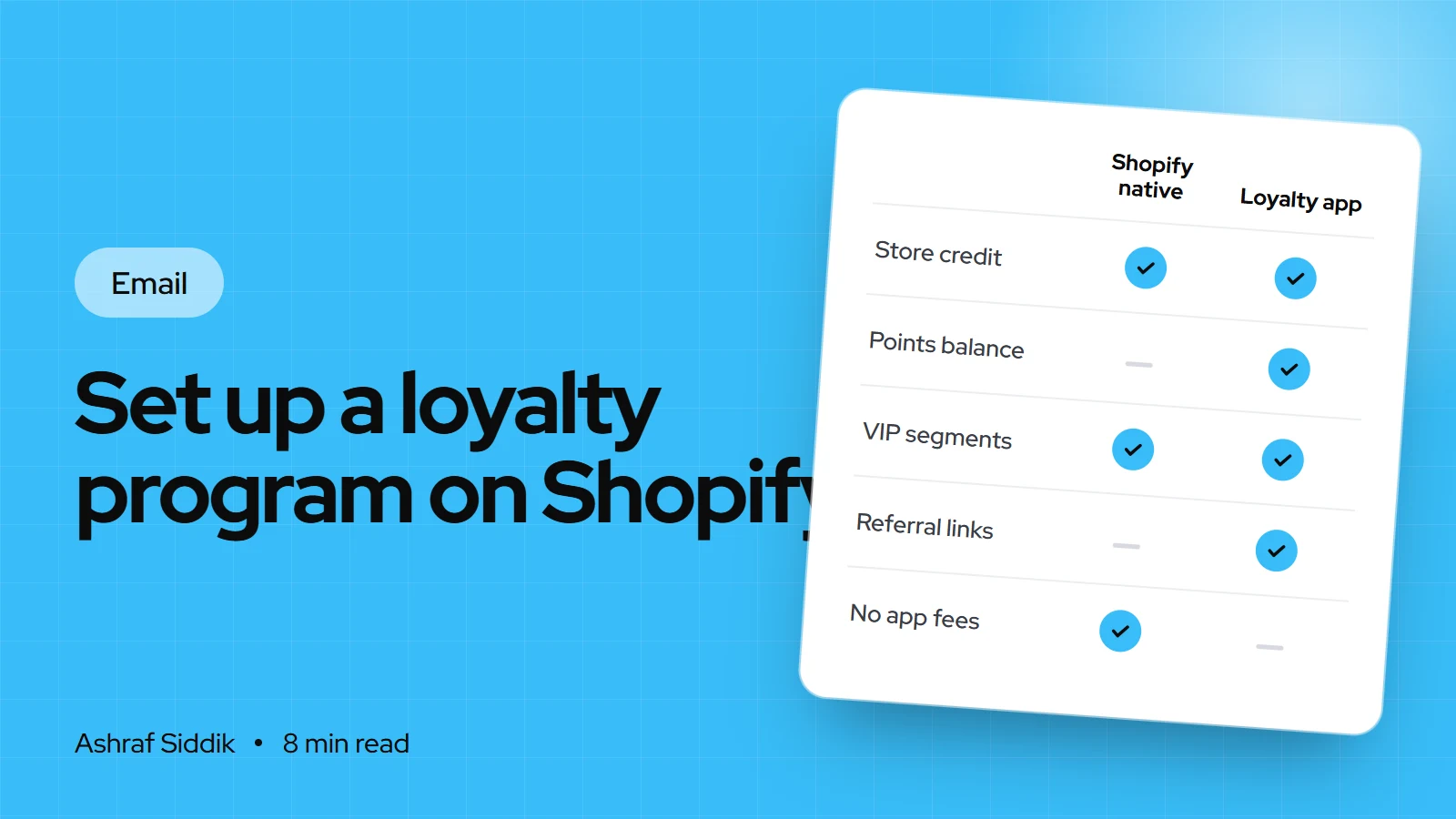
How to Set Up a Loyalty Program on Shopify
Shopify has no built-in points program, but it has store credit, segments and Flow, and the loyalty apps fill the gap. Here is how to design rewards that pay for themselves and set them up.
-
How to Set Up a Referral Program on Shopify
A referral program turns happy customers into a tracked source of new ones. Here is how to price the rewards, choose an app, set it up and keep it free of abuse.