Shopify guideGuide8 min read
How to Set Up Meta Conversions API on Shopify
On Shopify, Meta's Conversions API is a setting in the Facebook & Instagram app. Here is how to switch it on, clean out duplicate pixels and check that Meta sees your real purchases.
Key takeaways
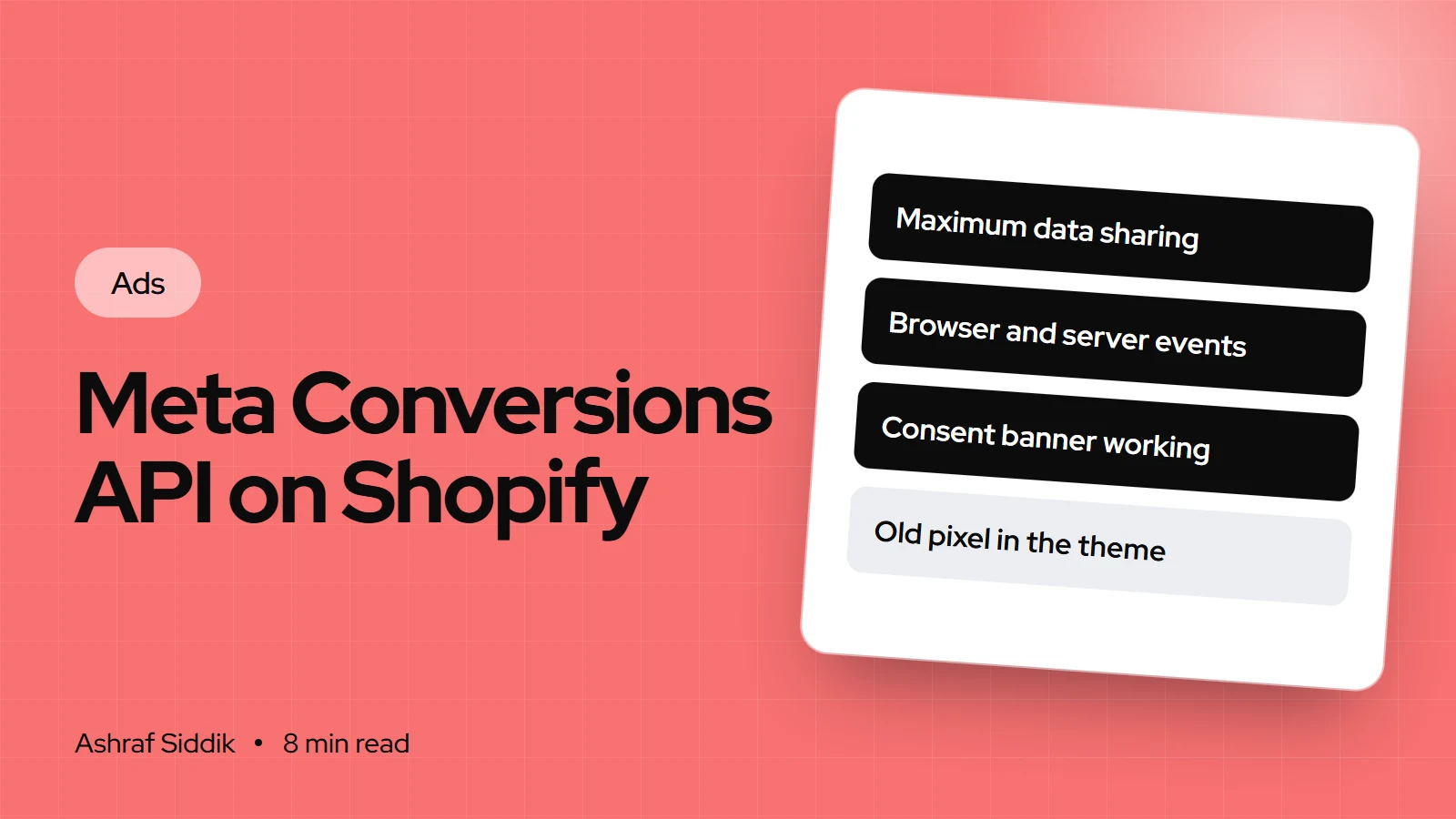
- On Shopify, Meta's Conversions API is a setting in the Facebook & Instagram app: choose the Enhanced or Maximum data-sharing level and Shopify sends events server to server.
- Meta recommends running the Conversions API alongside the pixel. It removes duplicates when both send the same event name and event ID within 48 hours.
- Old pixel code in your theme or from other apps is the most common cause of double-counted purchases. Remove it before you switch on data sharing.
- Check the result in Meta Events Manager: browser and server events for Purchase, deduplication working, and an Event Match Quality score out of 10.
- Who it is for
- Shopify stores running Meta ads
- Time needed
- About 30 minutes, plus a week of checks
- What you need
- Shopify admin and Meta business portfolio access
On Shopify, Meta Conversions API is a setting, not a developer project. Shopify has a direct integration through the Facebook & Instagram app, and switching it on takes a few minutes. The work is in what comes before and after: cleaning out old tracking code, getting consent right, and checking in Events Manager that Meta now sees the purchases your store actually takes.
I care about this from the conversion side. I don't manage ad accounts, but when I review a store's paid traffic, broken tracking is often why the numbers make no sense. If Meta can't see purchases, it can't find more people who buy, and every decision about your landing pages rests on bad data. The steps below follow Shopify's and Meta's own documentation as I checked it on 7 November 2026.
What the Conversions API does, and the three levels
The Meta pixel runs in the shopper's browser. Ad blockers, browser privacy settings and slow connections can all stop it from reporting a purchase. The Conversions API sends events from the server instead, so, as Shopify's help center puts it, the data can't be blocked by browser-based ad blockers.
Meta doesn't treat it as a replacement. Its developer documentation recommends that advertisers run the Conversions API alongside the pixel, and then removes duplicates. That "redundant setup" is exactly what Shopify's higher data-sharing levels give you.
Shopify's Facebook & Instagram app offers three levels. Only the top two use the Conversions API:
| Level | How events are sent | Customer data shared |
|---|---|---|
| Standard | Meta pixel in the browser | Browsing behavior only |
| Enhanced | Pixel plus Conversions API | Adds name, location, email and phone |
| Maximum | Pixel plus Conversions API, with Meta's latest features | Same as Enhanced |
For a store running Meta ads to sell, Maximum is the usual choice. Enhanced and Maximum share the same customer information, and Maximum is the level Shopify says is updated with Meta's latest advertising technology.
Before you start
- Install the Facebook & Instagram app from the Shopify App Store, if it isn't already under
Sales channels. - Have admin access to the Meta business portfolio that owns your ad account and pixel. Connecting a pixel that lives in someone else's account is a common source of lost data.
- Update your privacy policy. Shopify asks you to describe your data sharing in an up-to-date privacy policy, and offers a privacy policy generator.
- List every place a Meta pixel might already be firing: your theme code, old checkout scripts, a tag manager, a custom pixel, or another app. You'll remove these in step 2.
Step 1: Turn on the Conversions API in Shopify
- Open the app. In Shopify admin, go to
Sales channels>Facebook & Instagram. - Open the data settings. Click
Settings, then the data-sharing settings. Shopify's help pages label thisData sharing settingsin one place andShare data settingsin another, so look for either. - Turn on customer data sharing in the
Customer data sharingsection. - Choose the level. Select
Maximum, orEnhanced. - Connect the pixel. Click
Connecton the pixel your ad account uses, orCreate newif you don't have one yet. - Confirm. Click
Confirmto save.
Shopify then tracks these events automatically: PageView, ViewContent, Search, AddToCart, InitiateCheckout, AddPaymentInfo and Purchase. One detail matters for reporting: Shopify sends the order's total price as the purchase value, including duties, taxes and discounts. Expect Meta's revenue figure to differ from a "net sales" report in Shopify.
Step 2: Remove old and duplicate pixels
Shopify's own help page warns that pixel code added to your theme earlier can give you more than one pixel and duplicate or incorrect data. Work through each place in turn:
- Theme code. Go to
Online Store>Themes, click the three dots next to your current theme, chooseEdit code, opentheme.liquidand delete any Meta pixel code between the<head>tags. Save. - Customer events. Go to
Settings>Customer events. Check for custom pixels or other apps that also send Meta events. - Other apps. Some review, upsell and "pixel booster" apps add their own Meta pixel. If an app or agency manages your Meta tracking, check that it isn't sending the same events as the Facebook & Instagram app.
- Tag managers. If you use Google Tag Manager, remove any Meta tags that duplicate what Shopify now sends.
Step 3: Get consent right
Server-side doesn't mean consent-free. Shopify's pixel system runs app pixels only after visitors in regions that require consent, usually the EEA and UK, grant the permissions the pixel is configured for. New pixels require Marketing and Analytics permissions by default. Pixels marked as a data sale don't run for customers who opted out, unless the pixel supports limited data use.
Shopify's help center is clear that you are responsible for your own privacy compliance. In practice, that means a working cookie banner, set up under Settings > Customer privacy, and a privacy policy that explains what you share with Meta. My guide to cookie consent on Shopify walks through it. For stores selling to Europe, read GDPR for Shopify stores as well.
Step 4: Check it works in Events Manager
New pixels show no data until customers act on your store, so place a real test order, or wait a day for normal traffic. Then, in Meta Events Manager:
- Open your pixel's Overview. Click the
Purchaseevent and look at the connection methods. You want to see both browser and server events. - Check deduplication. Meta matches a browser event and a server event when they share the same event name and event ID, and only within 48 hours of the first one arriving. With the built-in integration you don't add event IDs by hand. If Events Manager flags deduplication problems, look for a second pixel source.
- Use Test events. Meta's Test Events tool shows whether events arrive and whether deduplication works. Meta suggests testing with your own real details, since test events that don't match a Meta account may be discarded.
- Read Event Match Quality. Meta scores server events out of 10 on how well their customer information can be matched to Meta accounts. Only matched events count for attribution and optimization.
- Compare with Shopify. Over a week, Ads Manager purchases won't match Shopify orders exactly, because Meta only counts orders it can attribute. But they should move together.
Purchases in Ads Manager don't look right?
- 1
Does Ads Manager show more purchases than Shopify has orders?
Yes: look for a second pixel in the theme, apps or Customer eventsNo: next question
- 2
Does the Purchase event show browser events but no server events?
Yes: data sharing is on Standard, or the wrong pixel is connectedNo: next question
- 3
Are events low only for European visitors?
Yes: expected when shoppers decline consent; check the banner worksNo: check the attribution setting on your ad sets
Fix the cause, then judge the data over a full week, not a day.
How to improve Event Match Quality
Meta's best-practice page lists email, phone, first and last name and IP address among the customer details that improve matching. On Shopify with Maximum data sharing, those are sent for you when the shopper provides them. So the way to raise match quality is on the store: collect customer details earlier and more often.
- Express checkout. Shop Pay, Apple Pay and Google Pay fill in contact details for the shopper, so fewer orders arrive with missing details.
- Email capture before checkout. A signup offer on product pages gives you an email for shoppers who browse first and buy later.
- Customer accounts. Signed-in customers carry their details with them across sessions.
Don't try to push extra data through custom code unless you know exactly what consent covers. A higher score isn't worth a privacy complaint.
When you need a custom setup
Shopify's integration covers standard online store events well. You may need more if you run a headless storefront, sell through a checkout outside Shopify, want to send events Shopify doesn't track (a quiz completion, for example), or have to send data to several pixels. Options then include Shopify custom pixels, under Settings > Customer events, or a direct Conversions API build. Shopify notes that custom pixels need JavaScript knowledge and aren't covered by its support, and each event you add needs its own deduplication plan.
For most stores, the built-in integration is the right answer. Build custom only when you can name the event you're missing.
Common mistakes
- Leaving old pixel code in the theme after switching on the app's data sharing.
- Connecting the wrong pixel, one your ad account doesn't use or can't access.
- Staying on Standard and wondering why purchases go missing.
- Two apps both sending Meta events, such as the Facebook & Instagram app and a pixel app.
- No consent banner for EEA and UK shoppers, or one that blocks everything by mistake.
- Judging on one day. Attribution and server events settle over several days.
Conversions API checklist
- App. Facebook & Instagram app installed and connected to the right business portfolio and ad account.
- Level. Customer data sharing on, level set to Maximum or Enhanced.
- Pixel. The pixel connected is the one your ads optimize for.
- Clean up. No Meta pixel code in
theme.liquid, other apps or custom pixels. - Consent. Cookie banner working, privacy policy updated.
- Events Manager. Purchase shows browser and server events, with deduplication working.
- Match quality. Event Match Quality checked, and express checkout turned on.
- Weekly check. Ads Manager purchases move with Shopify orders.
What to do next
Switch data sharing to Maximum today, remove any old pixel code, and check Events Manager after your next few orders. Once tracking is solid, the next question is whether the pages your ads send people to convert. My guide to structuring Meta ad campaigns for ecommerce covers the account side.
For the store side, I'll review your product pages and checkout for free and tell you what's costing you sales. If you want help fixing it, my CRO work starts from $500.
Free tools
Check your own store
Free, no sign-up. Each one runs a part of this guide for you.
Frequently asked questions
How do I set up the Facebook Conversions API on Shopify?
In Shopify admin, go to Sales channels > Facebook & Instagram > Settings and open the data-sharing settings. Turn on customer data sharing, choose Enhanced or Maximum, connect your pixel and confirm. Both levels send events through the Conversions API as well as the pixel.
Do I need a developer to use Conversions API on Shopify?
Not for a standard Shopify online store. The Facebook & Instagram app's Enhanced and Maximum levels set it up for you. A developer is only needed for headless stores, external checkouts or custom events Shopify doesn't track.
What is the difference between Enhanced and Maximum data sharing?
Both use the Meta pixel and the Conversions API and share the same customer information. Shopify describes Maximum as updated with Facebook's latest advertising technology, which is why it's the usual choice.
Will Conversions API double-count my purchases?
Not if it's set up correctly. Meta removes duplicates when the pixel and server event share the same event name and event ID within 48 hours. Double-counting usually comes from a second pixel left in the theme or added by another app.
Does Conversions API get around cookie consent?
No. Shopify runs app pixels only after visitors in consent regions, usually the EEA and UK, grant the required permissions, and you remain responsible for your own privacy compliance.
What is a good Event Match Quality score?
Meta scores Event Match Quality out of 10 but doesn't publish a target. Higher is better, because only matched events count for attribution and optimization. On Shopify, collecting emails earlier and offering express checkout are the practical ways to raise it.
Sources
- Facebook data sharing, Shopify Help Center
- Meta pixel, Shopify Help Center
- Pixels overview, Shopify Help Center
- Handling duplicate pixel and Conversions API events, Meta for Developers
- Conversions API best practices, Meta for Developers
Related services and work

I'm a Shopify developer and CRO specialist. I have built and improved Shopify stores since 2018, completed more than 1,000 projects, and hold a 4.96 average rating across 719 client reviews.
More guides
-
How to Set Up the Facebook (Meta) Pixel on Shopify
The Facebook pixel goes on Shopify through the Facebook & Instagram channel, not your theme code. Here are the steps, the data sharing level to choose and how to test it.
-
How to Set Up Google Merchant Center on Shopify
Google Merchant Center feeds your products to free listings, Shopping ads and Performance Max. Here is how to connect it to Shopify, which product fields matter, and how to avoid the disapprovals that stop products showing.
-
How to Set Up a Performance Max Campaign for Ecommerce
Performance Max is Google's default campaign type for online stores. Here is how it works, how to set it up for a Shopify store step by step, how to plan the budget, and what to fix on the store so it has sales to learn from.
-
Why Meta Reports Different Sales Than Shopify
Meta and Shopify count credit for a sale in different ways, and tracking gaps widen the difference. Here's how each works and how to reconcile them.