Shopify guideGuide8 min read
How to Offer Next-Day and Named-Day Delivery on Shopify
Shopify can show an estimated delivery date at checkout, but only if your fulfillment time, cutoff and transit times agree. Here is how to set them up, add a next-day rate and let customers pick a delivery day.
Key takeaways
- Shopify shows estimated delivery dates at checkout from
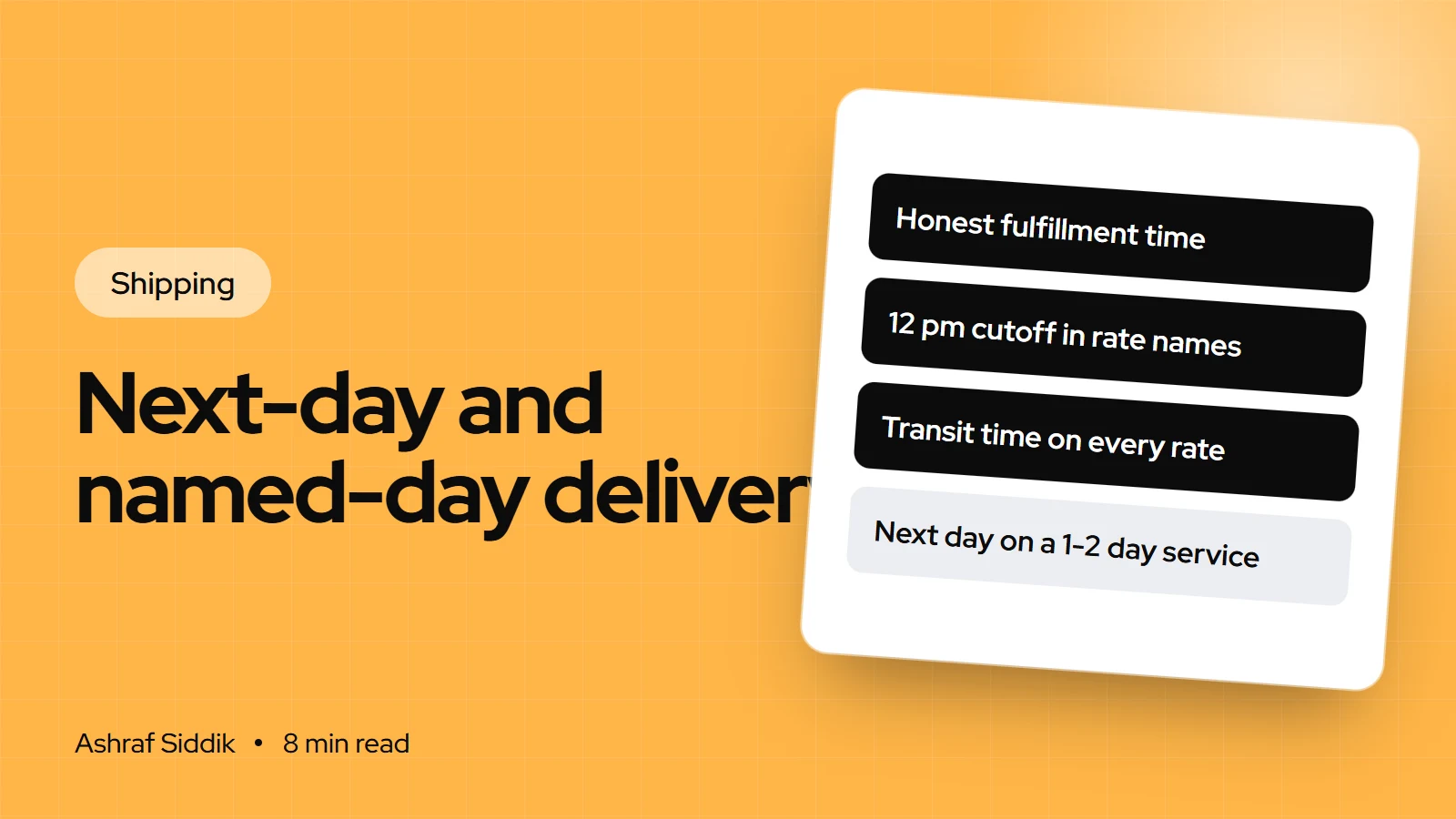
Settings > Shipping and delivery > Estimated delivery dates, either automated from your shipping history or manual from fulfillment time plus transit time. - Shopify's business-day cutoff is 12 pm in the shipping location's time zone. An order placed after that starts fulfillment the next business day.
- Next-day delivery needs a same-day fulfillment time and a carrier service that really delivers overnight. Both have to be true, or the date at checkout is wrong.
- Letting customers pick a specific day for shipped orders isn't part of Shopify's shipping settings. It needs a date picker on the cart page or an app, and date pickers inside checkout steps need Shopify Plus.
- Who it is for
- Stores adding delivery dates or express options
- Time needed
- 1 to 3 hours, more for a date picker
- What you need
- Your packing times and carrier cutoffs
A delivery promise at checkout is really three settings working together: the time of day you stop shipping same-day, how long you take to pack an order, and how long the carrier takes. Get any one wrong and checkout promises Tuesday for a parcel that lands on Thursday. That can cost more in support tickets and refunds than leaving the date off.
This guide sets up all three in Shopify, then adds a next-day option and, if you need it, named-day delivery. Settings, eligibility and limits come from Shopify's help center and developer docs, as checked on 7 November 2026. Delivery dates are newer than most Shopify features and change often, so check your admin for the current labels.
How Shopify calculates a delivery date
Shopify adds your fulfillment time (order placed to handed to the carrier) to the carrier's transit time (collected to delivered). A few rules apply on top:
- Cutoff: 12 pm in the local time zone of the shipping origin. Orders after that count from the next business day.
- Business days: Monday to Friday. Holidays don't count as fulfillment time.
- Weekends: they don't count towards fulfillment time, but they're included in the delivery estimate.
- Stock: dates only show when the product's inventory is above 0.
| Setting | How dates are made | Best for |
|---|---|---|
| Automated | From your fulfillment history | Stores with steady shipping data |
| Manual | Fulfillment time plus transit time | New stores, or tight control |
| Off | Transit times or rate text only | Made-to-order or long lead times |
Step 1: Set an honest fulfillment time
Everything starts here. Shopify's options are Same business day, Next business day, 2 business days or Custom (3 to 40 business days, or 1 to 8 weeks). The setting also sets the "Fulfill by" date in your orders list, so your team sees which orders are due.
Pick the time you actually hit on a busy Monday, not on a quiet Wednesday. If you pack once a day at 3 pm, "Same business day" with a 12 pm cutoff is honest. If you pack every other day, choose "Next business day" or slower. A promise you keep beats a fast one you miss.
Step 2a: Turn on automated delivery dates
Automated dates use your own fulfillment history to predict arrival. They're the better choice once a store has shipping data, because they reflect what really happens rather than what the carrier advertises.
- Check eligibility. Your store needs the Basic plan or higher, an active fulfillment location in an eligible country and at least one fulfilled domestic order. Eligible countries include the US, Canada, New Zealand and select European countries such as Austria, Germany and the UK.
- Open the setting. Go to
Settings > Shipping and delivery > Estimated delivery dates. - Select Automated, choose your fulfillment time and click Save.
- Turn on other surfaces if you want them. Dates show at checkout and in order confirmation emails. Showing them on your online store and in the Shop app are separate settings.
Shopify falls back to manual dates when the prediction is longer than 5 days for US, Canadian or New Zealand orders, or 4 days for European orders. Orders between different regions don't show dates at all.
Step 2b: Or set up manual delivery dates
- Use shipping profiles. If your store still has legacy shipping settings, update to shipping profiles first.
- Use a supported rate type: flat rates with transit time, shipping label calculated rates, or negotiated carrier-calculated rates.
- Add transit times to flat rates. In
Settings > Shipping and delivery, open your profile, edit each rate and choose a Transit time, or enter a custom one. - Turn on manual dates. Go to
Settings > Shipping and delivery > Estimated delivery dates, select Manual, choose a fulfillment time and save.
Manual dates have limits worth knowing before you rely on them. They don't work with rates from third-party shipping apps or negotiated FedEx rates. If checkout shows a mix of eligible and ineligible rates, no dates show at all, even on the eligible ones. Shipping label calculated rates support dates only in the US, Canada and Australia.
Step 3: Add a next-day shipping option
A next-day option is just a shipping rate with a short transit time, backed by a fulfillment time and a carrier service that can deliver it. Set it up like this:
- Confirm your carrier service. In the US, Shopify lists USPS Priority Mail Express at 1 to 2 business days. For true overnight delivery, check your UPS or FedEx account's services and cutoff times. In the UK, Royal Mail Tracked 24 is next business day and DPD Next Day covers mainland UK addresses.
- Create the rate. Open your profile, click Add shipping option in the domestic zone, and name it with the condition, for example "Next-day delivery, order by 12 pm".
- Price it. Use a flat price that covers your most expensive express label, or a carrier-calculated rate for the express service.
- Set the transit time to 1 day on a flat rate.
- Set fulfillment time to Same business day, and make sure the parcels really leave on the day.
- Test it before and after 12 pm, and on a Friday, to see the dates customers get.
How the cutoff moves a next-day promise
- Order Monday 11 amTuesdayBefore the 12 pm cutoff, ships Monday, 1-day transit.
- Order Monday 1 pmWednesdayAfter the cutoff, ships Tuesday, 1-day transit.
- Order Friday 11 amSaturdayShips Friday. Only true if your carrier delivers Saturday.
- Order Friday 1 pmTuesdayShips Monday, the next business day, then 1-day transit.
Step 4: Offer named-day delivery
Named-day delivery lets the customer choose the day, for a birthday or a time they'll be home. Shopify's shipping rates, estimated delivery dates and local delivery settings don't include a field for the customer to pick a date, so you add one. There are three ways:
| Method | Plans | Trade-off |
|---|---|---|
| Date picker on the cart page | All plans | Small theme change, saved as a cart attribute |
| Delivery date app | All plans | Blackout dates and cutoffs built in, often a monthly fee |
| Checkout UI extension | Shopify Plus | Picker inside checkout, custom build |
A cart-page picker is a form field named like attributes[Delivery date], which Shopify saves with the cart as a cart attribute. Shopify's developer docs show the pattern for adding these fields to the cart template. Pickers on the information, shipping or payment steps of checkout need a checkout UI extension, and those steps are open to extensions only on Shopify Plus.
Whichever method you use, set these rules before you build:
- Earliest date: today plus fulfillment time plus transit time, respecting the 12 pm cutoff.
- Blocked dates: weekends your carrier doesn't deliver, holidays and days you're closed.
- Latest date: how far ahead you'll hold an order, often two to four weeks.
- Dispatch date: named-day means shipping on a set day, so the picked date must reach your packing list.
- Visibility: check that the chosen date shows on the order in your admin and on your packing slip before you go live.
Next-day local delivery
If you deliver yourself, Shopify's local delivery is set up under Settings > Shipping and delivery, then Local delivery in the Additional delivery methods section. You can deliver within a set distance or to listed postal codes, set a delivery price per zone and add a minimum order amount. Customers must leave a phone number and can add delivery instructions. The delivery information you write appears in the order confirmation email rather than at checkout, so put your delivery days there too.
Common mistakes
- A fulfillment time you can't keep. Every late parcel turns a delivery date into a broken promise.
- Calling a 1 to 2 day service "next day". Name the rate after what the service really does.
- Mixing app rates with Shopify rates when using manual dates, which hides dates for everyone.
- Forgetting Fridays and holidays in rate names and date pickers.
- Out-of-stock and preorder products that never show dates, then confusing customers who saw dates on other items.
- Picked dates that never reach the packer. If the date isn't on the packing slip, it's easy to miss.
Delivery date checklist
- Fulfillment time set to what you hit on your busiest day.
- Automated or manual dates turned on in
Estimated delivery dates. - Transit times on every flat rate.
- Next-day rate named with its cutoff, backed by a real overnight service.
- No app rates mixed in if you use manual dates.
- Named-day picker with earliest, latest and blocked dates.
- Picked date visible on the order and packing slip.
- Tests run before and after 12 pm, on a Friday and before a holiday.
Next steps
Set the fulfillment time and turn on delivery dates first. That alone gives customers a date at checkout. Add the next-day option once you know your carrier's cutoff, and named-day only if your customers really ask for it. For US carriers and rates, see USPS and UPS shipping on Shopify. For UK carriers, Royal Mail vs Evri vs DPD compares next-day options.
A clear delivery date is also a conversion point, which is why it's on my Shopify CRO audit checklist. If you need a cart-page date picker or a Plus checkout extension built, that's Shopify development work, starting from $300 with a fixed quote.
Free tools
Check your own store
Free, no sign-up. Each one runs a part of this guide for you.
Frequently asked questions
How do I show delivery dates on Shopify?
Go to Settings > Shipping and delivery > Estimated delivery dates and choose Automated or Manual, then set a fulfillment time and save. Automated dates need the Basic plan or higher, a location in an eligible country and at least one fulfilled domestic order.
What is Shopify's cutoff time for delivery dates?
Shopify uses 12 pm in the local time zone of the shipping location. Orders placed after that start fulfillment the next business day, which moves the delivery date by a day.
Can customers choose a delivery date on Shopify?
Not through the standard shipping settings. You can add a date picker on the cart page, which saves the date as a cart attribute, or use a delivery date app. Pickers inside the checkout's information, shipping or payment steps need a checkout UI extension, which is limited to Shopify Plus.
Why aren't delivery dates showing at my checkout?
Common reasons are a product with zero inventory, rates from a third-party shipping app mixed with Shopify rates, flat rates with no transit time, or an order between different regions. With automated dates, long predictions fall back to manual dates.
How do I offer next-day delivery on Shopify?
Create a shipping option with a 1-day transit time, name it with your cutoff, and set your fulfillment time to Same business day. Back it with a carrier service that delivers overnight, such as Royal Mail Tracked 24 in the UK.
Is there a Shopify delivery date estimator?
Yes. Automated delivery dates estimate arrival from your own fulfillment history and show the date at checkout and in order confirmation emails. Showing it on the online store and in the Shop app is turned on separately.
Sources
- Automated delivery dates, Shopify Help Center
- Manual delivery dates, Shopify Help Center
- Managing fulfillment time, Shopify Help Center
- Local delivery, Shopify Help Center
- Checkout UI extensions, Shopify.dev
- Cart template, Shopify.dev
Related services and work

I'm a Shopify developer and CRO specialist. I have built and improved Shopify stores since 2018, completed more than 1,000 projects, and hold a 4.96 average rating across 719 client reviews.
More guides
-
Can I Offer Same-Day Delivery on Shopify?
Yes, if you deliver locally. Shopify's built-in local delivery handles zones, prices and minimum orders; you handle the drivers and the cut-off time.
-
How to Set Up Local Delivery on Shopify
Shopify's built-in local delivery lets nearby customers choose delivery at checkout, at a price you set. Here is how to set it up, price it and run it day to day.
-
How to Handle Customs and Duties on EU Orders from Shopify
EU parcels under €150 stopped being duty-free on 1 July 2026. Here is what an EU order owes now, the four ways to handle it from Shopify, and how to set up duties at checkout step by step.
-
How Do I Ship Large and Heavy Items in the UK?
Shopify's built-in UK carriers stop at 20 kg. Here is what each one takes, what to use beyond that, and how to charge customers properly.