Shopify guideGuide8 min read
Shopify Metaobjects: What They Are and How to Use Them
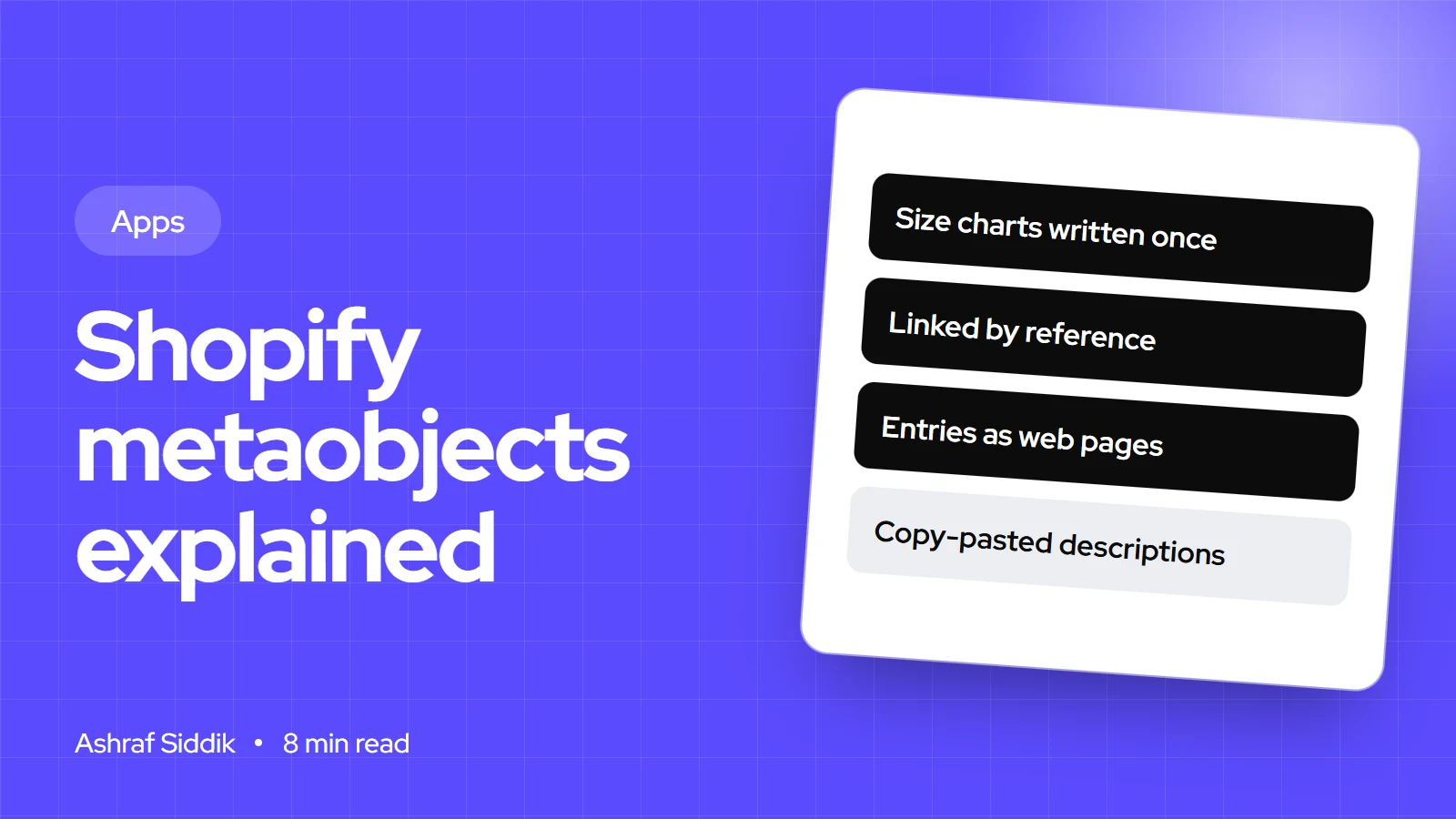
Metaobjects let you build your own content types in Shopify, such as size charts, ingredients or designer profiles, and reuse them across products and pages. Here is how they work, with real examples and the exact admin steps.
Key takeaways
- A metaobject is a reusable content type you design, with up to 40 fields. A metafield adds one value to an existing product, collection, customer or order.
- Definitions are set up under Settings > Custom data, and entries are managed under Content > Metaobjects.
- Link a metaobject to products with a metafield of the metaobject reference type, then show it in your theme with dynamic sources or Liquid.
- Stores on Basic, Grow and Advanced can create 128 metaobject definitions, Plus stores 256, and each definition can hold up to 1,000,000 entries.
- Who it is for
- Store owners and theme developers
- Time needed
- About an hour for the first metaobject
- What you need
- Admin access and an Online Store 2.0 theme
A store selling 200 jackets usually has five size charts. Before metaobjects, that meant pasting a chart into 200 product descriptions, then editing 40 of them by hand when a measurement changed. With a metaobject, you create each chart once, link it to the right products, and change it in one place. That's the whole idea, and once a store owner sees it, they start finding uses everywhere.
I use metaobjects on most builds now, for size guides, ingredient lists, designer pages, store locations and FAQs. This guide explains what they are, how they differ from metafields, and the exact steps to create one, connect it and show it in a theme. Admin paths and limits were checked on the Shopify Help Center and shopify.dev on 7 November 2026.
What are Shopify metaobjects?
A metaobject is a structured piece of content with several fields, which you design yourself. It has two parts:
- The definition is the template. It has a name, a type (an identifier Shopify generates from the name, such as
size_chart), and a list of fields, each with a type such as single line text, rich text, image, number, color, product reference or a list of values. You can add validation, such as a character limit or preset choices. - Entries are the content. Each entry fills in the definition's fields: "Men's jackets chart", "Women's jackets chart" and so on.
Each definition has a display name field, which is how entries are labeled in the admin. Shopify uses metaobjects itself: the category metafields that come with Shopify's standard product taxonomy are powered by them.
Shopify metafields and metaobjects: the difference
| Question | Metafield | Metaobject |
|---|---|---|
| What is it? | One extra value on a resource | A content type with many fields |
| Attached to | A product, variant, collection, customer, order and more | Nothing; it stands alone |
| Reused? | No, each resource has its own value | Yes, one entry links to many places |
| Own web page? | – | Yes, with the Web pages feature |
| Typical example | Product's care instructions | A size chart shared by 50 products |
They work together. You create the metaobject (the size chart), then add a product metafield whose type is a metaobject reference, and pick the right chart on each product. My rule of thumb: if the same content appears on more than a handful of products, or it has more than two fields, it's a metaobject.
Shopify metaobjects examples
These are the uses I set up most often:
- Size charts. Fields: title, table (rich text or JSON), image, fit notes. Linked from a product metafield.
- Ingredients or materials. Fields: name, image, description, benefits. A list of references on each product shows its ingredients, and each ingredient can have its own page.
- Designers, makers or brands. Fields: name, portrait, bio, links. Published as web pages and linked from every product they made.
- Store locations. Fields: address, hours, phone, map link, photo. Shown on a stores page and in the footer.
- FAQs. Fields: question, answer, topic. Pulled into product pages by topic, so a shipping answer is written once.
- Testimonials. Fields: quote, name, product reference, photo. Looped in a homepage section.
How to create a metaobject definition
Here's the size chart example, step by step:
- Open custom data. In your admin, go to
Settings > Custom data, orContent > Metaobjects, and click Add definition. Some older Help Center pages call this area Metafields and metaobjects. - Name it. Enter "Size chart". Shopify generates the type
size_chart, which you can edit before saving. Pick a clear name, because your theme and any apps refer to this type. - Add fields. Click Add field, enter a label, then Select field type. For a size chart: Title (single line text), Chart (rich text), Image (file), Notes (multi-line text).
- Set rules. Click the asterisk next to a field to make it required. Expand a field to add validation or a description for your team.
- Check access. Under Access, keep Storefronts selected if the content will appear on your store. Without it, your theme can't read the entries.
- Choose features. Under Features, select Web pages only if each entry should have its own URL. Size charts don't need it. Designer profiles do.
- Save. Click Save.
Add entries and connect them to products
- Add entries. Go to
Content > Metaobjects, open Size chart and add an entry for each chart. - Create the product metafield. Go to
Settings > Custom data, choose Products and add a metafield definition. Name it "Size chart" and pick the Metaobject type, then select the Size chart definition. Use a list type if a product can have several, such as ingredients. - Assign charts. Open each product, scroll to the metafields section and pick the right chart. For many products, bulk edit is faster.
- Show it in the theme. In the theme editor, add a block to the product template, such as a collapsible row or a popup, and use the dynamic source button to connect it to the metafield's fields. Not every section supports dynamic sources, so check your theme.
Product data structure is a big part of a clean catalog. My guide on adding products the right way covers the product fields and metafields to plan before you import.
Publish metaobject entries as web pages
With the Web pages feature, each entry gets its own page, which is how you build designer, ingredient or location pages without an app.
- Turn it on. Open the definition, make sure Storefronts access is on, and select Publish entries as web pages. Choose which fields become the page title and meta description, and optionally set the URL handle. Leave Enable in Online Store selected unless you use Hydrogen. Save.
- Create the template. Go to
Online Store > Themesand click Edit theme. Open the page selector at the top, click Create metaobject template and choose your metaobject. Check the SEO fields in Search engine listing, then click Create template. - Design it. Add sections and blocks and connect them to fields with dynamic sources. Save.
- Link to the pages. Add them to a menu or link them from products. Pages nobody links to are hard for shoppers and search engines to find.
Using metaobjects in Liquid
Developers can read metaobjects directly in theme code. Through a product metafield that references a size chart:
{% assign chart = product.metafields.custom.size_chart.value %}
{% if chart %}
  <h3>{{ chart.title.value }}</h3>
  {{ chart.chart | metafield_tag }}
{% endif %}
Or looping over every entry of a definition, such as testimonials:
{% for testimonial in metaobjects.testimonials.values %}
  {{ testimonial.author.value }}
{% endfor %}
Watch the rendering limits. A loop without paginate returns 50 entries, paginate allows 250 per page, and looking up entries by handle (metaobjects.TYPE[handle]) is limited to 20 unique handles per type on a page. If the publishable capability is on, loops skip entries in draft.
Shopify metaobject limits
Metaobject limits per store
- Definitions128Basic, Grow and Advanced. Plus gets 256.
- Fields40Per definition.
- Entries1,000,000Per definition, counted separately.
- List references1,024Metaobjects in one list metafield.
Metaobjects for app developers
Apps can own metaobject types. An app-owned type uses the $app prefix, such as $app:author, and can be declared in shopify.app.toml under [metaobjects.app.author], then released with shopify app deploy. Merchant-owned definitions are created with the metaobjectDefinitionCreate mutation, and entries with metaobjectCreate. Storefront access is off by default for app-owned types and set with access.storefront = "public_read".
One detail matters for checkout logic: Shopify Functions can query app-owned $app metaobjects in their input, but not merchant-owned ones. If you plan a custom app whose function reads configuration from a metaobject, make the app own the type.
Common metaobject mistakes
- Turning off Storefronts access and then wondering why the theme shows nothing.
- Using a metaobject for one-off content. If it only appears once, a section setting or a single metafield is simpler.
- Putting a whole table in an image. Shoppers can't search it, screen readers can't read it, and chatbots can't quote it.
- Naming types badly.
new_thing_2is hard to maintain. Use clear, singular names. - Publishing thin web pages. Each entry page needs real content.
- Hitting handle lookup limits by fetching many entries by handle on one page instead of using a list reference.
Metaobjects checklist
| Step | Check | Done when |
|---|---|---|
| Plan | Repeated content listed | Each has a definition plan |
| Definition | Fields, types, validation | Saved with a clear type name |
| Access | Storefronts access | On, if shown on the store |
| Link | Metaobject reference metafield | Assigned on every product |
| Theme | Dynamic sources connected | Shows on product pages |
| Pages | Web pages feature, if needed | Template built and linked |
Next steps
Look through your product descriptions for content that repeats: charts, care instructions, ingredient notes, shipping text. Pick the one that changes most often and turn it into your first metaobject. Once it's linked and showing, the next one takes minutes.
If you'd like help structuring your catalog data or building the theme sections that display it, my Shopify development service starts from $300. Send me a product page and I'll suggest which content belongs in metaobjects.
Free tools
Check your own store
Free, no sign-up. Each one runs a part of this guide for you.
Frequently asked questions
What are Shopify metaobjects?
Metaobjects are custom content types you design in Shopify, with several fields each, such as a size chart with a title, table and image. You create entries once and reuse them across products, collections and pages.
What is the difference between metafields and metaobjects?
A metafield adds one value to an existing resource, such as a product. A metaobject is a standalone content type with many fields that can be linked from many resources through a metaobject reference metafield.
Where do I find metaobjects in Shopify?
Definitions are set up under Settings > Custom data, and entries are created and edited under Content > Metaobjects.
Can metaobjects have their own pages?
Yes. Turn on Storefronts access and Publish entries as web pages in the definition, then create a metaobject template in the theme editor. Each entry then gets its own URL.
How many metaobjects can a Shopify store have?
Stores on Basic, Grow and Advanced can create 128 metaobject definitions and Plus stores 256. Each definition can have up to 40 fields and 1,000,000 entries.
Do I need an app to use metaobjects?
No. Metaobjects are built into Shopify on every plan. You create them in the admin and show them with your theme's dynamic sources, or with Liquid if you have a developer.
Sources
- Metaobjects, Shopify Help Center
- Building a metaobject, Shopify Help Center
- Creating web pages with metaobjects, Shopify Help Center
- Metaobject limits, Shopify.dev
- About metaobjects, Shopify.dev
- Liquid object: metaobject_definition, Shopify.dev
Related services and work

I'm a Shopify developer and CRO specialist. I have built and improved Shopify stores since 2018, completed more than 1,000 projects, and hold a 4.96 average rating across 719 client reviews.
More guides
-
What Are Shopify Metaobjects? Custom Content Types Explained
Metaobjects let you create your own content types in Shopify, such as size charts or FAQs, and reuse them across products. Here is how they work, real examples, and how to set one up.
-
What Are Shopify Functions? Custom Discount, Shipping and Checkout Logic
Shopify Functions let an app change how Shopify calculates discounts, shows delivery and payment options, and validates carts. Here is how they work, what they can change, and which plans can use them.
-
How to Audit and Remove Unused Shopify Apps
Uninstalling a Shopify app takes four clicks, but billing, data and leftover theme code don't always go with it. Here is how to remove an app properly, and how to audit your whole app list so you only pay for what earns its place.
-
Can I Use Shopify Without a Website or Domain?
You can start selling on Shopify before you own a domain. Here is what works on the free address, and when a proper domain starts to matter.