Shopify guideGuide7 min read
How to Sell on Instagram and Facebook Shops with Shopify
Instagram still sells, but the checkout has moved to your own store. Here's how to set up Instagram and Facebook Shops from Shopify, and make the clicks convert.
Key takeaways
- You sell on Instagram and Facebook from Shopify through Meta's free Facebook and Instagram sales channel, which syncs your products into one catalog for shops, product tags and ads.
- Since 26 August 2025, Meta no longer runs checkout inside its apps. Shoppers who tap "Checkout on seller's website" finish the purchase on your Shopify store.
- You need a Meta business portfolio, a published Facebook Page, and an Instagram professional account linked to that Page, and your products must be buyable on your verified domain.
- Because the sale now closes on your site, your mobile product page matters more than your Instagram grid. Fix that first.
- Who it is for
- Stores selling to Instagram and Facebook audiences
- Time needed
- One to two hours, plus Meta review
- What you need
- Meta business portfolio and Page
Instagram selling has changed more in the last two years than in the five before. The in-app checkout that many guides still describe is gone. What's left is simpler and, for most Shopify stores, better: Instagram and Facebook show your products, and your own store takes the order, with your checkout, your Shop Pay customers and your data.
This guide covers how to sell on Instagram with Shopify as it works today: the accounts you need, the exact setup steps, getting your catalog approved, tagging products, and making those clicks turn into orders. Requirements and admin paths come from Shopify's Help Center, as checked on 7 November 2026.
How selling on Instagram works now
There are three pieces, all fed by one product catalog that Shopify keeps in sync:
- Instagram Shopping. A shop on your Instagram profile, and product tags on posts, reels and stories that open product details.
- Facebook Shop. The same catalog shown as a shop on your Facebook Page.
- Meta ads. Catalog and product ads that use the same products and prices.
Shopify's Help Center says that for orders created on or after 26 August 2025, Meta no longer handles checkout natively. Shoppers in the Facebook or Instagram app select Checkout on seller's website and complete the purchase on your store. People who click an ad land on your product page and check out as usual.
Meta also stopped acting as a marketplace tax facilitator from that date, so you're responsible for collecting and remitting sales tax on orders from this channel, just as on your website.
What you need before you start
| Requirement | Details | Needed for |
|---|---|---|
| Shopify plan | Any plan, subject to store eligibility | Everything |
| Business portfolio | Connected to your Page, with full control | Everything |
| Facebook Page | Published and linked to the portfolio | Everything |
| Instagram account | Professional account linked to the Page | Instagram Shopping |
| Ad account | Connected to the portfolio | Meta ads |
| Supported country | Your business is in a country Meta supports | Shops |
Your products must also be available to buy directly from your verified domain and follow Meta's Commerce Policy. Meta reviews every uploaded product and can remove items that break its rules. You can ask for a review of a rejected item.
Connect Shopify to Instagram and Facebook
- Check your tax settings. Go to
Settings > Taxes and dutiesand confirm you're collecting the right taxes, because orders from this channel are your responsibility. - Add the channel. Go to
Settings > Sales channels, click Shopify App Store, search for Facebook, and click Add channel or Add app. - Start setup. Click Start set up on the feature you want first. I usually start with Facebook Shop, because it creates the catalog the other features use.
- Connect your account. Click Connect account and sign in to the Facebook profile that has full control of your business portfolio.
- Connect your assets. Choose the business portfolio, Facebook Page, Instagram professional account and, if you'll advertise, the ad account.
- Accept the terms and click Finish setup.
- Add Instagram Shopping. Back in the channel, start setup for Instagram Shopping. Your Instagram account must meet Meta's commerce eligibility requirements.
You can do the same from the Shopify mobile app under Sales channels, though I find the desktop flow easier when you're picking between several Pages or portfolios.
Get your catalog approved and looking right
Instagram and Facebook show your product data almost as it is in Shopify, so weak data shows up immediately. Before you sync, tidy these:
- Titles. Clear and specific: product type, key feature, variant. "Linen Throw, Sage, 130 x 170 cm" beats "The Sunday One".
- Images. A clean first image on a plain background, then lifestyle shots. Use the same crop ratio across the catalog.
- Prices and stock. Keep inventory tracking on, so sold-out items don't get tapped and then disappoint.
- Product categories. Shopify's channel lets you provide Google product categories, which helps Meta classify items.
- Restricted products. Check Meta's Commerce Policy if you sell supplements, alcohol, weapons-adjacent items or anything age-restricted. Some won't be approved at all.
Choose which products to publish to the channel, rather than everything. One catalog serves shops and ads, and making a product unavailable to the channel removes it from all of them.
Tag products in posts, reels and stories
Once Instagram Shopping is approved, you can tag approved products when you create a post, reel or story, and add tags to existing posts. Tagged products are added to your Instagram shop automatically. Instagram's Help Center has the current tap-by-tap steps for each format.
A few habits make tags work harder:
- Tag the product that's visibly in the shot, not your whole range.
- Put the price or offer in the caption's first line, so people know before they tap.
- Tag older evergreen posts that still get views from your profile grid.
- Use stories for restocks and new arrivals, where a tag plus a countdown sticker gives people a reason to tap now.
Make the click convert on your store
With checkout on your website, every Instagram sale passes through your mobile product page. Most Instagram visitors arrive on a phone, often with patchy signal, from a feed that loads instantly. If your page takes several seconds or buries the price, they go back to scrolling.
- Price, variant picker and add to cart visible without scrolling on a phone.
- Photos that match the post, so the shopper knows they've landed on the right thing.
- Shipping cost and delivery time near the button. Baymard Institute's checkout research, updated 28 October 2026, lists extra costs as the top reason shoppers abandon checkout, at 40%.
- Express checkout with Shop Pay, Apple Pay and Google Pay, so a first-time visitor can pay in a few taps.
- Fast loading. Compress images and remove apps you don't use.
My Shopify mobile CRO checklist goes through each of these in detail.
Track sales with the Meta pixel and Conversions API
The channel connects the Meta pixel and the Conversions API, so Meta can see which posts and ads led to sales on your store. During setup you choose a customer data-sharing level. Pick the highest level your privacy policy and cookie consent support, because more complete data gives you more accurate reporting.
In Shopify, check Analytics > Reports for sessions by landing page and sales by channel, and add UTM parameters to the link in your Instagram bio, so traffic from your profile isn't lumped in with everything else.
By country
- United States. Collect sales tax on Instagram and Facebook orders the same way you do on your website. Meta no longer facilitates it.
- United Kingdom. Prices shown to consumers must include VAT if you're VAT-registered, the same rule as on your store.
- Netherlands and EU. Make sure iDEAL and other local methods show at checkout, because shoppers now finish on your site, where those methods work.
- Australia. Consumer prices must show the total including GST. If you offer Afterpay, it works for these orders too, because checkout happens on your store.
A weekly posting plan that sells
| Day | Post type | Tag |
|---|---|---|
| Monday | Product in use, reel | One hero product |
| Wednesday | Customer photo or review | The product reviewed |
| Friday | How-to or styling carousel | Two or three products |
| Daily stories | Behind the scenes, restocks | New or returning items |
If you're still settling on a handle, the free Instagram username generator can help you find one that matches your store name.
Common mistakes
- Following old guides that describe checkout on Instagram. It now happens on your site.
- Syncing the whole catalog, including products Meta will reject, which slows approval.
- Page ownership mix-ups between personal profiles, old agencies and business portfolios.
- Ignoring tax because Meta used to handle it.
- A slow mobile product page that wastes every tap your posts earn.
Instagram selling checklist
- Business portfolio owns your published Facebook Page.
- Instagram professional account linked to the Page.
- Tax settings checked in
Settings > Taxes and duties. - Facebook and Instagram channel added and Finish setup completed.
- Selected products published, with clean titles, images and categories.
- Instagram Shopping approved and products tagged in posts.
- Mobile product page shows price, shipping and express checkout.
- Pixel and Conversions API connected, with UTM links in your bio.
Next steps
Set up the channel this week and tag your five best sellers in existing posts. Then spend more time on your product page than on your grid, because that's where the order is won now. If you'd like a second pair of eyes, I'll review your store for free and show you where Instagram visitors drop off.
Free tools
Check your own store
Free, no sign-up. Each one runs a part of this guide for you.
Frequently asked questions
Can you still sell on Instagram?
Yes. You can show products in an Instagram shop and tag them in posts, reels and stories. Since 26 August 2025, Meta no longer runs checkout in its apps, so shoppers finish the purchase on your Shopify store.
How do I connect my Shopify store to Instagram?
Add Meta's Facebook and Instagram sales channel from Settings, then Sales channels, in your Shopify admin. Connect your Facebook account, business portfolio, Page and Instagram professional account, accept the terms, then set up Instagram Shopping.
Does it cost anything to sell on Instagram with Shopify?
The Facebook and Instagram by Meta channel is free on all Shopify plans, subject to eligibility. You pay your normal Shopify plan and payment fees on the orders, plus anything you spend on ads.
Why were my products rejected on Instagram?
Meta reviews every product against its Commerce Policy. Common reasons are restricted product types, unclear images or titles, and products that can't be bought on your verified domain. You can request a review of a rejected item.
Do I need a business account to sell on Instagram?
You need an Instagram professional account linked to your Facebook Page, a published Facebook Page, and a Meta business portfolio that owns the Page. An ad account is only needed if you'll run ads.
Who collects sales tax on Instagram orders?
You do. Meta stopped acting as a marketplace tax facilitator for orders from 26 August 2025, so check your settings under Settings, then Taxes and duties, in Shopify.
Sources
- Facebook and Instagram by Meta, Shopify Help Center
- Requirements and considerations for Facebook and Instagram by Meta, Shopify Help Center
- Setting up Facebook and Instagram by Meta, Shopify Help Center
- Cart abandonment rate statistics, Baymard Institute
- Providing price information, Business Companion (Chartered Trading Standards Institute)
- Displaying prices, ACCC
Related services and work

I'm a Shopify developer and CRO specialist. I have built and improved Shopify stores since 2018, completed more than 1,000 projects, and hold a 4.96 average rating across 719 client reviews.
More guides
-
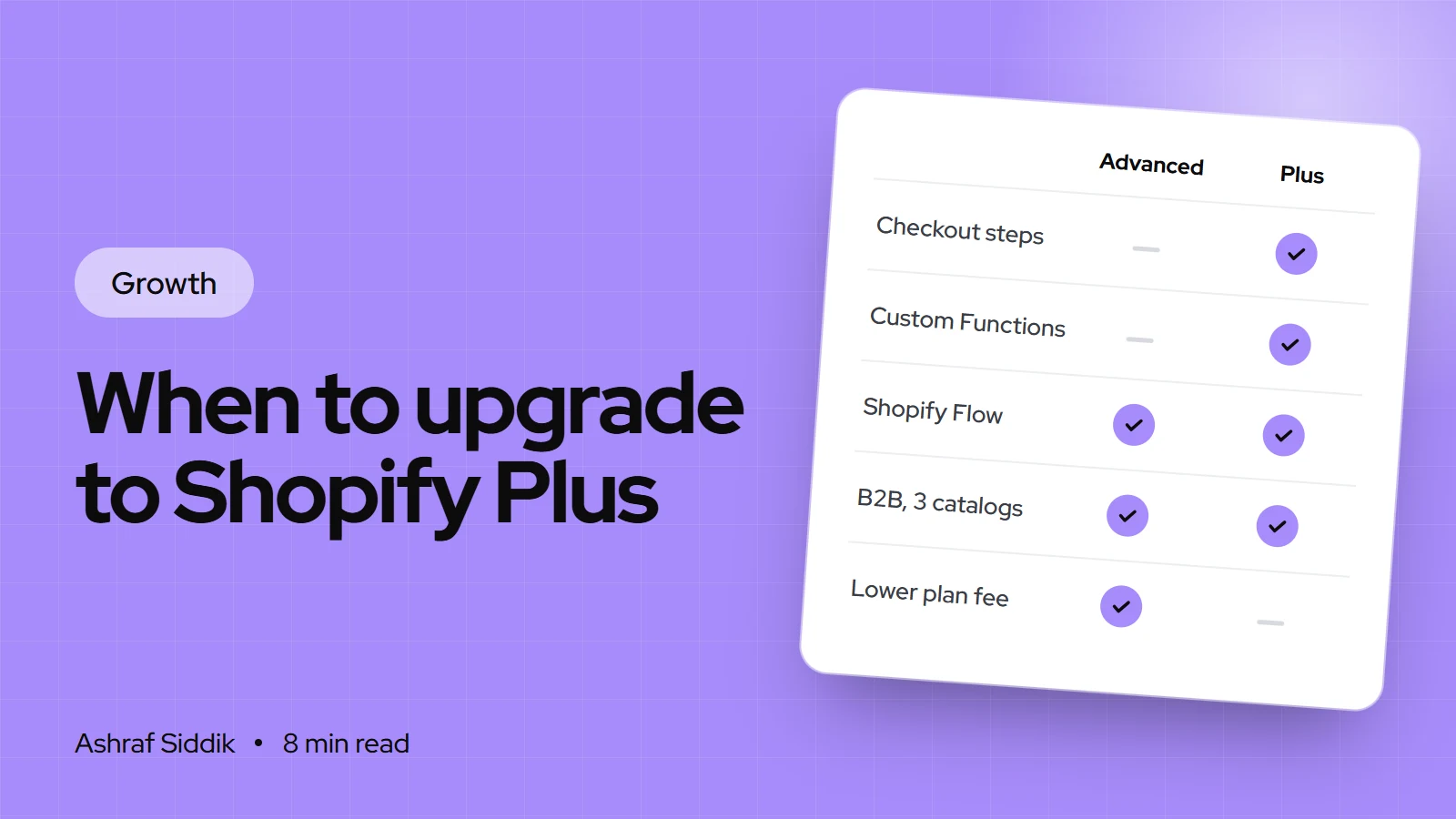
Shopify Plus: When to Upgrade (and When Not To)
Plus removes real limits, but many stores upgrade too early. Here's what it adds over Advanced, what it costs, and the signs that tell me a store is ready.
-
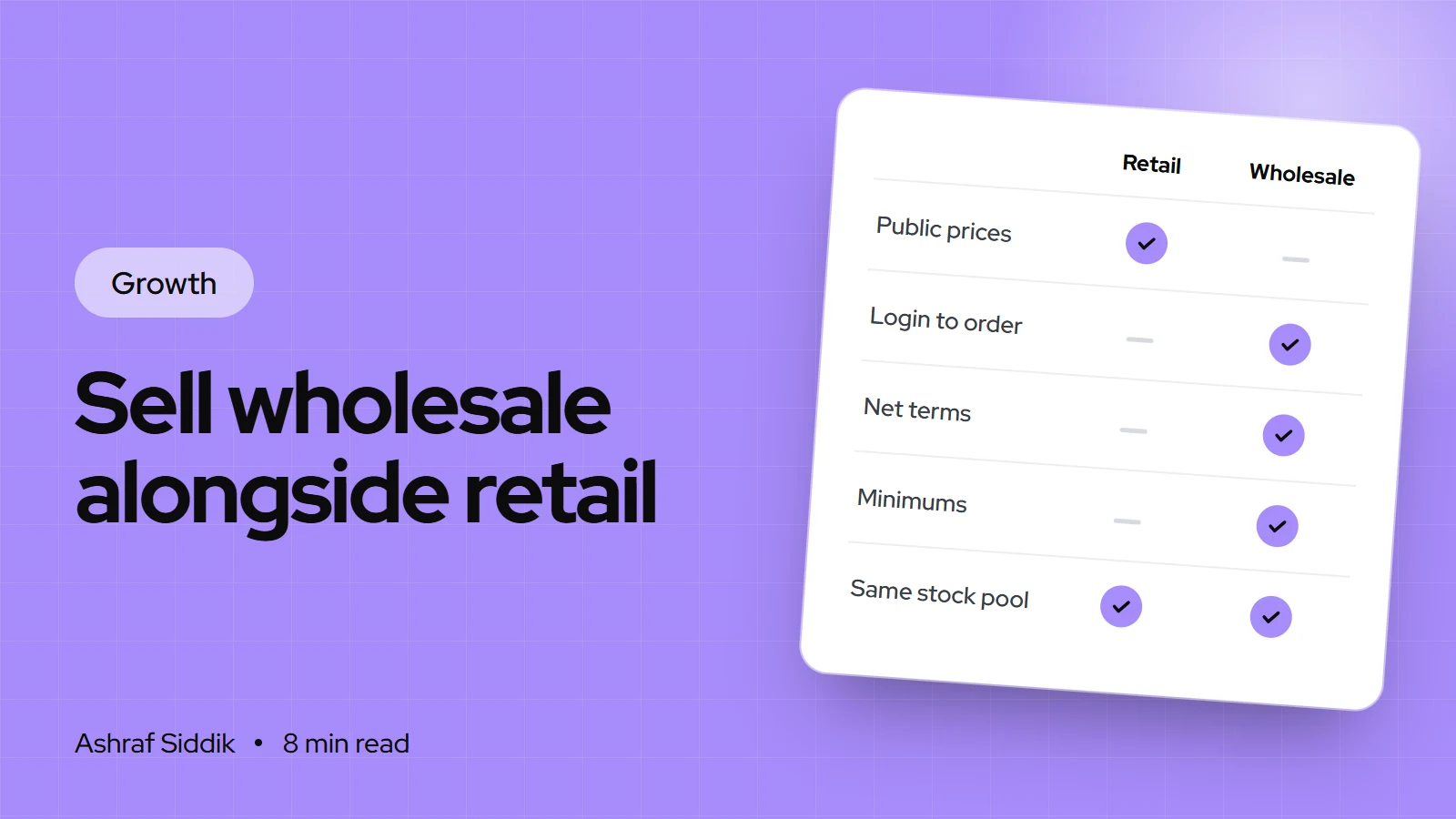
How to Sell Wholesale Alongside Retail on Shopify
Wholesale can sit inside the same Shopify store as your retail sales, with trade prices that only approved buyers see. Here is how to price it, set it up step by step and find your first retailers.
-
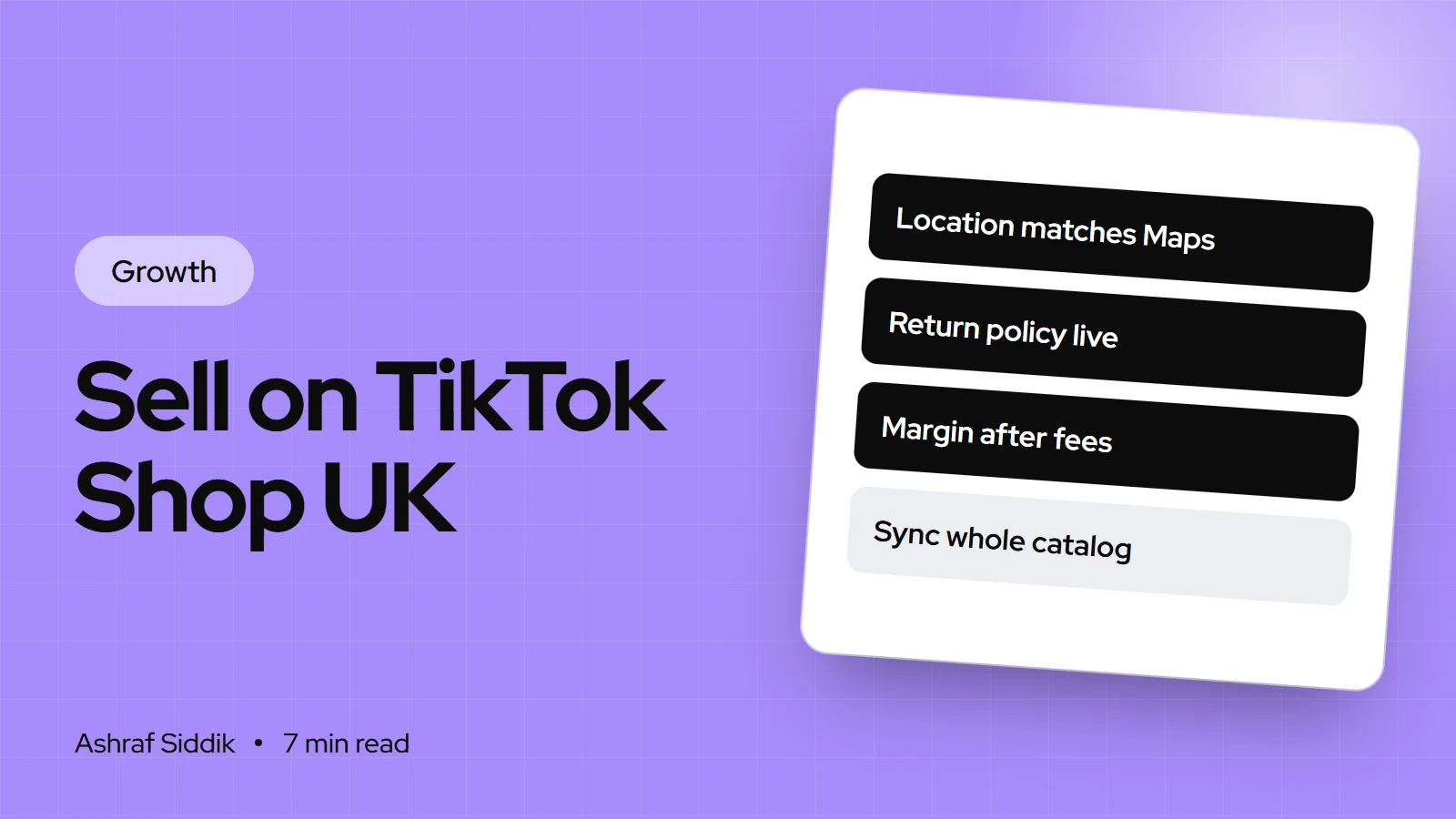
How to Sell on TikTok Shop UK from Shopify
TikTok Shop syncs with Shopify, so you can sell in videos and fulfill from one admin. Here's how to set up TikTok Shop UK step by step, and avoid the common sync errors.
-
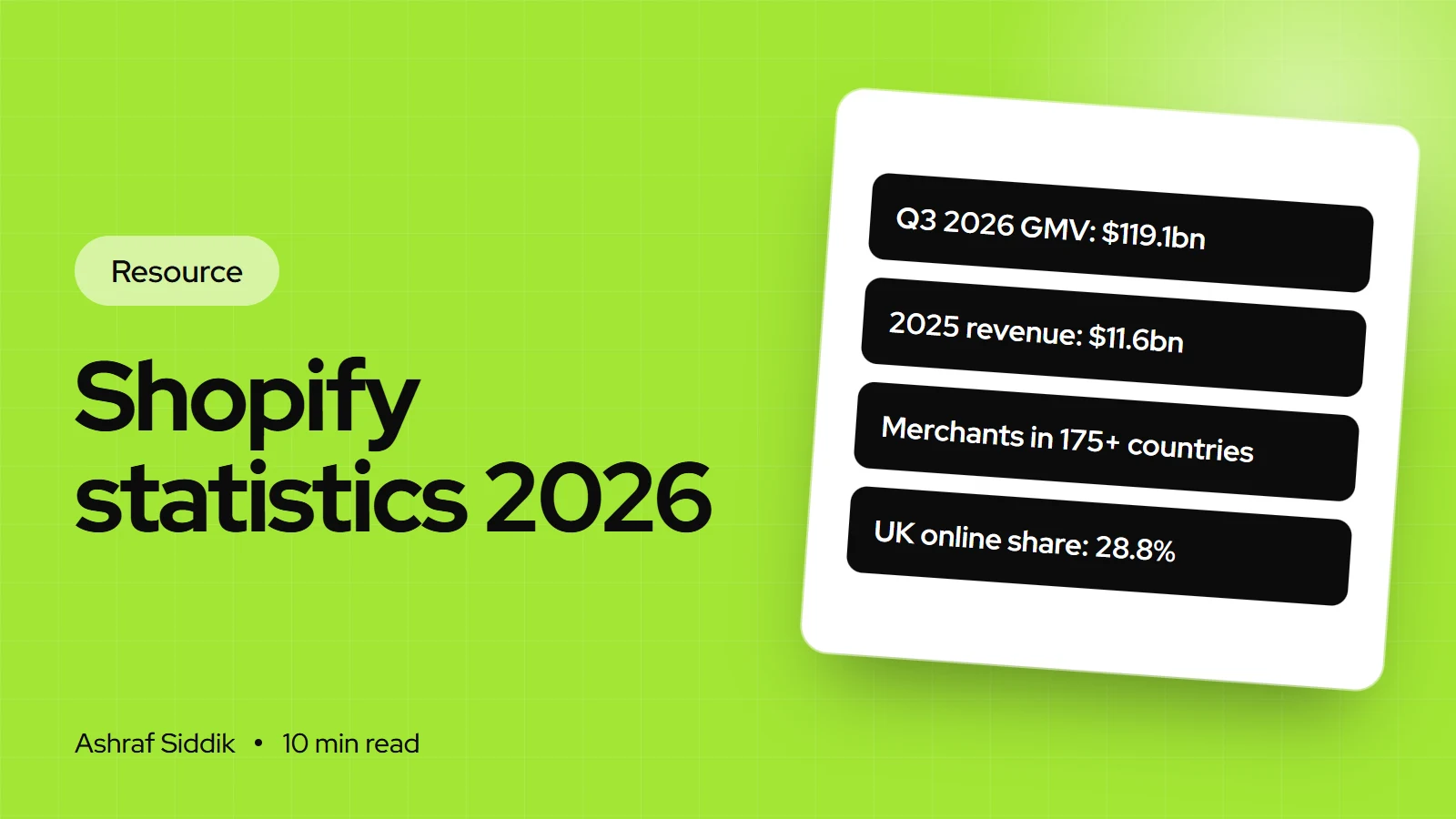
Shopify Statistics 2026: GMV, Revenue, Merchants and UK Data
Shopify's key numbers in one place, each linked to Shopify's filings, its own pages or government statistics. Checked on 7 November 2026, with the UK figures UK store owners ask me about.