Shopify guideGuide7 min read
Shopify Liquid Basics for Store Owners
Liquid is the language every Shopify theme is written in, and you can learn to read it in an afternoon. This guide covers the basics with code examples you can test safely on your own store.
Key takeaways
- Shopify Liquid is the template language every Shopify theme is written in. It was created by Shopify and is open source. It runs on Shopify's servers and outputs plain HTML.
- Liquid has three parts: objects in
{{ }}print data, tags in{% %}add logic, and filters after a|change the output. - Only
nilandfalseare false in Liquid. An empty string counts as true, so check text withblank. - Prices in Liquid are whole numbers in the currency's subunit, so 1000 means $10.00. Use the
moneyfilter to display them.
- Who it is for
- Store owners curious about theme code
- Time needed
- An afternoon to learn the basics
- What you need
- A duplicate theme to practice on
Open any product page template in a Shopify theme and you'll find lines like {{ product.title }} and {% if product.available %}. That's Liquid. You don't need to become a developer to read it, and being able to read it changes how you work with your theme: you can make small changes safely, brief a developer precisely, and spot when an app has dropped code into a file it shouldn't have.
This guide covers the Liquid basics a store owner needs, with code examples you can actually use. Everything here was checked against Shopify's Liquid reference on shopify.dev on 7 November 2026.
What Shopify Liquid is and where it lives
Liquid is a template language. A template holds fixed content, like HTML, plus placeholders that Shopify fills with your store's data when someone visits. Shopify created Liquid and published it as an open source project, and other software uses it too. The version in Shopify themes adds store objects such as product, cart and collection.
Liquid runs on Shopify's servers before the page reaches the browser. Shoppers never see it. That's also why you can't read another store's Liquid: the source code viewer shows only the HTML it produced.
In a theme, Liquid lives in these folders:
layout/theme.liquidwraps every page. It's the only file a theme strictly needs.sections/*.liquidare the sections you add in the theme editor, each with its settings in a{% schema %}tag.blocks/*.liquidare reusable theme blocks in newer themes.snippets/*.liquidare reusable pieces of code that sections include. Store owners can't see them in the editor.templates/*.jsonlist which sections appear on each page type. In Online Store 2.0 themes these are JSON, not Liquid, and contain no code.
The three parts of Liquid
| Part | Delimiters | Example | Job |
|---|---|---|---|
| Objects | {{ }} | {{ product.title }} | Print a value |
| Tags | {% %} | {% if product.available %} | Logic and loops |
| Filters | | inside {{ }} | {{ product.price | money }} | Change the output |
Filters run left to right, so you can chain them. Shopify's own example turns "Health potion" into "POTION":
{{ product.title | upcase | remove: 'HEALTH' }}Adding a hyphen inside a delimiter, as in {%- or -%}, strips the whitespace on that side. It keeps the HTML output tidy and doesn't change what shows on the page.
Objects: your store's data
Objects hold data, and you reach their properties with a dot. The ones you'll meet most often:
producton product pages:product.title,product.vendor,product.price,product.compare_at_price,product.available,product.tags,product.variantsandproduct.featured_image.collectionon collection pages, includingcollection.products.carteverywhere:cart.item_count,cart.total_priceandcart.items.settings, the values from Theme settings, andsectionandblock, the settings of the current section or block.- Metafields, your custom fields:
product.metafields.custom.care_guide, wherecustomis the namespace andcare_guidethe key.
Shopify identifies most things by a handle, a lowercase, hyphenated version of the title. "Health potion" becomes health-potion. If you rename the product later, the handle stays the same, which is why code that refers to a handle keeps working after a title change.
Tags: logic and loops
Tags make decisions and repeat things. They don't print anything themselves.
{% if product.available %}
  Price: {{ product.price | money }}
{% else %}
  Sorry, this product is sold out.
{% endif %}if,elsif,else,unlessfor conditions.forloops over a list, with options likelimit: 4.assigncreates a variable:{% assign threshold = 5000 %}.renderincludes a snippet:{% render 'price-badge', product: product %}. A rendered snippet can't see variables from outside unless you pass them in like this.sectionandsectionsoutput a single section or a section group, such as{% sections 'header-group' %}in the layout file.
Comparisons use ==, !=, >, <, >= and <=, combined with and and or, plus contains for text and lists. Two rules catch people out: parentheses aren't allowed in tags, and conditions are evaluated right to left. Split complicated logic into nested if tags instead.
Filters you'll use every week
moneyformats a price using your store's currency format.{{ product.price | money }}turns 1000 into $10.00.image_urlbuilds a resized image URL:{{ product | image_url: width: 800 }}. Widths go up to 5,760 px.image_tagturns that URL into a full<img>tag with width, height and a responsivesrcset, and lazy loads images lower down the page.metafield_tagoutputs a metafield in HTML suited to its type.handle,upcase,downcase,splitandremovefor text.
True, false, empty and blank
This is where most beginner bugs come from. In Liquid, only nil and false count as false. Everything else is true, including an empty string and the number 0.
So {% if product.metafields.custom.subtitle %} can print an empty wrapper when the field exists but holds no text. Check text with blank instead:
{%- if section.settings.heading != blank -%}
  <h2>{{ section.settings.heading }}</h2>
{%- endif -%}
Use empty to check whether an object exists before using it, as in {% unless pages.about-us == empty %}.
Shopify Liquid code examples for store owners
These are short, safe snippets I add to stores all the time. Paste them into a Custom Liquid block or section first, so you can test them in the theme editor without editing a theme file.
Sale badge when there's a compare-at price:
{%- if product.compare_at_price > product.price -%}
  <span class="sale-badge">Sale</span>
{%- endif -%}
A message only for products with a certain tag:
{%- if product.tags contains 'made-to-order' -%}
  <p>Made to order. Ships in 2 to 3 weeks.</p>
{%- endif -%}
Free shipping progress in the cart (5000 means $50.00, because cart totals are in the currency's subunit):
{%- assign threshold = 5000 -%}
{%- if cart.total_price >= threshold -%}
  <p>Your order ships free.</p>
{%- else -%}
  {%- assign remaining = threshold | minus: cart.total_price -%}
  <p>Spend {{ remaining | money }} more for free shipping.</p>
{%- endif -%}
Cart totals are in the shopper's local currency. If you sell in several currencies, a fixed threshold like this won't match, so ask a developer to handle each market.
A care guide stored in a metafield, shown only when filled:
{%- assign care = product.metafields.custom.care_guide -%}
{%- if care != blank -%}
  <div class="care-guide">{{ care | metafield_tag }}</div>
{%- endif -%}Where to write Liquid safely
- Duplicate your theme. In
Online Store > Themes, use the actions menu andDuplicate. Never experiment on the live theme. - Try it in a Custom Liquid block. In the theme editor, add the block where you want the output and paste your code, then check the result in the preview.
- Move it into the theme when it works. From the actions menu choose
Edit code, create a snippet withNew file...in the snippets folder, andrenderit where it belongs. - Use the file history if it breaks. Each file has a
Timelineview. Right-click an earlier version and chooseRestore contents.
Developers work locally with Shopify CLI instead: shopify theme dev previews a local theme against your store with hot reload, shopify theme check runs Theme Check for errors and best practices, and shopify theme console opens a Liquid console for testing expressions.
Common Liquid mistakes
- Printing raw prices.
{{ product.price }}shows 1000, not $10.00. Always add| money. - Checking text with
ifalone. Empty strings are true. Use!= blank. - Using parentheses in conditions. They aren't valid in Liquid. Nest your
iftags. - Expecting snippets to see your variables. With
render, pass every variable the snippet needs. - Hard-coding text into templates. If a store owner will want to change it, it belongs in a section setting, not in code.
- Editing app code inside theme files. Apps on Online Store 2.0 themes should use app blocks and embeds. Leftover app code in
theme.liquidis a common cause of slow pages.
How to keep learning Liquid
If you're looking for a Shopify Liquid course, start with Shopify's own Liquid reference on shopify.dev. It's free, current and lists every object, tag and filter with examples. Then read the code of a free Shopify theme like Dawn, which is public on GitHub. Pick one section, such as the rich text section, and trace how each setting in its schema appears in the HTML. That teaches more than any cheat sheet.
Checklist before you change Liquid on a live store
- Work on a duplicate theme.
- Test new code in a Custom Liquid block first.
- Format every price with
moneyand every image withimage_urlandimage_tag. - Check text and metafields with
blankbefore printing wrappers. - Put store-owner text in section settings, not in the code.
- Preview on mobile and desktop, and in each currency you sell in.
- Note what you changed and in which file.
Next steps
The natural next step after the basics is building a section of your own. My guide to building custom sections in Shopify shows the full structure, settings and schema, and the metafields guide covers custom product data. If you'd rather hand it over, theme changes are part of my Shopify development service, which starts from $300 with a fixed quote.
Free tools
Check your own store
Free, no sign-up. Each one runs a part of this guide for you.
Frequently asked questions
What is Shopify Liquid?
Liquid is the template language Shopify created for its themes. It mixes HTML with placeholders and logic that Shopify fills with your store's data on its servers. Liquid is open source and used by other software too, but Shopify's version adds store objects like product and cart.
Do I need to learn Liquid to run a Shopify store?
No. The theme editor handles most design changes without code. Knowing the basics helps you make small changes safely, test snippets in a Custom Liquid block and give a developer a clear brief.
What is the difference between {{ }} and {% %} in Liquid?
Double curly braces print a value, such as a product title or price. Curly braces with percent signs hold logic, such as if conditions, loops and variable assignments, and print nothing themselves.
Why does my Liquid price show 1000 instead of $10.00?
Prices in Liquid are stored in the currency's subunit, so 1000 means 10.00. Add the money filter, as in product.price piped to money, to format the price using your store's currency settings.
Where can I write Liquid code in Shopify?
The safest place to start is a Custom Liquid block or section in the theme editor, which most free themes include. For permanent changes, use Edit code from the theme's actions menu on a duplicate theme, or Shopify CLI if you work locally.
Is there a free Shopify Liquid course?
Shopify's Liquid reference on shopify.dev is free and lists every object, tag and filter with examples. Reading the code of a free theme like Dawn, which Shopify publishes on GitHub, is the best practical next step.
Sources
- Liquid reference, Shopify.dev
- Liquid basics, Shopify.dev
- render tag, Shopify.dev
- cart object, Shopify.dev
- Theme architecture, Shopify.dev
- Shopify CLI theme commands, Shopify.dev
Related services and work

I'm a Shopify developer and CRO specialist. I have built and improved Shopify stores since 2018, completed more than 1,000 projects, and hold a 4.96 average rating across 719 client reviews.
More guides
-
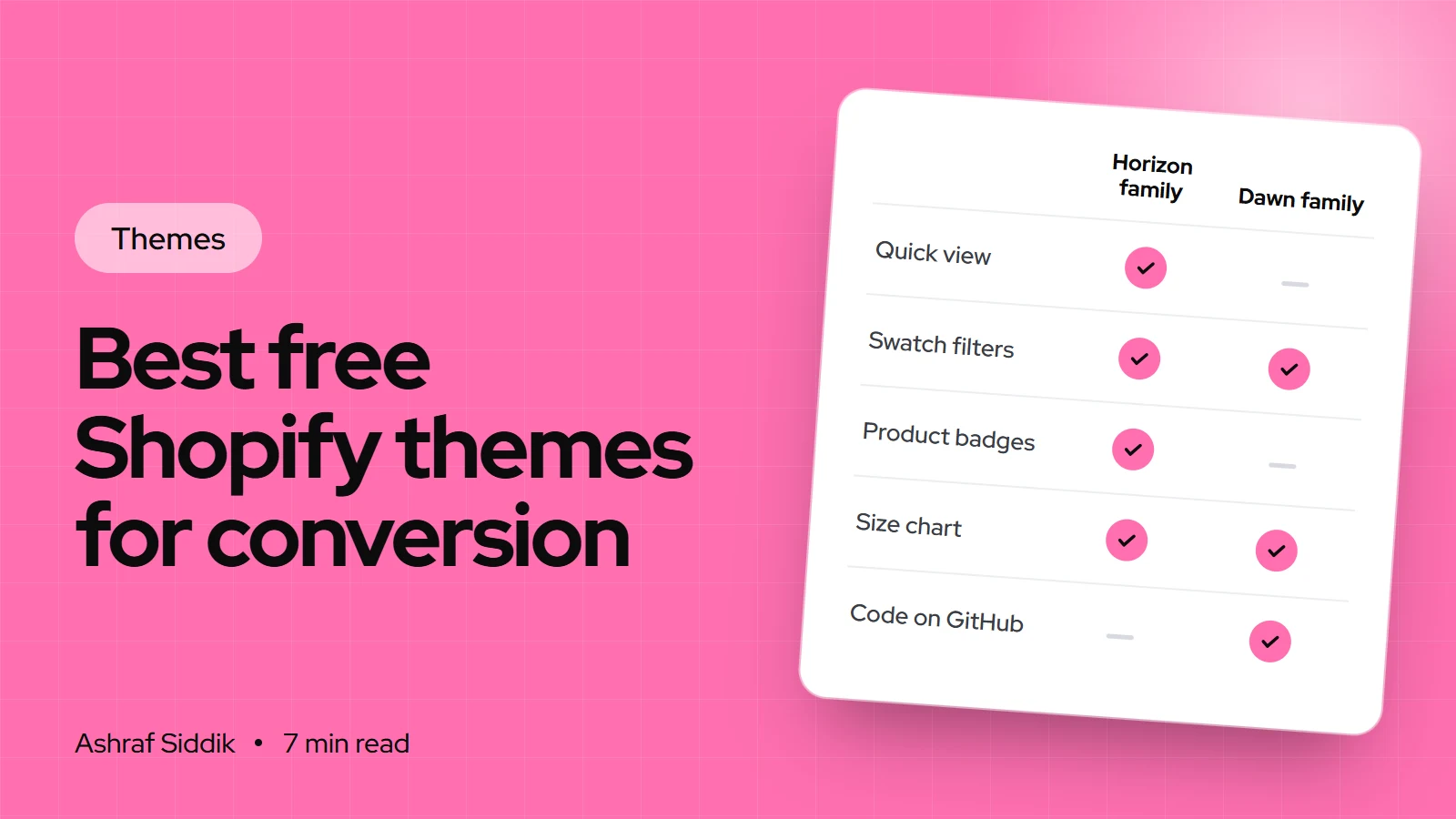
The Best Free Shopify Themes for Conversion
Shopify offers 24 free themes, and the right one depends on the features you need, not the demo. This guide compares them by what affects sales and shows how to choose and test one safely.
-
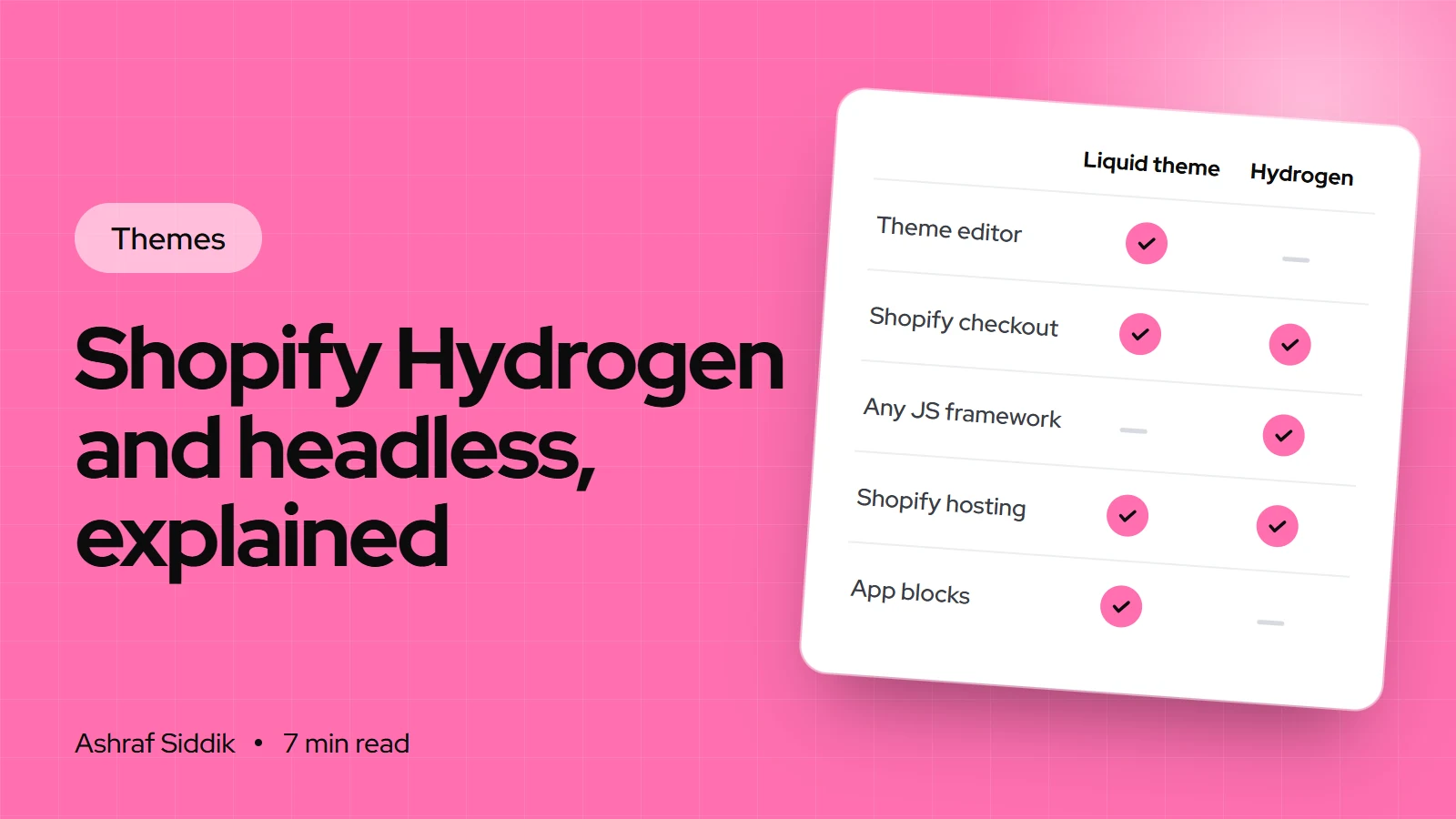
Shopify Hydrogen and Headless Commerce Explained
Hydrogen lets developers build a Shopify storefront in React and host it on Oxygen. This guide explains how it works, how it compares with Liquid, and how to tell whether your store needs it.
-
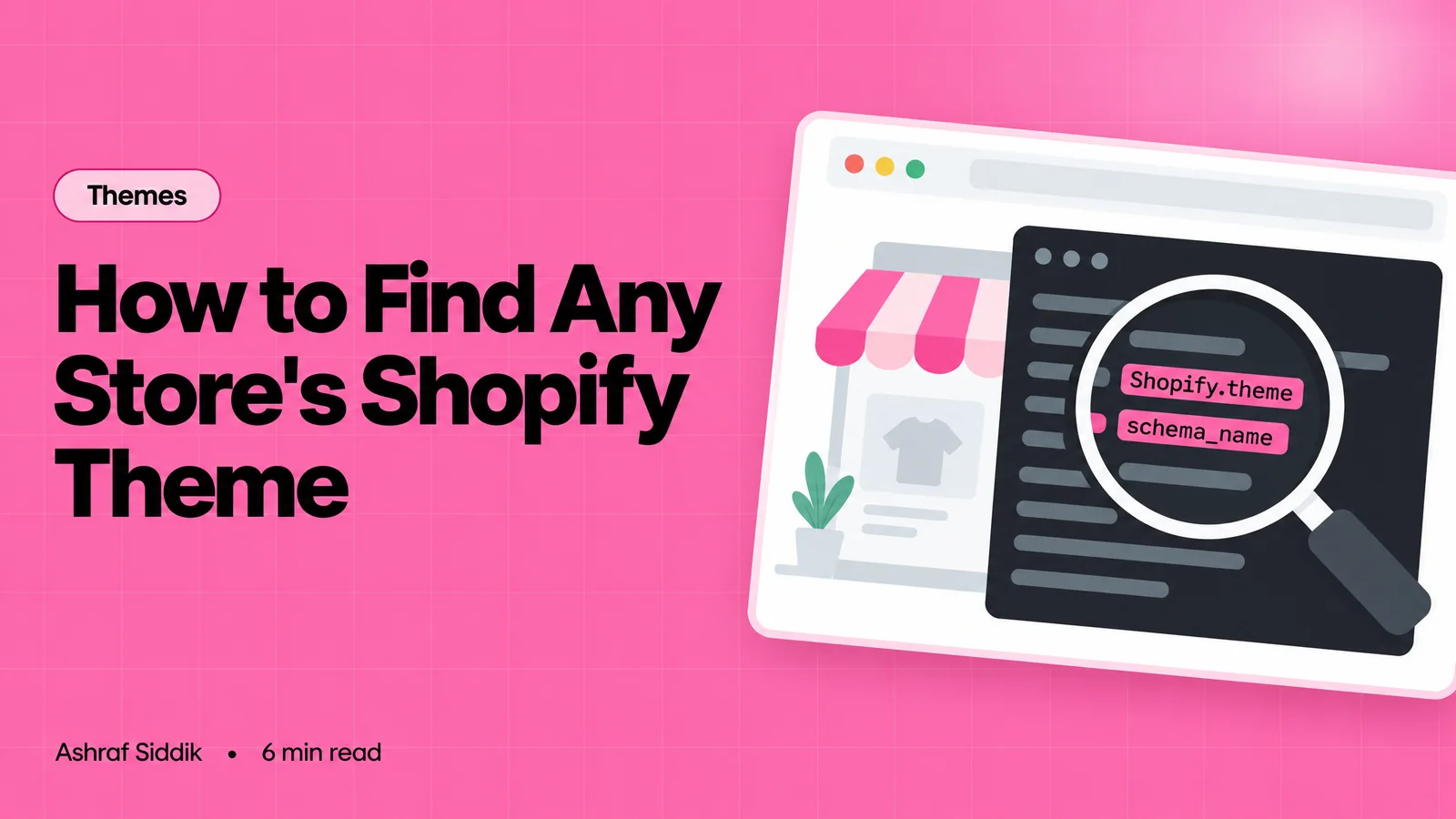
How to Find Out What Theme a Shopify Store Uses
Every Shopify store names its theme in the page code. Here is where to look, how to read what you find, and what it means for your own theme choice.
-
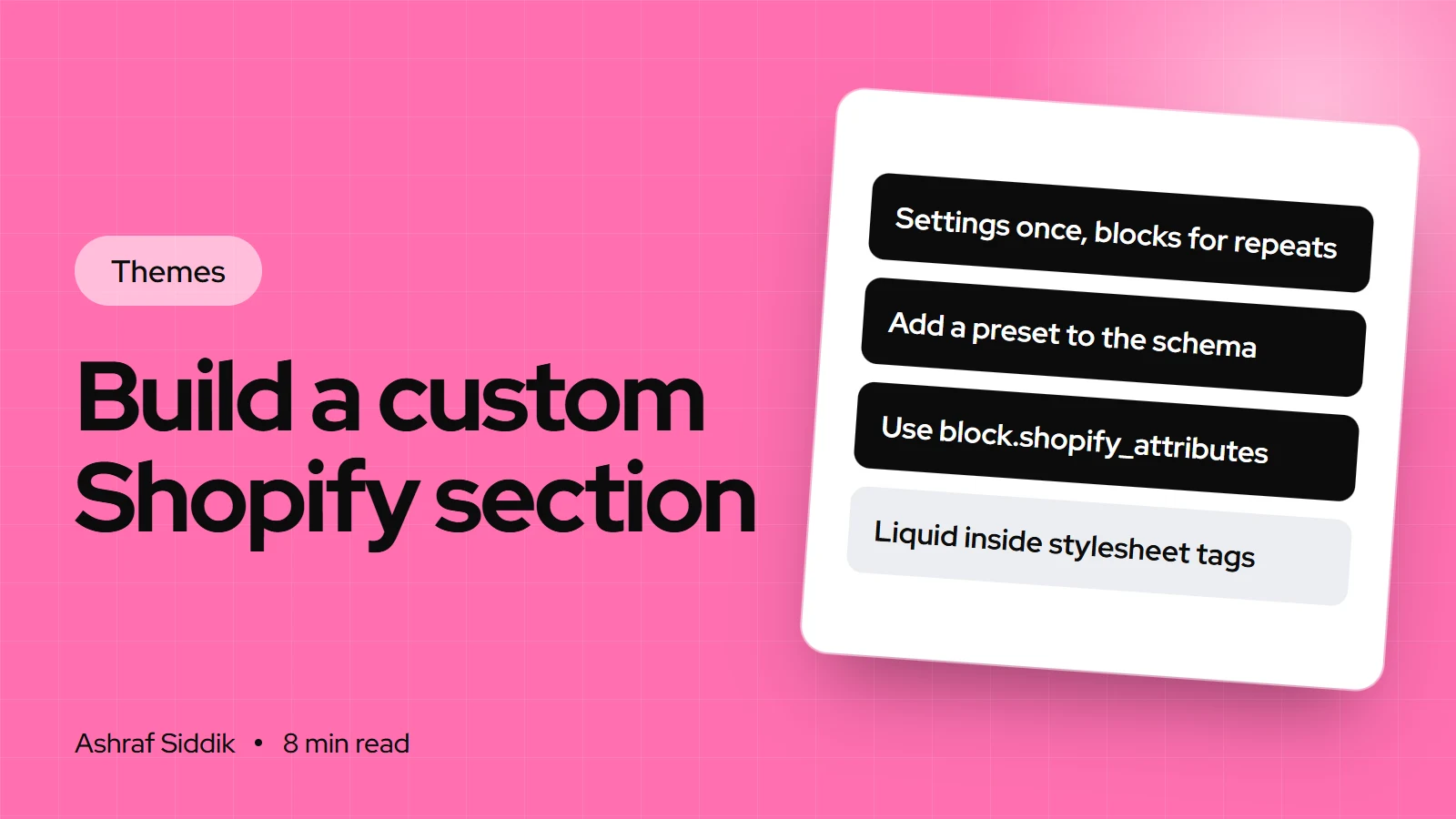
How to Build Custom Sections in Shopify
A custom section adds exactly the layout your store needs and stays editable in the theme editor. This tutorial builds one from an empty file to a tested, reusable section.